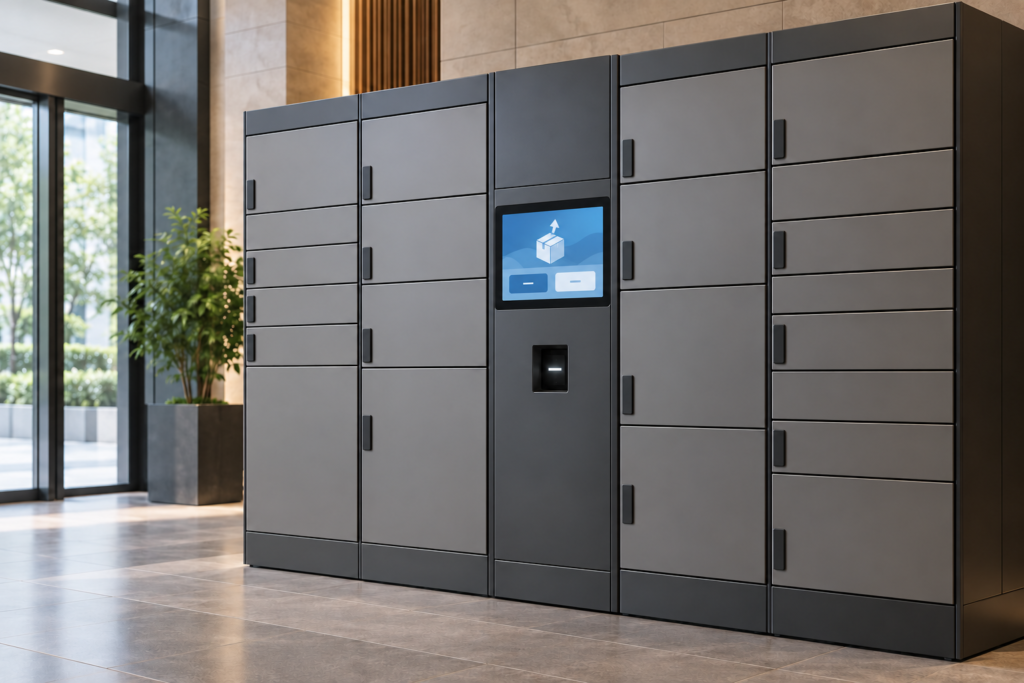
An indoor parcel locker needs a screen that helps a user collect the correct parcel and understand what to do next. The interface must also handle a door that does not open, a scanner that cannot read a code, or a session interrupted before collection finishes.
This guide examines a 7-inch TFT touch interface for an indoor locker terminal, using RJY Display’s published RT2660TP-MAIN-V1.0 display solution as an evaluation candidate. It describes a proposed application, not a customer deployment or an approved locker-system reference design.
Design the collection flow around confirmed cabinet states
Define the normal sequence before choosing the display: start a collection session, present a pickup credential, wait for authorization, identify the assigned compartment, open it, collect the parcel, and finish. Assign each state to the subsystem that can confirm it.
The screen can acknowledge a tap or scan immediately. It should show an authorized collection only after the responsible service approves it. A sent unlock command is different from an open-door indication. Likewise, a closed-door indication does not necessarily establish that the lock has secured it.
Agree on the available feedback from the cabinet controller, locks, and door sensors. Map each user-facing state to a defined controller response or sensor signal. If a compartment fails to open, keep the relevant assistance path available without claiming that collection has completed.
Define the supported pickup and delivery workflows separately. Couriers and recipients may need different actions and permissions. A shared terminal should make the current role clear without exposing another user’s parcel information.
Evaluate the published 7-inch TFT solution
O 7-inch touch LCD product record lists RT2660TP-MAIN-V1.0, an 800 × 480 pixel display, HDMI and VGA video inputs, and capacitive touch.[1] Treat it as a candidate for indoor prototype evaluation. Request the exact supplied panel, controller, touch configuration, and controlled assembly documents before ordering.
| Item publicado | Locker-interface use | O que verificar |
|---|---|---|
| 7-inch display format | Pickup instructions, a keypad, and compartment guidance | Installed viewing distance, physical text size, reach, and fascia fit |
| 800 × 480 pixels | A focused landscape workflow | Actual translations, keypad spacing, error messages, and any scaling |
| HDMI and VGA input paths | Potential video connection to an embedded host | The selected host output mode, controller configuration, startup, and recovery |
| Touch capacitivo | A possible local input method | Host interface, touch controller, cable, driver, cover stack, and coordinate mapping |
The product title mentions Raspberry Pi, but that does not establish compatibility with every Raspberry Pi model, operating-system image, or enclosure. Confirm the exact host and software configuration. The published power-connector description also does not establish the complete terminal’s current budget.
Keep native panel resolution separate from supported video input modes. Test whether the selected host produces a stable image with readable text at startup and after a signal interruption. Confirm scaling and touch alignment in the final configuration.
Place the screen and scanner around real pickup tasks
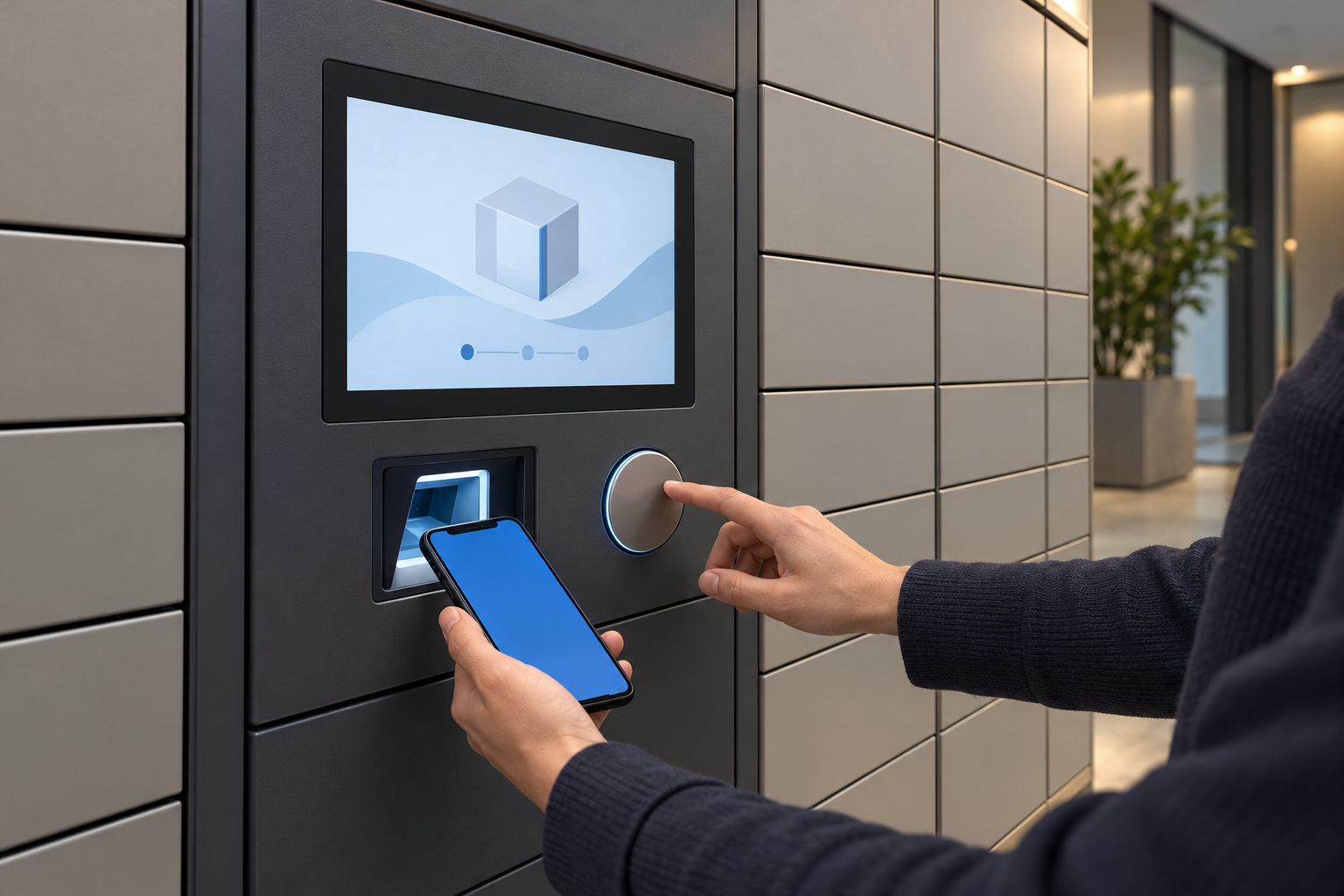
Mock up the terminal fascia with the display, scanner window, controls, and nearby cabinet doors. Test the intended user positions and reach. A screen that looks suitable on a desk may be difficult to read or touch when mounted on a cabinet.
Keep the scan area clear of the user’s hand when they tap the screen. Review reflected light from the display and room fixtures at the scanner window. Confirm phone-screen and printed-code reading with the selected scanner under the intended conditions.
Provide a manual entry path if the service supports it. Use clear input feedback and enough spacing for the intended users. Test long translated instructions and the distinction between deleting one character, cancelling entry, and ending the session.
Keep compartment guidance consistent with physical cabinet labels. If the screen uses a cabinet map, agree on how that map corresponds to the installed arrangement and future expansions. Avoid an illustration that points toward a different door after a service change.
Keep video, touch, scanning, and lock control distinct
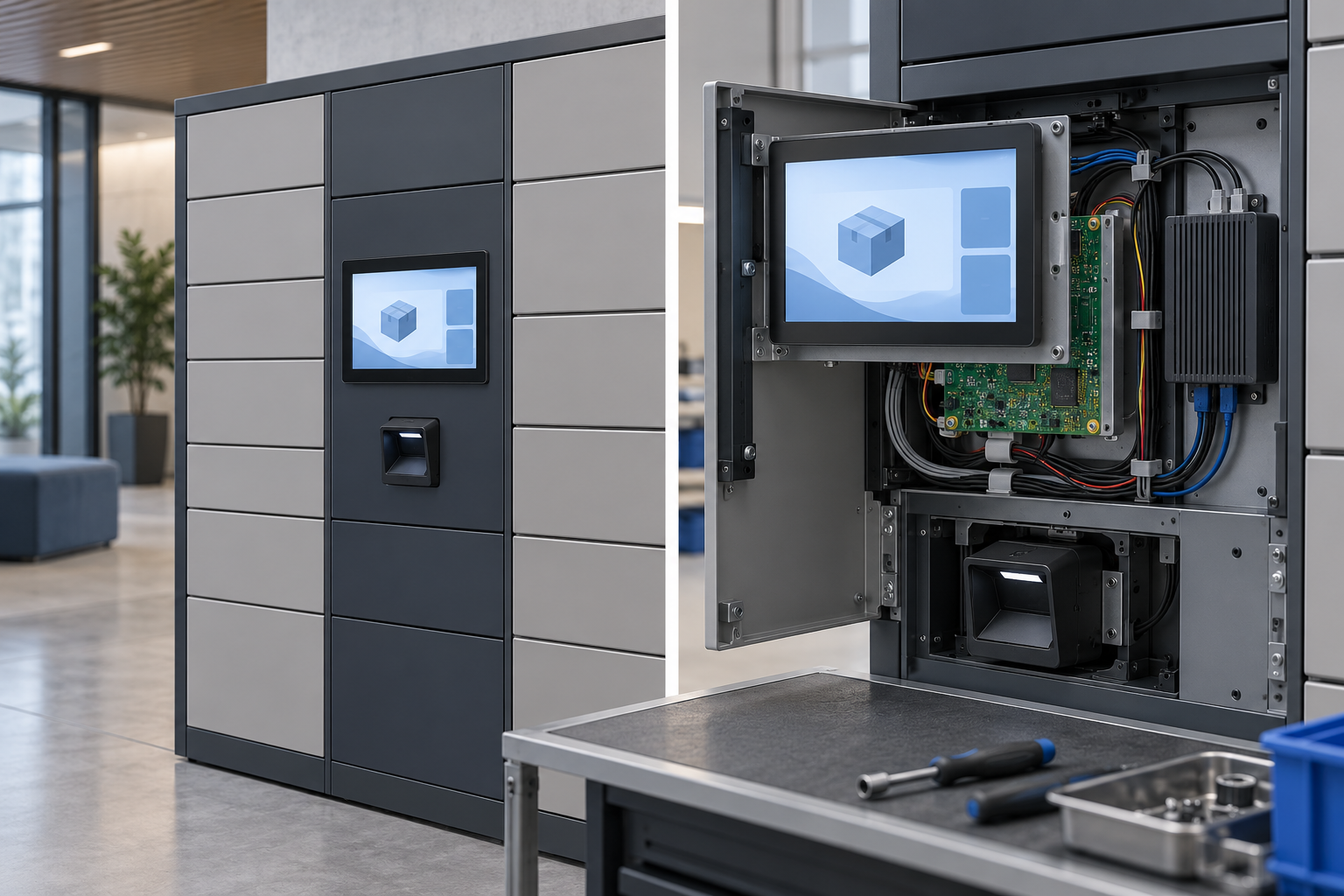
An HDMI connection carries the video path; it does not by itself establish the touch return path, scanner connection, or lock-controller interface. Confirm those connections and their software support separately.
Record the selected host, display controller, touch controller, scanner, cabinet controller, cables, and software image. Define how the application associates an authorization result with the assigned compartment and how it handles repeated input while a request is pending.
When a door command times out, reconcile the actual controller and sensor state before issuing another action. Do not infer failure solely because the screen has not received an acknowledgement. The command may have reached the controller even if its response was lost.
The display solution does not establish an included credential-verification service, lock driver, parcel database, or locker-management application. Define the responsibility and acceptance criteria for each part of the system.
Handle interruptions without losing the collection state
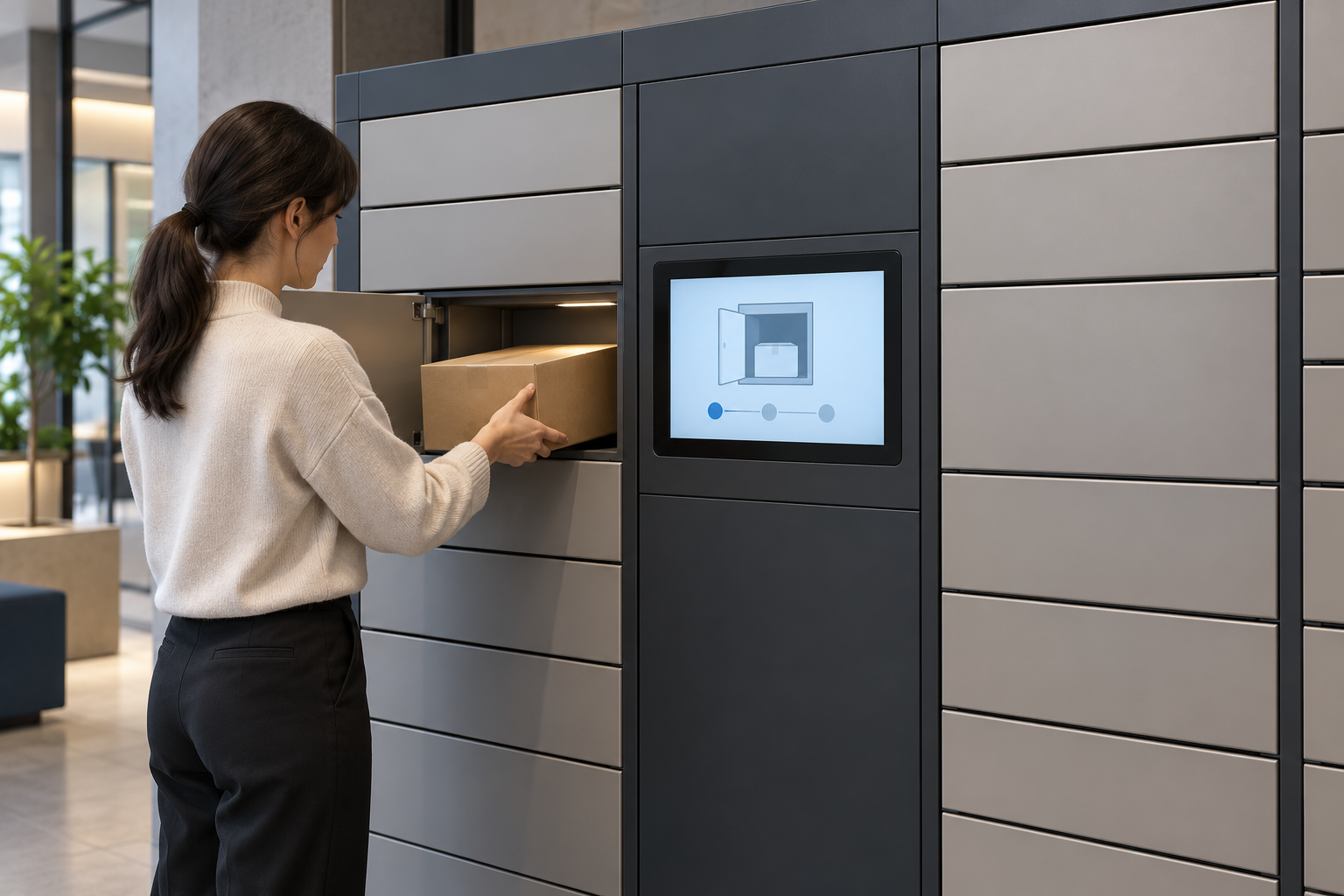
Define behavior for network loss, scanner disconnection, host restart, and power interruption during each stage of collection. Distinguish a terminal that cannot obtain authorization from one that already has a confirmed action in progress.
A timeout must not silently treat an open-door session as successfully completed. Agree on what the user sees, which information the application retains, and how the operator resolves an unfinished transaction. Retain a transaction identifier and the last confirmed stage so the application can reconcile the event after recovery.
If offline collection is required, define it with the locker-software team. Local authorization data, its permitted lifetime, synchronization, and recovery need their own implementation and verification. The display hardware does not establish offline collection capability.
After a restart, verify the cabinet state and any interrupted transaction before presenting the terminal as ready. Test recovery using controlled faults rather than assuming that a normal startup demonstration covers interrupted collection.
Clear the screen between users and support service access
Show only the parcel and recipient information needed for the active task. Decide whether pickup codes are masked and which status details remain visible while the user stands at an open compartment.
At session end, clear the previous user’s code, parcel details, and input history from the public interface. Define public-screen clearing and transaction retention separately so an inactivity timeout preserves the record needed to resolve an unfinished collection.
Keep maintenance functions outside the normal pickup flow. Define how authorized staff enter service mode, inspect relevant faults, and return the terminal to public use. Check error screens and diagnostic overlays for information that should not appear in a shared lobby.
Validate the complete indoor assembly
Use the intended fascia, cover, mounting, power supply, cables, host, and peripherals. The proposed acceptance plan should include:
- Pickup: Code scan and permitted manual entry, authorization feedback, correct compartment guidance, and a complete end-of-session screen reset.
- Cabinet feedback: Delayed or missing acknowledgements, a door that fails to open, a door left open, and any distinction between closure and lock confirmation.
- Recovery: Network loss and power interruption before authorization, during an unlock request, and while a collection remains unresolved.
- Interação: Touch targets, translations, reach, glare, scanner placement, and use with the parcel sizes expected at the terminal.
- Service: Cable access, connector retention, display replacement, revision records, and return from maintenance to public use.
Choose environmental and optical requirements for the actual indoor location. Do not infer outdoor suitability, vandal resistance, ingress protection, or a tested operating duty from the product’s display size or input connector.
Prepare an RFQ for an indoor locker touchscreen
Send RJY the terminal workflow, screen artwork, target languages, fascia drawing, mounting position, and viewing conditions. Include the exact host, video output, software image, touch requirements, power architecture, scanner, and cabinet-controller interfaces.
State which team supplies the authorization service, lock-control software, transaction recovery, and privacy behavior. Add sample quantity, expected annual demand, maintenance requirements, and project timing.
O artigo de produto da RJY engineering and customization services provide a basis for discussing existing display modules, touch, controller matching, cover glass, and enclosure coordination.[2] Utilizar o project inquiry form to request a configuration review before selecting samples.
Common questions
Does HDMI also connect the touch panel?
The HDMI video input does not establish the touch host interface. Confirm the actual touch controller, connection, and driver for the supplied assembly.
Does this display solution include parcel-locker software?
The cited record describes display-related hardware. It does not establish an included parcel database, authorization service, lock controller, or completed locker application.
Can the same configuration be installed outdoors?
Outdoor use needs a separate requirements and assembly review, including lighting, temperature, moisture, enclosure, and touch conditions. This guide covers a proposed indoor application.
Referências
- RJY Display: 7-inch touch LCD product record, RT2660TP-MAIN-V1.0. Confirm the supplied assembly and controlled technical documents.
- RJY Display: engineering and customization services.