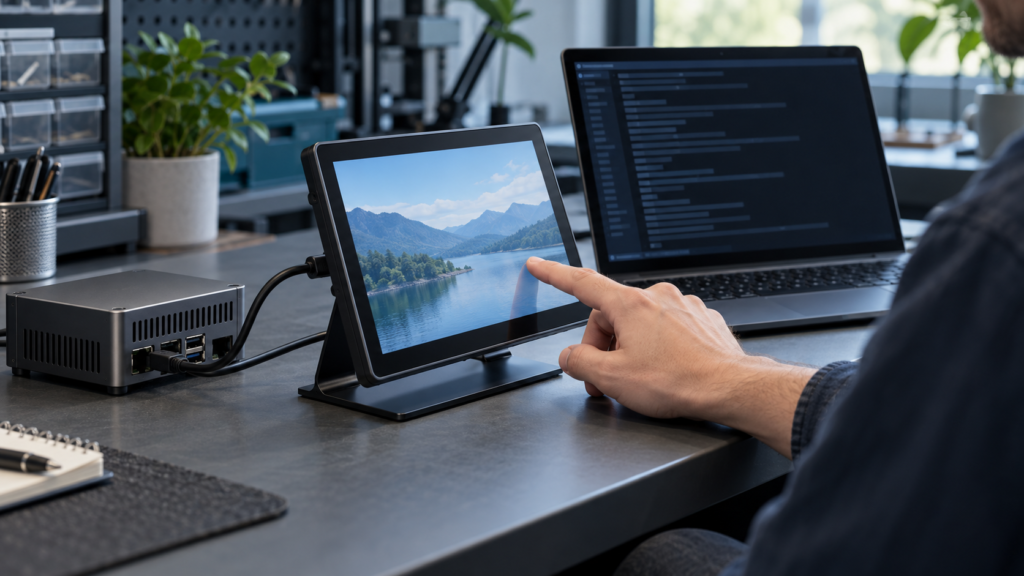
A USB touchscreen can appear in the USB device list while the application still receives no usable touch input. To find the failing layer, test the path in order: device identity, kernel event node, contact events, libinput, and the application. Keep the same touchscreen and test movements throughout so that each comparison answers a specific question.
This Linux USB touchscreen troubleshooting workflow covers touch controllers that expose an evdev interface. It uses read-only diagnostic commands and proposes a repeatable bench procedure. No target touchscreen was connected during authoring; the commands were checked against documentation, and the procedure is not a completed hardware qualification.
1. Record the environment and find the USB device
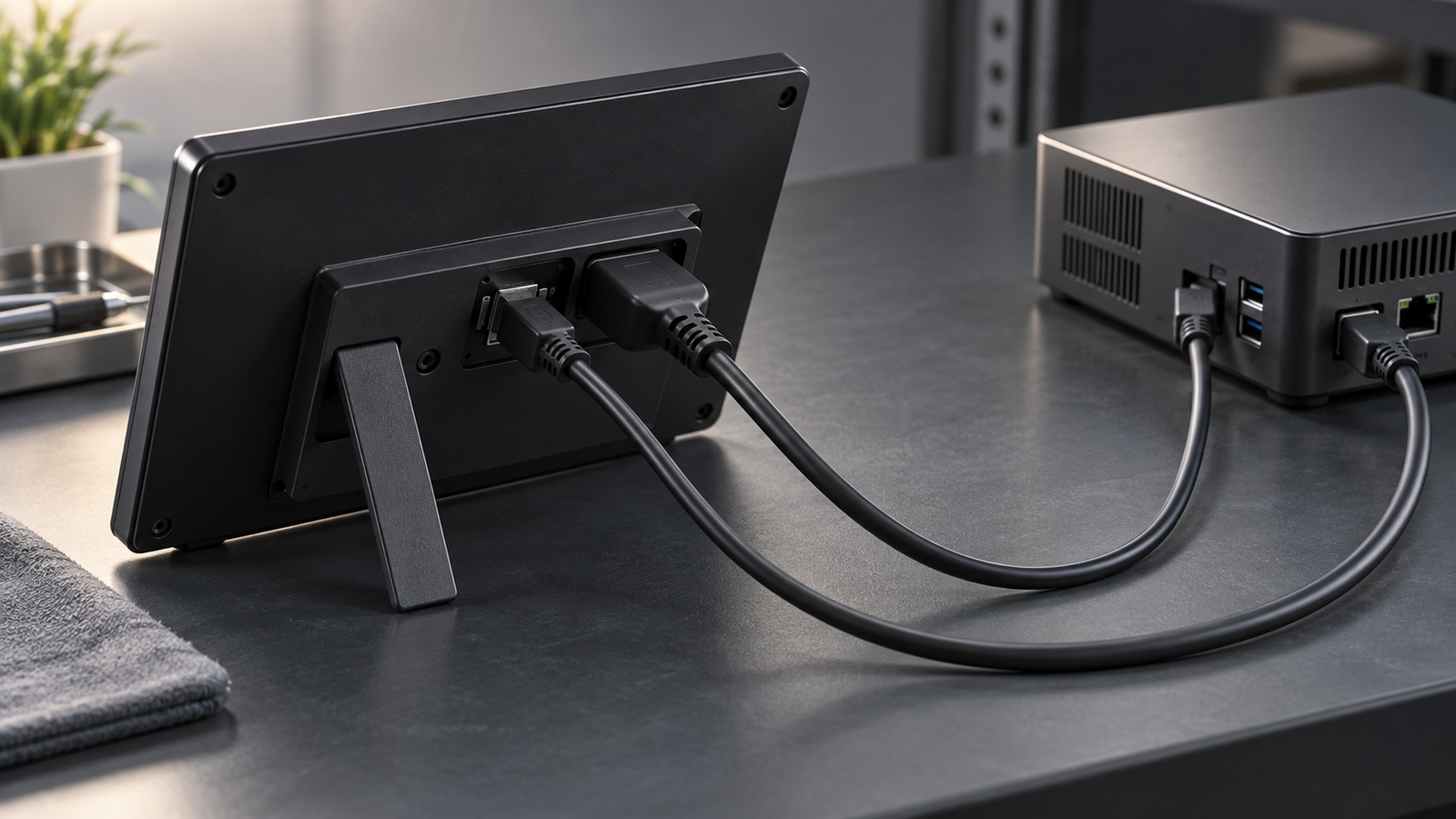
Start with one known touchscreen where practical. Separate the display connection from the touch connection in your notes. A working video image does not establish that the USB touch controller has enumerated.
uname -r
command -v evtest libinput udevadm lsusb
lsusb
cat /proc/bus/input/devices
Record the kernel release and which tools are available. Package names, access permissions, and tool versions vary by distribution. If a command is missing, obtain the appropriate tool through your distribution’s documented process before following that part of the test.
lsusb lists USB devices.[8] Match a plausible controller entry to the hardware documentation or an existing device record. A product name may be generic, so preserve the vendor and product identifiers as well. USB enumeration alone does not prove that the kernel has created a touch event node or that the GUI can use it.
In /proc/bus/input/devices, look for a candidate input device and its event handler. Linux exposes kernel input events to userspace through evdev nodes such as /dev/input/event7.[1] A controller can expose more than one input interface. Do not select a node solely because its name includes “USB.”
If the expected USB identity is absent, resolve that enumeration question first. Record the connection arrangement and whether the device appears consistently. The later event tests cannot diagnose a device that has no identified input path.
2. Confirm the event node before capturing touch
In every command below, N is a placeholder. Replace it with the event number identified on your machine; do not type the letter N literally.
udevadm info --query=property --name=/dev/input/eventN
sudo evtest /dev/input/eventN
udevadm info reads information from the device database. When available, USB identifiers, a serial number, or the device path help connect the node to the controller.[7] Properties can vary or be absent. Keep the output with the capture rather than assuming that an event number will identify the same device after a reconnect.
evtest prints device capabilities and then monitors events. Reading the node often requires elevated permission.[2] Use the permissions appropriate to your test system. Do not change the node to world-writable access. Press Ctrl+C to end each monitoring session.
Start with all fingers lifted. Touch the center once with one finger, then lift. Confirm that this action produces events on the candidate node. Read the capabilities for absolute axes and any multi-touch fields. A node that exposes only unrelated controls is not the touch interface you need.
If several nodes remain plausible, end one session and inspect the next candidate. Keep a note linking each node to its identity and observed response. This avoids interpreting silence from the wrong interface as a controller failure.
Do not add --grab. An exclusive grab changes which clients receive input and would interfere with the later application comparison.
3. Read the event vocabulary before judging the trace
Input reports are stateful: unchanged values need not appear again. EV_ABS identifies absolute-axis events, and SYN_REPORT separates input frames. SYN_DROPPED indicates overflow of the client’s event queue.[3] A capture containing that marker is incomplete; repeat a shorter capture and report the loss. Do not use an incomplete sequence to prove a missing release or a hardware fault.
Read the axis limits printed for the device. These are raw input units, not necessarily LCD pixels. A value near the raw X maximum does not mean that the application should place the pointer at a numerically identical pixel coordinate.
Look for a contact lifecycle as well as position changes. The exact fields depend on the capabilities. Do not assume that every device reports pressure, supports multiple contacts, or uses the same protocol.
For a device using the type B multi-touch protocol, slots retain state. A nonnegative ABS_MT_TRACKING_ID identifies a contact; -1 marks its release. ABS_MT_POSITION_X and ABS_MT_POSITION_Y describe its position. ABS_MT_SLOT can be absent when the selected slot has not changed.[4]
Consequently, a stationary finger does not need to produce repeated coordinates. A trace that lists only the moving finger can still describe two active contacts. Reconstruct the retained state before calling the other finger missing.
4. Run a five-point and two-stroke raw-input test
Keep evtest running on the confirmed node. Use the following proposed protocol to make captures comparable between runs. It checks basic coverage and continuity; it does not set a universal accuracy threshold.
- Tap the center once, hold briefly, and lift fully.
- Repeat at the upper-left, upper-right, lower-right, and lower-left areas. Keep each point visibly inside the active touch area rather than on the bezel.
- Draw one slow horizontal stroke across the usable area, then lift.
- Draw one slow vertical stroke, then lift.
- Repeat any questionable action alone in a shorter capture.
For each tap, record whether a new contact appears, whether its position lies within the reported axis limits, and whether the final lift ends the contact. Compare positions across the five points. They should form a repeatable spatial pattern, but raw axes can differ in direction from the displayed image. Document whether each raw axis increases or decreases with each physical movement, then compare this with the project’s intended orientation. Physical upper-left need not correspond to both axis minima on a rotated or mirrored assembly.
For each stroke, look for a sequence of position changes corresponding to movement. Record sudden jumps, unexpected contact endings, or values that repeatedly stop covering part of the intended area. A horizontal physical stroke may primarily change the other raw axis on a rotated assembly; that observation is useful evidence, not an automatic defect.
Repeat the same motion if something looks wrong. Note whether the anomaly repeats at the same location or occurs unpredictably. Either pattern can guide further investigation, but neither alone identifies the failed component.
A successful basic observation is complete press, movement, and release with repeatable coverage. It does not establish production accuracy, latency, environmental performance, or long-term reliability. Those require application-specific acceptance criteria and a separate qualification plan.
5. Test multiple contacts only when supported
Proceed only if the documented device capability and the event interface support the intended multi-touch test. If they do not, record the limitation rather than interpreting a single-contact result as a failed two-finger test.
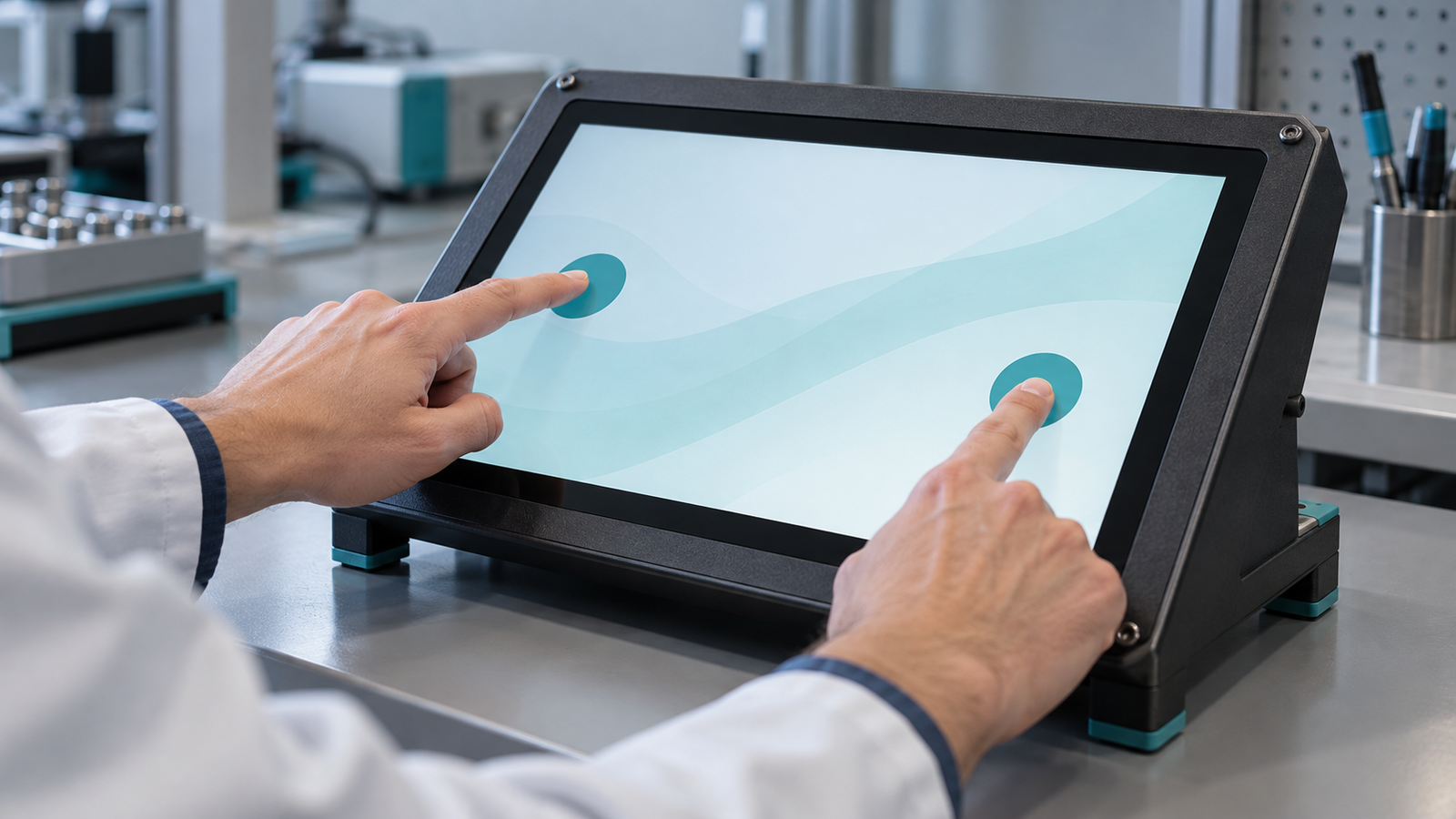
For a supported type B device, place one finger near the left side and hold it still. Place a second finger near the right side. Move only the second finger, lift it, then move and lift the first. Finally, repeat with the roles reversed.
Start the capture with both fingers lifted, then track contact identities and retained slot state across frames. The useful observations are two distinguishable active contacts, movement associated with the intended contact, release of one contact while the other remains active, and release of the last contact. The selected slot or stationary coordinates may not repeat in each frame.
Keep the two fingers far enough apart to make the intended actions clear. This test checks whether the reported lifecycle follows the procedure. It is not a contact-count certification or a minimum-spacing measurement.
If the raw sequence is ambiguous, repeat just the transition that caused doubt. A short capture of “second finger down, second finger up, first finger up” is easier to review than a long session containing many unrelated gestures.
6. Compare libinput with the same physical actions
End evtest, then inspect libinput:
sudo libinput list-devices
sudo libinput debug-events --verbose --device /dev/input/eventN
libinput list-devices shows devices recognized by libinput, their capabilities, and built-in defaults. It does not report the actual desktop configuration.[5] Find the confirmed event node and inspect its reported touch capability. Do not rely on a fixed output-column layout for automated parsing.
libinput debug-events monitors events in a separate context. Its behavior can differ from the compositor or application.[6] Repeat the center tap, horizontal stroke, and final release. If supported, repeat the two-contact sequence. End the session with Ctrl+C.
If raw touch is coherent but libinput does not recognize the node as expected, preserve both outputs. The next investigation concerns recognition, classification, or the tested userspace environment. The comparison has narrowed the question; it has not proved that the panel or controller firmware is defective.
If both tools show coherent touch, move to the actual application. A separate libinput test cannot certify the compositor’s display association, rotation, or application event handling.
7. Locate the failing layer without guessing a fix
| Observation | What it narrows | Next evidence to collect |
|---|---|---|
| USB device present; expected event node unconfirmed | Enumeration is visible, but the input path remains unidentified. | Controller identity, input-device listing, and driver-binding information. |
| Confirmed node opens but shows no touch events | The capture is silent; the cause remains open. | Recheck node identity, access, binding, and possible exclusive access by another client. |
| Raw lifecycle or coverage repeatedly looks wrong | The anomaly appears before application mapping. | A short repeat capture with capabilities, physical actions, and connection conditions. |
| Raw events are coherent; libinput differs | The difference appears at the tested userspace interpretation layer. | Both tool outputs, versions, and device classification. |
| Tools look coherent; application position or release differs | The actual GUI path needs inspection. | Compositor or toolkit mapping, output association, rotation, and application behavior. |
An open device handle does not prove an exclusive grab. Likewise, no events do not prove failed hardware: a wrong node, access condition, grab, or driver path can produce a silent capture. Avoid changing several settings at once; doing so removes the controlled comparison.
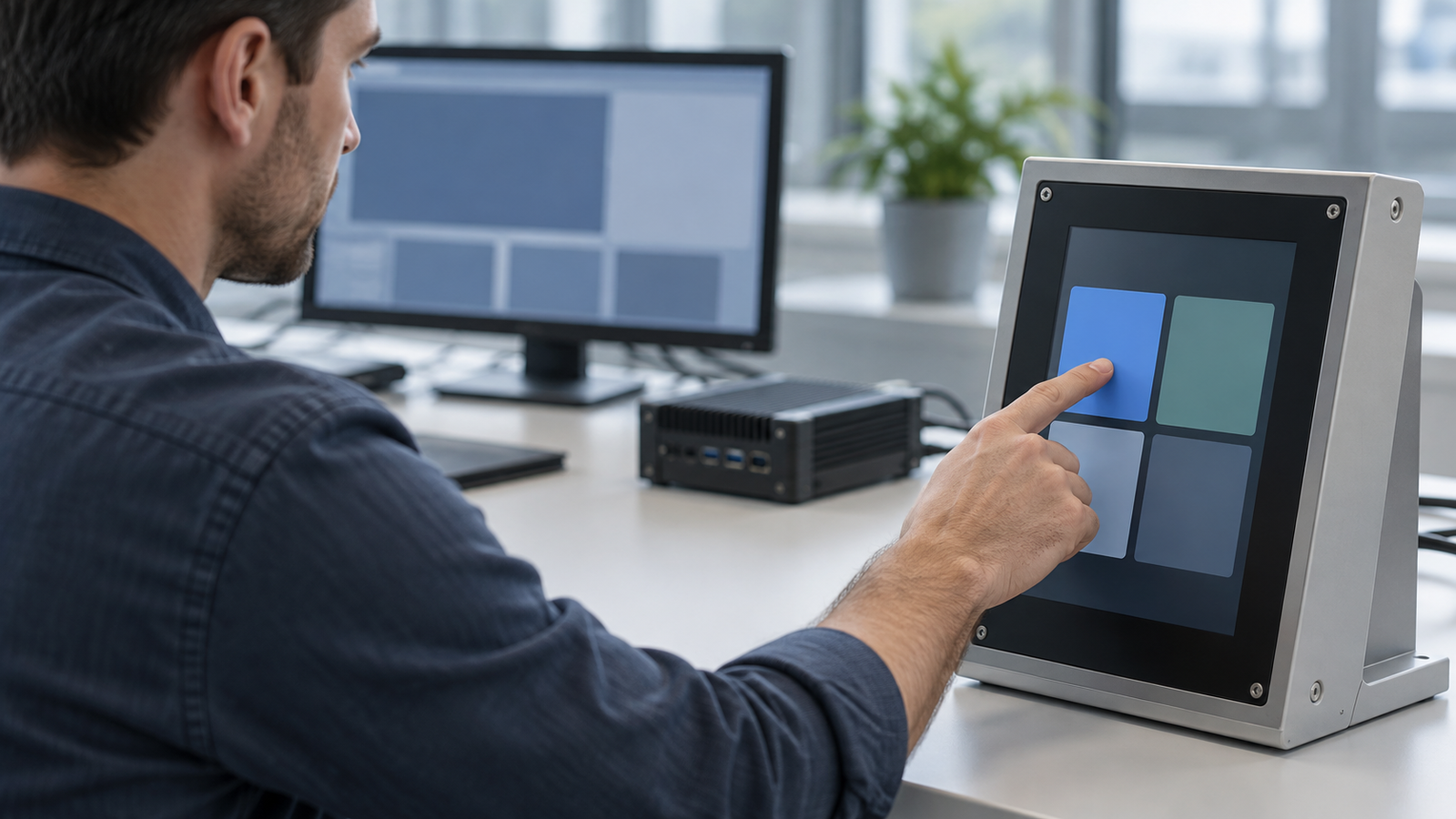
In the application, repeat the same five points and strokes. Record whether the mismatch affects the whole desktop, one output, or one application. Inspect the configuration actually used by that compositor or toolkit. This guide does not prescribe a universal calibration matrix.
8. Prepare a small, reproducible technical handoff
Provide the display and touch-controller models, USB identifiers, kernel release, tool versions, confirmed event node, and capability output. Include a short event excerpt tied to exact physical actions, plus the observed difference between raw input, libinput, and the application. State whether the capture contains any dropped-event marker.
Also describe the host, display orientation, connected outputs, touch connection, and application environment. Remove unrelated output. A concise reproduction gives another engineer a better starting point than a large log labeled only “touch does not work.”
For broader module requirements, see the touchscreen module guide; for a separate platform architecture discussion, see Android touch and HDMI touch. To request project-specific review, send RJY the model details and the bounded test record. RJY can discuss documented display and touch-module requirements from that record. Compatibility and any adaptation of an existing module still require verification for the actual controller, host, software, and application.
References
- Linux kernel documentation: input subsystem introduction.
- Debian manual: evtest.
- Linux kernel documentation: input event codes.
- Linux kernel documentation: multi-touch protocol.
- libinput documentation: helper tools.
- Debian manual: libinput debug-events.
- systemd documentation: udevadm.
- Debian manual: lsusb.