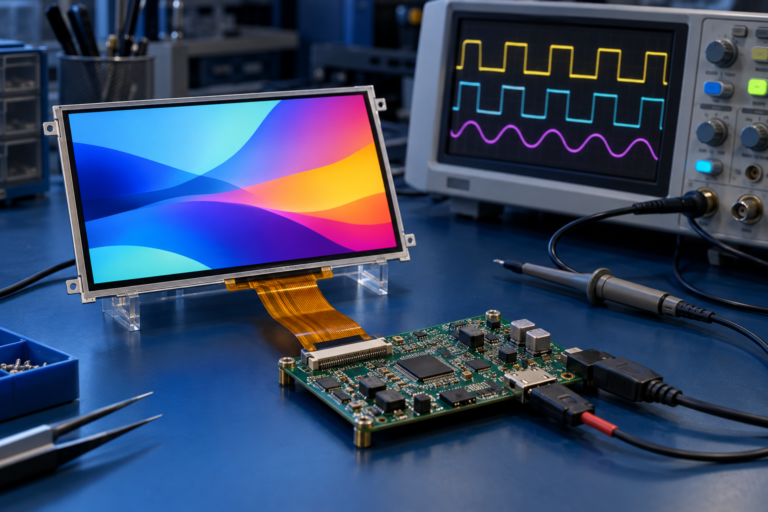
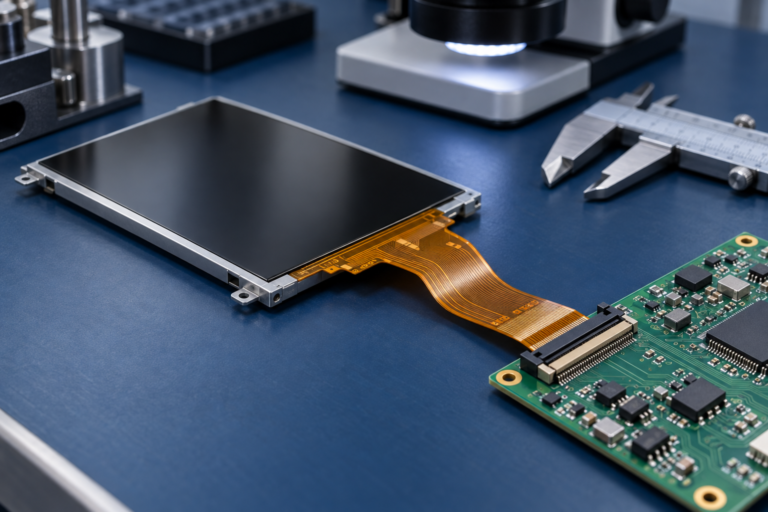
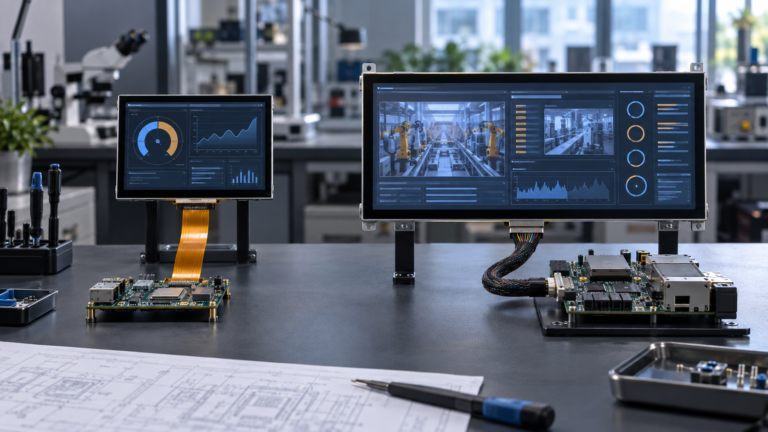
임베디드 디스플레이 프로젝트에 병목 현상을 겪고 계신가요?
복잡한 통합 작업이나 공급망 문제로 출시 시기가 지연되지 않도록 하십시오. 맞춤형 설계 및 제조 지원을 위해 RJY 전문가 팀과의 무료 상담을 예약하세요.

TFT LCD 라즈베리 파이 디스플레이를 통합하는 것은 하드웨어 개발에서 가장 좌절스러운 통과 의례인 경우가 많습니다. Pi의 GPIO 헤더에 화면을 연결했을 때 악명 높은 "죽음의 하얀 화면(White Screen of Death)"만 마주한 적이 있다면, 이 통합 과정이 얼마나 복잡할 수 있는지 정확히 알 것입니다.
임베디드 소프트웨어 엔지니어, 하드웨어 해커 및 산업용 IoT 아키텍트에게 라즈베리 파이는 신속한 프로토타이핑의 확고한 표준입니다. 기본적인 “헤드리스” 상태(SSH를 통해 접근)에서는 소리 없이 묵묵히 일하는 동력원입니다. 그러나 인간-기계 인터페이스(HMI)가 필요한 순간—스마트 홈 온도 조절기, 공장 현장 제어판 또는 맞춤형 의료 기기 프로토타입을 구축하든—코드와 물리적 상호작용 사이의 간극을 연결해야 합니다.
Integrating a tft lcd raspberry pi 디스플레이를 통합하는 것은 하드웨어 개발에서 가장 난처한 통과의례인 경우가 많습니다. 라즈베리 파이의 GPIO 헤더에 화면을 연결했는데 악명 높은 “죽음의 백색 화면”이 나타난 경험이 있다면, 이 통합이 얼마나 복잡할 수 있는지 잘 알고 계실 것입니다.
이 포괄적이고 단계별 공학 가이드는 라즈베리 파이에서 TFT LCD를 성공적으로 구축하는 데 필요한 정확한 하드웨어 연결, 기반이 되는 Linux 디바이스 트리 오버레이, 그리고 현대적인 Wayland/X11 소프트웨어 구성을 상세히 안내합니다.
점퍼 와이어 하나 만지거나 sudo nano, 를 입력하기 전에 반드시 이해해야 할 것은 어떻게 디스플레이가 라즈베리 파이와 통신하는 방식입니다. 연결 방식은 프레임 속도, CPU 오버헤드 및 필요한 소프트웨어 드라이버를 완전히 결정합니다.
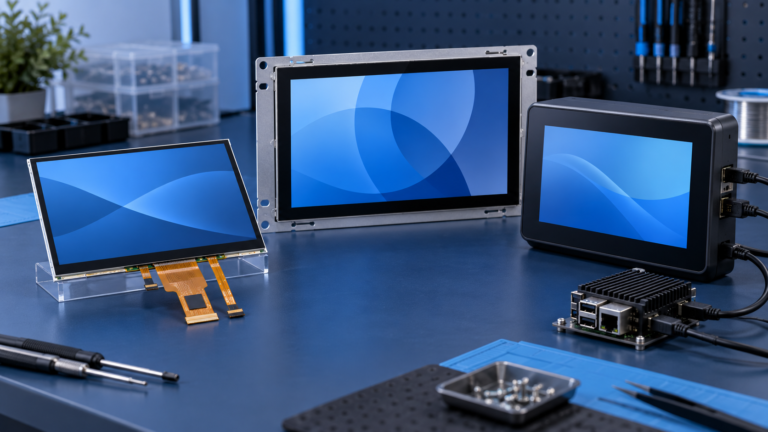
tft lcd raspberry pi 디스플레이를 연결하는 네 가지 주요 방법이 있습니다.
이는 소형 디스플레이(1.5인치 ~ 3.5인치)에 가장 일반적인 인터페이스입니다. 이러한 디스플레이는 40핀 GPIO 헤더에 직접 장착됩니다.
이는 라즈베리 파이 보드의 전용 리본 케이블 커넥터(라즈베리 파이 5 모델에서는 “DISPLAY” 또는 “MIPI”로 표시됨)를 활용합니다.
DPI는 거의 모든 GPIO 핀(RGB888 색상의 경우 최대 24핀 및 동기 신호)을 사용하여 원시 LCD 패널을 구동합니다.
대형 tft lcd raspberry pi 화면(5인치 ~ 10인치)은 종종 디스플레이 신호에 표준 HDMI를, 터치 인터페이스에 USB 케이블을 사용합니다.
이 실습 가이드에서는 가장 악명 높게 어려운 통합인 SPI 기반 GPIO 디스플레이, 에 초점을 맞출 것입니다. Linux 커널에 대한 가장 깊은 이해가 필요하기 때문입니다.
SPI 디스플레이가 “HAT”(상단 부착 하드웨어)처럼 GPIO 헤더에 직접 끼워지지 않는 경우 수동으로 배선해야 합니다.
라즈베리 파이 전원이 켜진 상태에서 절대 디스플레이를 배선하지 마십시오. GPIO 핀을 핫 플러깅하면 전압 서지가 발생하여 LCD 드라이버 IC를 즉시 파괴하거나, 더 나쁘게는 라즈베리 파이의 Broadcom SoC를 태울 수 있습니다.
표준 SPI tft lcd raspberry pi 화면을 작동시키려면 전원, SPI 버스(MOSI, SCLK, CE) 및 제어 핀(DC, Reset)을 연결해야 합니다.
암-암 점퍼 와이어를 사용하여 실행해야 하는 표준 매핑은 다음과 같습니다:
| 디스플레이 핀 | 기능 | 라즈베리 파이 물리적 핀 | 라즈베리 파이 BCM GPIO |
| VCC/5V | 전원 | 핀 2 또는 4 | 5V 전원 |
| GND | 접지(Ground) | 핀 6(또는 아무 GND 핀) | 접지(Ground) |
| MOSI(SDI) | 화면으로의 데이터 | 핀 19 | GPIO 10(SPI0_MOSI) |
| SCLK(SCK) | SPI 클록 | 핀 23 | GPIO 11(SPI0_SCLK) |
| CS / CE0 | 칩 선택 | 핀 24 | GPIO 8(SPI0_CE0) |
| DC / RS | 데이터/명령 | 핀 22 (일반 기본값) | GPIO 25 |
| RST / RES | 리셋 | 핀 18 (일반 기본값) | GPIO 24 |
| BLK / LED | 백라이트 | 핀 12 (PWM) 또는 3.3V | GPIO 18 (PWM0) |
엔지니어링 팁: 그리고 DC (데이터/명령) 핀이 매우 중요합니다. SPI는 1과 0만 전송합니다. 디스플레이 컨트롤러(예: ILI9341)는 이 1과 0이 픽셀 색상 데이터인지, 아니면 시스템 명령(예: “화면 켜기”)인지 알아야 합니다. DC 핀은 하이 또는 로우로 토글되어 컨트롤러에게 들어오는 SPI 데이터를 어떻게 해석해야 하는지 알려줍니다.
화면을 배선했습니다. 파이에 전원을 넣습니다. 화면이 켜지지만 완전히 하얗습니다. 이것이 바로 죽음의 하얀 화면. 입니다. 이는 백라이트에 전원이 공급되고 있지만, 라즈베리 파이 커널이 화면의 존재를 인식하지 못해 픽셀 데이터를 전송하지 않고 있음을 의미합니다.
Linux 커널에게 이 화면과 통신하는 방법을 알려주어야 합니다. 최신 라즈베리 파이 OS(Bookworm 이상)에서는 디바이스 트리 오버레이(dtoverlay).
먼저, 파이의 SPI 하드웨어를 활성화해야 합니다.
sudo raspi-configTFT LCD 패널은 단순한 유리판입니다. 이들은 유리판 뒷면(또는 PCB 위)에 부착된 마이크로칩에 의해 구동됩니다. 유럽/미국 메이커 시장에서 가장 흔한 컨트롤러는 다음과 같습니다:
귀하의 반드시 화면이 어떤 컨트롤러를 사용하는지 알아야 합니다. 제조사의 데이터시트를 확인하세요.
config.txt편집.
최신 라즈베리 파이 OS에서는 부트 구성 파일 위치가 변경되었습니다.
nano 텍스트 편집기를 사용하여 엽니다:
Bash
sudo nano /boot/firmware/config.txt (참고: 이전 Bullseye OS 버전에서는 경로가)
/boot/config.txt ILI9341 입니다.)
파일 하단으로 스크롤하여 사용 중인 드라이버에 맞는 특정 오버레이를 추가하세요. 예를 들어, 위 표와 정확히 동일하게 배선된
화면을 사용하는 경우:
Ini, TOML ST7789 # SPI 활성화
파일 하단으로 스크롤하여 사용 중인 드라이버에 맞는 특정 오버레이를 추가하세요. 예를 들어, 위 표와 정확히 동일하게 배선된
dtoverlay=adafruit-st7789v-hAT,fps=30
디스플레이(일반적으로 Adafruit PiTFT에서 사용됨)의 경우:dtoverlay=adafruit-st7789v-hAT,fps=30, 파일을 저장하고(Ctrl+OEnter).
) 종료합니다( Ctrl+X.
).
sudo reboot.
올바르게 구성되었다면, 부팅 중 하얀 화면이 검은색으로 변하고 결국 작은 화면에 Linux 콘솔 텍스트가 스크롤되는 것을 보게 될 것입니다. 4. 현대 그래픽 아키텍처: FBCP vs. DRM/KMS (프레임버퍼 복사). 기본 GPU 프레임버퍼(fb0)의 스냅샷을 생성하여 이를 SPI 화면의 프레임버퍼(fb1).
Wayland 현실 점검 Raspberry Pi OS Bookworm부터 X11 윈도우 시스템과 레거시 프레임버퍼 아키텍처는 폐기되었습니다. 이제 Pi는 Wayland (구체적으로 Wayfire 컴포지터)와 DRM/KMS.
4. 현대 그래픽 아키텍처: FBCP vs. DRM/KMS (Direct Rendering Manager / Kernel Mode Setting) 아키텍처를 사용합니다.
오늘날 UI 구동 방법:.
산업용 HMI나 맞춤형 장치를 제작하는 경우, 어차피 3.5인치 화면에서 전체 데스크톱 GUI를 실행하려고 해서는 안 됩니다. 대신 하드웨어 가속 라이브러리를 사용하여 DRM/KMS 레이어에 직접 렌더링하는 애플리케이션을 작성해야 합니다.
Qt 애플리케이션을 또는 eglfs 또는.반드시 웹 기술(HTML/CSS/JS)을 사용해야 한다면, Wayfire가 로컬 Node.js 서버를 가리키는 전체 화면 Chromium 브라우저로 직접 부팅되도록 구성할 수 있습니다.
스마트폰과 유사합니다. 공장에서 그리드가 픽셀에 디지털 방식으로 매핑되므로 일반적으로 보정이 필요하지 않습니다. SPI 대신 I2C 버스를 사용합니다. Wayland/Libinput에서 XPT2046 저항식 화면 보정 X11이 더 이상 사용되지 않으므로, 기존의 xinput_calibrator 그리고 도구는 쓸모없어졌습니다. 오늘날 터치스크린은 libinput.
udev규칙으로 처리됩니다.먼저, 터치 드라이버가에 로드되었는지 확인하십시오:dtoverlay=ads7846,cs=1,penirq=17,penirq_pull=2,speed=1000000,keep_vref_on=1 재부팅 후 libinput 보정 도구를 설치하십시오: Bash sudo apt install weston.Wayfire(기본 컴포지터)는 입력 장치에 대해 특정 구성 파일을 사용합니다. 터치 매트릭스를 올바르게 매핑하려면 Wayfire 구성을 편집해야 합니다. 1 0 0 0 1 0.)~/.config/wayfire.ini.
[input].
섹션을 찾으십시오. 보정 매트릭스를 추가해야 합니다. udev (참고: 정확한 매트릭스는 화면이 가로 방향인지 세로 방향인지에 따라 다릅니다. 기본 단위 매트릭스는 속도 입니다.).
파일 하단으로 스크롤하여 사용 중인 드라이버에 맞는 특정 오버레이를 추가하세요. 예를 들어, 위 표와 정확히 동일하게 배선된
터치 축이 반전된 경우(손가락을 위로 움직이면 마우스가 아래로 움직임), 매트릭스 값을 반전시켜야 합니다. 예를 들어, Y축을 반전시키려면 udev 규칙 또는 Wayfire 구성 매트릭스에서 Y축 스케일 승수를 음수 값으로 변경해야 합니다.
6. SPI 버스 오버클럭킹 (프레임률 향상).
100mA 백라이트를 MCU 핀에서 직접 구동하려고 시도하면 결국 프로세서의 전압이 불안정해지거나 GPIO가 손상될 수 있습니다. 사용자 인터페이스가 느리게 느껴진다면, SPI 버스를 오버클럭하여 tft lcd raspberry pi에서 초당 프레임 수를 조금 더 끌어낼 수 있습니다.
매개변수(Hz 단위)를 추가하십시오.
dtoverlay=rpi-display,speed=48000000.
A: Raspberry Pi의 SPI 코어 클록은 분배기 시스템으로 작동합니다. 48MHz를 요청하면 이를 얻을 가능성이 높습니다. 60MHz를 요청하면 Pi가 코어 클록을 분배하여 오히려 31MHz로 떨어뜨려 더 느려지게 할 수 있습니다. 더욱이, 속도를 너무 높게 설정하면(예: 80000000), 물리적인 점퍼 와이어가 안테나 역할을 하여 전자기 간섭(EMI)을 유발하고 데이터를 손상시켜 화면에 정적 "눈"이나 반전된 색상이 가득 차게 될 수 있습니다. SPI 속도를 높이려면 가능한 한 짧은(10cm 미만) 선을 사용하십시오.
dtparam=spi=on 이 활성화되어 있는지 확인하십시오. udev.dtoverlay .A: 기술적으로는 가능하지만, 실제로는 불가능합니다. SPI 버스는 320×480 픽셀을 초당 60프레임으로 전송할 대역폭이 충분하지 않습니다. 비디오 재생 시 심한 화면 찢어짐이 발생하며, 데스크톱 UI는 매우 느리게 반응할 것입니다. 데스크톱 환경이나 비디오 재생을 위해서는 MIPI DSI 또는 HDMI 디스플레이를 사용해야 합니다. SPI 화면은 단순하고 정적인 GUI, 버튼 및 텍스트 표시용으로 적합합니다.
A: 터치 축이 디스플레이 축과 반대로 설정된 경우입니다. 이는 소프트웨어에서 디스플레이를 회전시킨 경우(예:, display_lcd_rotate=2) 터치 매트릭스를 회전시키지 않아 발생합니다. X축과 Y축을 교환하거나 반전시키기 위해 도구는 쓸모없어졌습니다. 오늘날 터치스크린은 규칙 또는 Wayfire/X11 구성 내에서 변환 매트릭스를 적용해야 합니다.
A: Pi 모델과 화면 크기에 따라 가능합니다. Raspberry Pi 4 또는 5는 견고한 5.1V / 3A ~ 5A 전원 공급 장치가 필요합니다. 3.5인치 SPI 화면의 LED 백라이트는 약 100mA ~ 150mA를 소모하며, 이는 5V GPIO 핀이 안전하게 처리할 수 있습니다. 그러나 7인치 또는 10인치 화면은 500mA에서 1A 이상을 소모할 수 있습니다. 5인치보다 큰 화면의 경우, 저전압 스로틀링(노란색 번개 아이콘으로 표시)을 방지하기 위해 Pi의 GPIO 핀이 아닌 외부 전용 USB 전원 공급 장치로 화면에 전원을 공급해야 합니다.
A: 아닙니다. Compute Module 4(CM4) 또는 CM5를 사용하여 상용 제품으로 전환하는 경우, 사용자 정의 캐리어 보드에서 MIPI DSI 라인을 배선하거나 DPI(병렬) 인터페이스를 활용해야 합니다. 이렇게 하면 디스플레이 렌더링이 하드웨어 GPU로 오프로드되어 CPU가 실제 애플리케이션 로직을 실행할 수 있게 되며, 부드럽고 전문적인 60 FPS 애니메이션을 보장합니다.
디스플레이 크기, 해상도, 인터페이스, 밝기, 터치 요구 사항, 컨트롤러 보드 요구 사항 및 적용 환경을 공유해 주십시오.
관련 디스플레이 기술 가이드 및 응용 참고 자료를 계속 읽어보십시오.
이 기사 주제와 관련된 제품 페이지를 탐색해 보십시오.