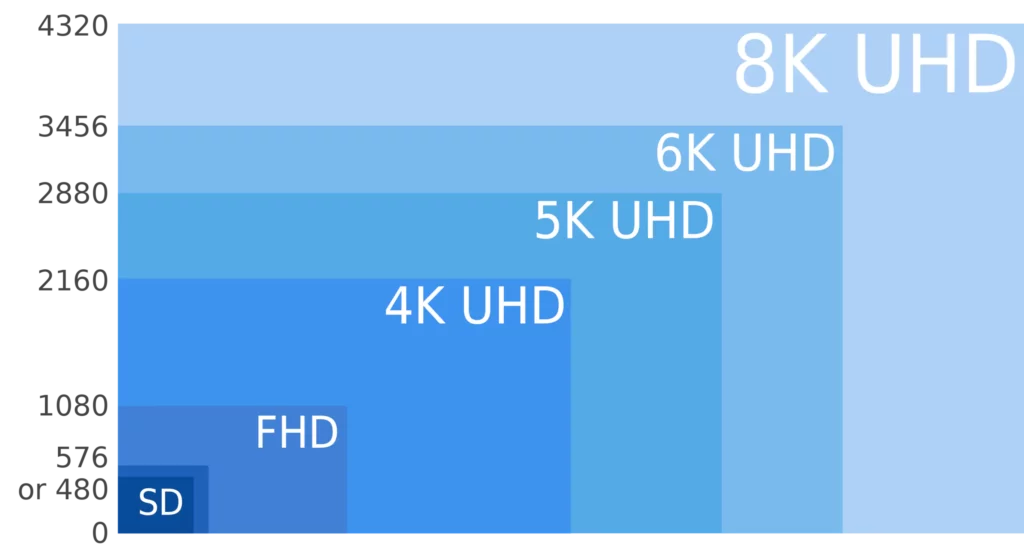
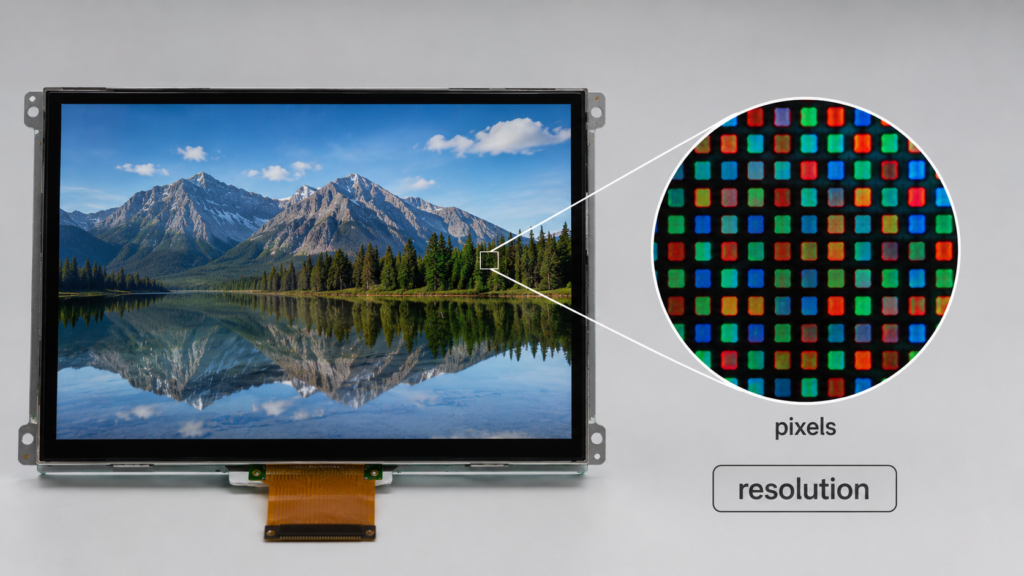
LCD resolution describes how many pixels are arranged across the width and height of a display. It is usually written as horizontal pixels × vertical pixels, such as 800 × 480, 1280 × 720, or 1920 × 1080. A higher resolution means the display contains more pixels, but resolution alone does not fully describe image quality or usability.
The real difference in LCD resolution depends on several factors working together: pixel count, screen size, pixel density, aspect ratio, native resolution, scaling behavior, interface bandwidth, graphics performance, power consumption, and viewing distance.
For B2B display projects, understanding LCD resolution is important because the wrong resolution can affect UI clarity, touch usability, controller board selection, software performance, power budget, and mechanical design. A high-resolution display is not always the best choice. The right resolution is the one that matches the product application.
What Does LCD Resolution Mean?
LCD resolution is the number of pixels built into the display panel. The first number describes the number of pixels across the width. The second number describes the number of pixels across the height.
For example:
- 480 × 272 means 480 horizontal pixels and 272 vertical pixels.
- 800 × 480 means 800 horizontal pixels and 480 vertical pixels.
- 1280 × 720 means 1280 horizontal pixels and 720 vertical pixels.
- 1920 × 1080 means 1920 horizontal pixels and 1080 vertical pixels.
The total number of pixels is calculated by multiplying the two numbers. A 1920 × 1080 display has 2,073,600 pixels. This is why Full HD can show more detail than 800 × 480 when both are used correctly.
However, total pixel count is only one part of the story. A display’s resolution must be evaluated together with screen size, pixel density, aspect ratio, interface, and system capability.
Why LCD Resolution Differences Matter
Resolution differences affect how much information a display can show and how sharp that information appears. In embedded products, this can influence the entire user experience.
A low-resolution LCD may be enough for simple buttons, icons, numbers, and status indicators. A higher-resolution LCD may be needed for detailed graphics, camera feeds, maps, charts, dashboards, dense menus, or image-based interfaces.
Resolution affects:
- Text clarity
- Icon and line sharpness
- UI layout density
- Image and video detail
- Graphics processor workload
- Display interface bandwidth
- Memory and software performance
- Power consumption
- Controller board compatibility
- Product cost
For industrial displays, smart home panels, medical-related interfaces, security equipment, vehicle-related displays, and consumer electronics, the right resolution should be chosen according to how the screen will actually be used.
Common LCD Resolutions and Their Typical Uses
| Resolution | Format Type | Typical Application Fit |
|---|---|---|
| 480 × 272 | Compact widescreen | Small control panels, basic HMI, simple embedded interfaces |
| 800 × 480 | WVGA class | Industrial touch panels, smart home panels, equipment interfaces |
| 1024 × 600 | Widescreen embedded format | 7-inch class displays, HMI terminals, control systems |
| 1280 × 720 | HD | Multimedia UI, dashboards, smart terminals, graphical controls |
| 1280 × 800 | 16:10 format | Tablet-style interfaces, data panels, equipment screens |
| 1920 × 1080 | Full HD | High-detail displays, imaging interfaces, larger embedded panels |
| 1080 × 1080 | Square format | Square displays, dashboards, special UI layouts |
| 1920 × 720 or similar | Bar or stretched format | Bar LCD, signage, vehicle-related displays, narrow equipment panels |
These examples should not be treated as fixed rules. The correct resolution depends on the screen size, viewing distance, UI content, interface, and system design.
Resolution vs Screen Size
Resolution and screen size are different specifications. Resolution describes pixel count. Screen size describes the physical diagonal size of the display, usually measured in inches.
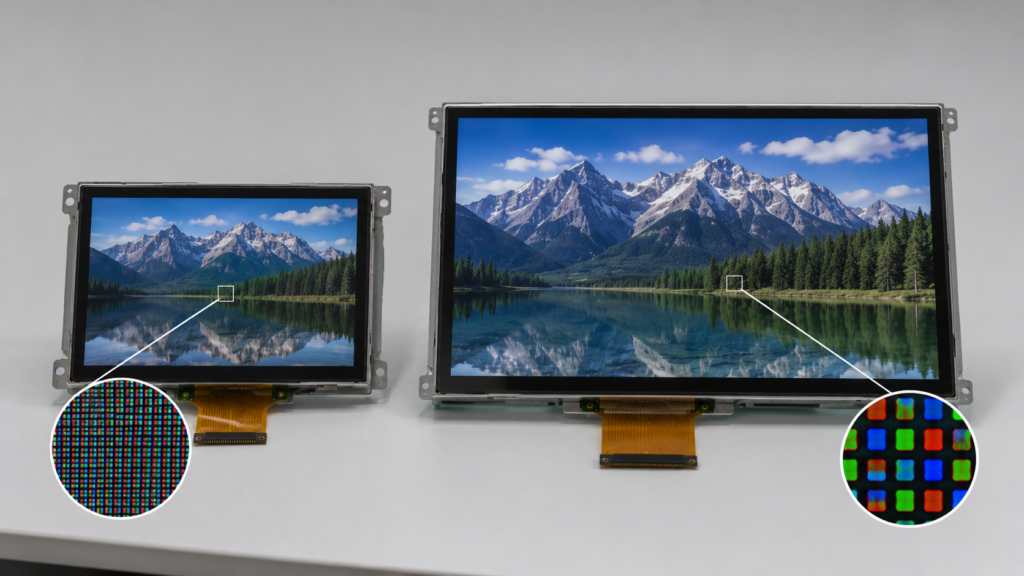
Two LCDs can have the same resolution but different physical sizes. For example, a 5-inch 1280 × 720 display and a 10.1-inch 1280 × 720 display contain the same number of pixels, but the smaller display packs those pixels into a smaller physical area. As a result, the smaller display has higher pixel density and may look sharper at close viewing distance.
The opposite is also true. A large display with a moderate resolution may show larger visible pixels when viewed closely. This may be acceptable for signage or distant viewing, but not for close-range touch interaction.
This is why buyers should not compare LCD resolution without checking physical size and viewing distance.
Resolution vs Pixel Density
Pixel density describes how tightly pixels are packed into the display area. It is usually measured in PPI, or pixels per inch.
A higher PPI usually means finer detail and sharper text at close viewing distance. But higher PPI is not always necessary. A display viewed from farther away can look clear with a lower pixel density than a handheld device.
Pixel density depends on both resolution and physical size. A 1920 × 1080 resolution can produce very different visual results on a 5-inch display, a 10.1-inch display, and a 15.6-inch display.
If you need to estimate diagonal size, aspect ratio, or compare display parameters, you can use RJY Display’s display parameter calculator as a quick reference.
Use the Display Parameter Calculator
Native Resolution: The Resolution the LCD Is Built For
Every LCD panel has a native resolution. This is the physical pixel arrangement built into the panel. A 1024 × 600 LCD panel has 1024 columns and 600 rows of pixels. It cannot physically become a 1920 × 1080 panel just by changing software settings.
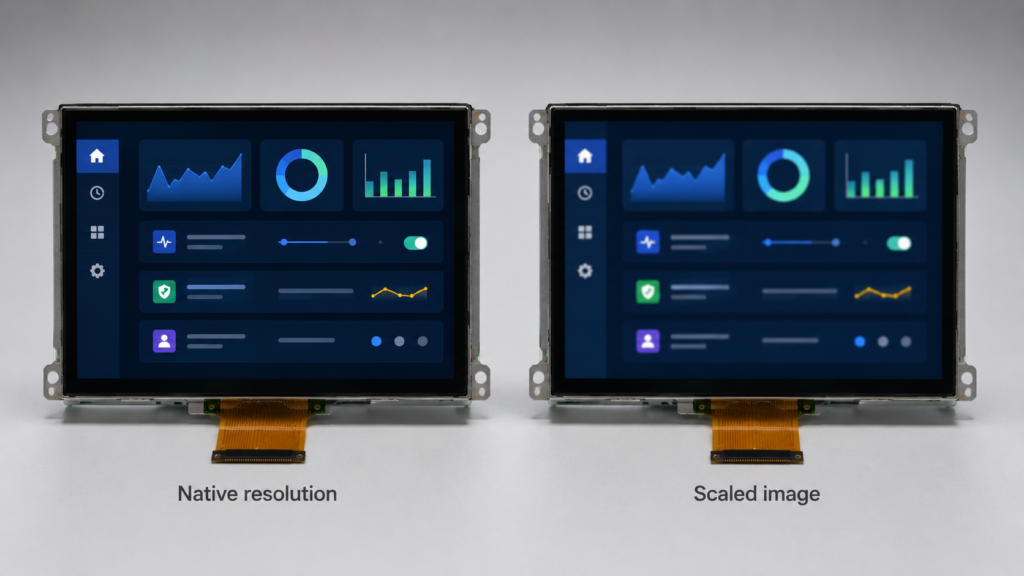
When an LCD is driven at its native resolution, one source pixel can map cleanly to one display pixel. This usually gives the sharpest image.
When the input signal does not match the native resolution, the image must be scaled. Scaling can make text, icons, and lines look softer or less precise, especially if the aspect ratio also changes.
What Is Resolution Scaling?
Resolution scaling means adjusting content from one resolution to another so it can fit the display. This may happen in the operating system, graphics processor, application software, controller board, or display hardware.
Scaling can work in two directions:
- Downscaling: higher-resolution content is reduced to fit a lower-resolution display.
- Upscaling: lower-resolution content is enlarged to fill a higher-resolution display.
Scaling is useful, but it is not the same as having the correct native resolution. If scaling is heavy, text may look blurred, thin lines may become uneven, and UI elements may not align cleanly with the pixel grid.
For embedded devices, scaling should be handled carefully because it can affect touch accuracy, UI clarity, graphics performance, and user experience.
Can Resolution Scale Be Adjusted on TFT LCD Displays?
Yes, resolution scaling can often be adjusted at the system level, but the LCD panel’s native resolution is fixed. The adjustment usually happens through software, graphics settings, application UI design, operating system scaling, or a controller board.
For example, an embedded Linux system, Android system, Windows system, or custom controller board may scale the user interface before sending it to the LCD. Some systems may reduce rendering resolution to improve performance. Others may enlarge content to fit a higher-resolution screen.
However, scaling ability depends on the system, not only on the LCD. The panel, controller board, processor, GPU, memory, display interface, and software stack all affect whether scaling is possible and whether the result looks acceptable.
Benefits of Using Resolution Scaling
Resolution scaling can be useful in some display systems, especially when performance, battery life, or software compatibility matters.
Improved system performance
Rendering fewer pixels can reduce processor and graphics workload. This can help in low-power embedded systems, smart home panels, handheld terminals, or devices where the processor has limited graphics capability.
Lower power demand in some systems
Reducing rendering workload may help reduce system power consumption. However, in LCD systems, the backlight is often a major power consumer, so lowering render resolution does not automatically reduce all display power. The actual power effect depends on system design.
Software compatibility
Scaling may help older software or fixed-layout applications fit a newer display. This can be useful when replacing a discontinued display or upgrading a product while keeping existing software.
Flexible UI development
In some systems, UI designers use scaling to adapt one software layout to multiple display sizes or resolutions. This can reduce development effort, but it must be tested carefully on the final display.
Drawbacks of Resolution Scaling
Resolution scaling also has trade-offs. It should not be used as a substitute for choosing the right panel whenever clarity and precision matter.
Reduced sharpness
Non-native scaling can make text, icons, fine lines, and small UI elements appear softer. This is especially noticeable on close-range touch displays.
Image distortion
If the source aspect ratio and display aspect ratio do not match, scaling may stretch, crop, or add black bars to the image. This can make the UI look poorly designed.
Touch alignment problems
In touchscreen systems, display scaling must match touch coordinate mapping. If the software, controller board, and touch driver are not aligned, touch input may feel offset or inaccurate.
Controller board limitations
Not every controller board supports every scaling mode, resolution, or timing. A display may physically support a resolution, but the controller board and firmware must also match it.
Should You Buy a High-Resolution LCD and Scale It Down?
Buying a high-resolution LCD and scaling content down can be useful in some cases, but it is not always the best engineering choice.
A higher-resolution display may give more flexibility for future UI upgrades, detailed images, and premium appearance. However, it may also increase cost, interface bandwidth, processor workload, memory use, power demand, and software complexity.
For products with simple UI, fixed buttons, basic data display, or strict cost targets, a moderate native resolution may be more practical. For image-based systems, dashboards, camera displays, mapping interfaces, or dense menus, higher resolution may be justified.
The better question is not “Should I buy the highest resolution?” The better question is: “What native resolution matches my UI, viewing distance, processor, interface, power budget, and product cost?”
How LCD Resolution Affects Interface Selection
Higher resolution requires more image data to be transferred. This affects the display interface and controller board.
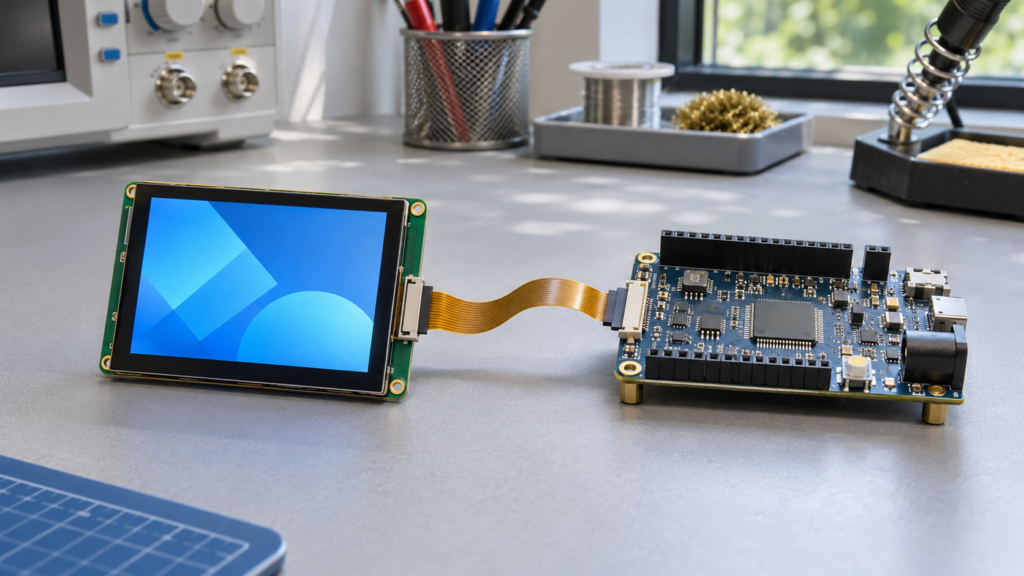
Low-resolution displays may use SPI, MCU, or RGB interfaces depending on the design. Higher-resolution TFT LCD modules often require RGB, LVDS, MIPI DSI, HDMI, or eDP depending on the panel and system architecture.
For controller-board-based projects, resolution must match the board’s output capability, display timing, firmware configuration, and backlight requirements. A mismatch may cause no image, unstable display behavior, wrong scaling, flickering, or poor visual quality.
| Resolution Level | Possible Interface Direction | Engineering Note |
|---|---|---|
| Low resolution | SPI, MCU, RGB depending on module | Often used for compact embedded interfaces |
| Medium resolution | RGB, LVDS, MIPI depending on system | Common in industrial and smart device panels |
| High resolution | LVDS, MIPI DSI, HDMI, eDP depending on architecture | Requires stronger controller and careful compatibility review |
| Special format | Project-dependent | Square, round, or bar displays may need specific UI and controller support |
The exact interface cannot be determined by resolution alone. The panel model, driver IC, pin definition, backlight, touch requirement, and host system must be reviewed together.
How LCD Resolution Affects Power and Heat
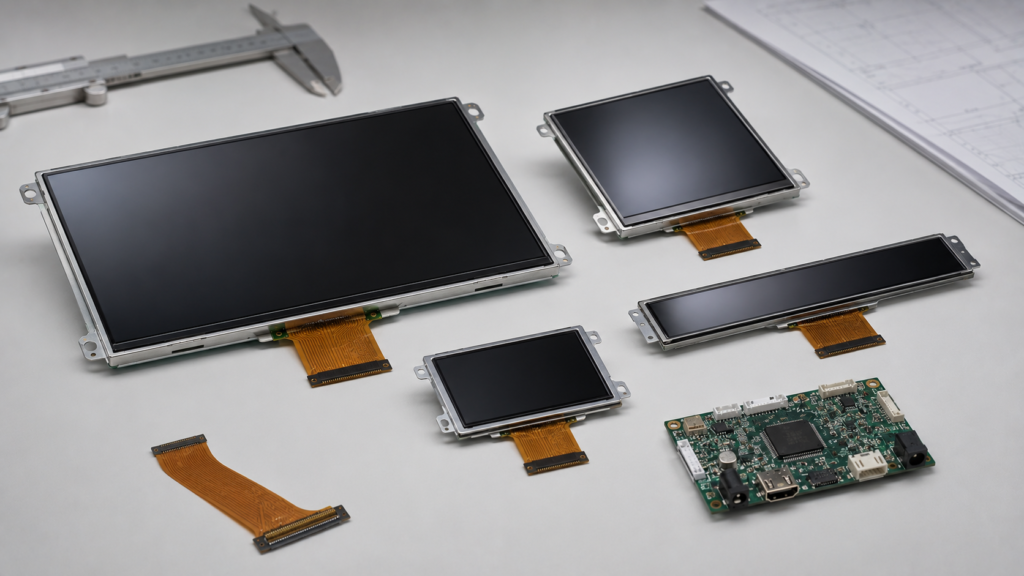
Resolution affects system workload because more pixels usually require more image data, memory bandwidth, and graphics processing. This can increase power consumption at the system level.
In an LCD module, the backlight is often one of the largest power consumers. Therefore, a lower rendering resolution does not automatically mean a major reduction in total display power if the backlight brightness remains the same.
For battery-powered devices, both resolution and backlight brightness should be evaluated. For industrial equipment, power may be less restrictive, but heat, stability, and long-term reliability still matter.
LCD Resolution in Different Applications
Different industries and product types need different resolution strategies. A display should be selected based on the application, not only by comparing resolution numbers.
Industrial HMI
Industrial HMI screens need readable text, clear buttons, stable touch response, and reliable operation. A moderate resolution may be enough for simple control panels, while a higher resolution may be useful for dense dashboards, trend charts, alarms, and multi-window interfaces.
Smart home panels
Smart home displays often need a balance of visual appearance, touch usability, cost, and power consumption. Resolution should support the UI without overloading the controller board or increasing cost unnecessarily.
Medical-related interfaces
Medical-related devices may need clear text, stable viewing, and consistent image display. If the product displays detailed images, the native resolution should be selected carefully. Avoid relying on heavy scaling where detail and readability are important.
Vehicle-related displays
Vehicle-related displays may use standard, square, round, or bar formats depending on the product design. Resolution must match UI layout, viewing distance, brightness requirement, and controller board capability. Do not assume that higher resolution alone improves driving or equipment usability.
Security equipment
Security devices may display menus, camera feeds, status dashboards, or control interfaces. Higher resolution can help with visual detail, but system processing, video input, and display interface must be able to support it.
How to Choose the Right LCD Resolution
To choose the right LCD resolution, start from the product design instead of the resolution table. Ask what the user needs to see, how close they are to the screen, how much information must fit, and what system will drive the display.
Important selection questions include:
- What is the physical screen size?
- What is the normal viewing distance?
- How much text, data, or image detail must be displayed?
- Is the UI mostly static, graphical, video-based, or touch-driven?
- What aspect ratio fits the product enclosure?
- What interface does the host system support?
- Does the project require a controller board?
- What processor or operating system will drive the display?
- What is the power budget?
- Will scaling be used, or will the UI be designed for native resolution?
- Is touch coordinate mapping required?
- What is the target cost and production volume?
These questions help narrow the resolution choice and reduce compatibility problems during development.
Common Mistakes When Comparing LCD Resolution
One common mistake is assuming that higher resolution is always better. Higher resolution can improve detail, but it can also increase cost, power, bandwidth, and software complexity.
Another mistake is ignoring screen size. A resolution that looks sharp on a small display may not look sharp on a much larger display.
A third mistake is using non-native resolution and expecting perfect sharpness. LCD panels look best when the input signal matches their native resolution.
A fourth mistake is ignoring aspect ratio. A display can have enough pixels but still be unsuitable if the screen shape does not match the UI or enclosure.
A fifth mistake is selecting the display before confirming controller board compatibility. Resolution, timing, interface, pin definition, backlight, touch, and firmware all need to match.
RJY Display Support for LCD Resolution Selection
RJY Display supports TFT LCD modules, controller boards, and custom display solution discussions for engineering-driven B2B projects. Resolution selection can be reviewed together with display size, aspect ratio, brightness, interface, touch panel, cover glass, FPC, controller board, firmware, and mechanical structure.
For many projects, the best resolution is not the highest available resolution. It is the resolution that fits the UI, viewing distance, processor, interface, power budget, mechanical design, and production plan.
If your project requires a standard TFT LCD module, square display, round display, bar LCD, high-brightness display, touch display, controller board, or custom display support, prepare the required display size, resolution, interface, brightness, touch, and application details before inquiry.
Send Your LCD Resolution Requirements
Conclusion
The difference in LCD resolution is not only the number of pixels. Resolution must be understood together with screen size, pixel density, aspect ratio, native resolution, scaling behavior, interface bandwidth, controller board support, power consumption, and viewing distance.
Higher resolution can improve detail, but it can also increase system requirements. Lower resolution can reduce cost and workload, but it may not provide enough clarity for dense UI or image-based applications.
For B2B display projects, the best choice is a balanced display configuration. Choose the resolution that fits the actual product: screen size, UI design, viewing distance, interface, touch requirement, controller board, power budget, mechanical structure, and production expectations.
FAQ
What is LCD resolution?
LCD resolution is the number of pixels arranged horizontally and vertically on the display. It is usually written as width × height, such as 800 × 480 or 1920 × 1080.
What is the difference between resolution and screen size?
Resolution describes pixel count, while screen size describes the physical size of the display. Two screens can have the same resolution but different pixel density if their physical sizes are different.
What is native resolution?
Native resolution is the physical pixel arrangement built into an LCD panel. The display usually looks sharpest when the input signal matches this native resolution.
What is resolution scaling?
Resolution scaling adjusts content from one resolution to another so it can fit the display. It may involve downscaling high-resolution content or upscaling low-resolution content.
Does resolution scaling reduce image quality?
It can. Non-native scaling may make text, icons, fine lines, and UI elements look softer or distorted, especially when the aspect ratio does not match.
Is higher LCD resolution always better?
No. Higher resolution can improve detail, but it may also increase cost, power demand, interface bandwidth, graphics workload, and software complexity. The right resolution depends on the application.
How do I choose the right LCD resolution?
Choose based on screen size, viewing distance, UI complexity, image detail, aspect ratio, interface, controller board support, processor capability, power budget, and mechanical design.
Can RJY Display help with LCD resolution selection?
RJY Display can help review display size, resolution, aspect ratio, interface, brightness, touch requirement, controller board support, and customization needs for TFT LCD projects.