Vous rencontrez un goulot d'étranglement dans votre projet d'affichage embarqué ?
Ne laissez pas l'intégration complexe ou les problèmes de chaîne d'approvisionnement ralentir votre mise sur le marché. Réservez une consultation gratuite avec l'équipe d'experts RJY pour un accompagnement sur mesure en conception et fabrication.
Quelle est la différence de résolution des écrans LCD ?
Dans la technologie d'affichage moderne, l'échelle de résolution est devenue un outil important pour optimiser les performances visuelles et améliorer la fonctionnalité des appareils, en particulier dans des applications telles que les industries médicale, IoT (Internet des Objets) et domestique intelligente. Avec l'utilisation généralisée de la technologie TFT LCD, il est crucial de comprendre comment la mise à l'échelle de la résolution impacte la qualité et les performances de l'affichage. Cet article approfondit le concept d'échelle de résolution, examine si les écrans TFT LCD prennent en charge les ajustements de mise à l'échelle de la résolution, et présente les avantages et les inconvénients de ces ajustements dans une utilisation pratique, vous aidant ainsi à mieux comprendre comment sélectionner et régler les écrans LCD pour divers scénarios.
Publié :
Lecture de 14 minutes
Mis à jour :
La résolution LCD décrit le nombre de pixels disposés sur la largeur et la hauteur d'un écran. Elle est généralement exprimée sous la forme pixels horizontaux × pixels verticaux, par exemple 800 × 480, 1280 × 720 ou 1920 × 1080. Une résolution plus élevée signifie que l'écran contient davantage de pixels, mais la résolution seule ne décrit pas entièrement la qualité d'image ou l'utilisabilité.
La différence réelle de résolution LCD dépend de plusieurs facteurs agissant ensemble : le nombre de pixels, la taille de l'écran, la densité de pixels, le rapport d'aspect, la résolution native, le comportement de mise à l'échelle, la bande passante de l'interface, les performances graphiques, la consommation électrique et la distance de visualisation.
Pour les projets d'affichage B2B, comprendre la résolution LCD est important car une résolution inadaptée peut affecter la clarté de l'interface utilisateur, l'utilisabilité tactile, le choix de la carte contrôleur, les performances logicielles, le budget énergétique et la conception mécanique. Un écran haute résolution n'est pas toujours le meilleur choix. La bonne résolution est celle qui correspond à l'application du produit.
Que signifie la résolution LCD ?
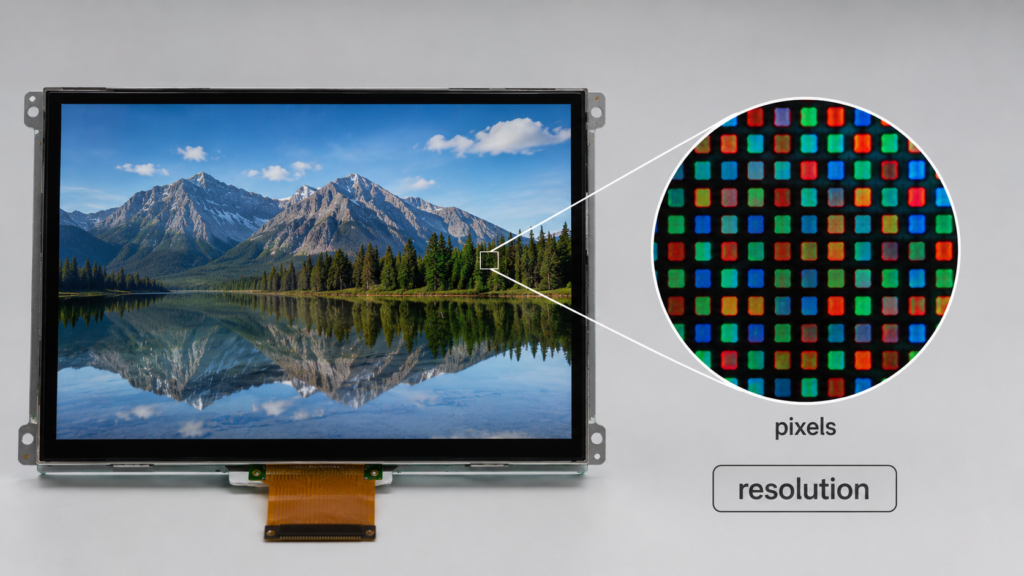
La résolution LCD est le nombre de pixels intégrés dans le panneau d'affichage. Le premier nombre décrit le nombre de pixels sur la largeur. Le second nombre décrit le nombre de pixels sur la hauteur.
Le nombre total de pixels est calculé en multipliant les deux nombres. Un écran 1920 × 1080 possède 2 073 600 pixels. C'est pourquoi la Full HD peut afficher plus de détails que le 800 × 480 lorsque les deux sont utilisés correctement.
Cependant, le nombre total de pixels n'est qu'une partie de l'histoire. La résolution d'un écran doit être évaluée conjointement avec la taille de l'écran, la densité de pixels, le rapport d'aspect, l'interface et la capacité du système.
Illustration de résolution LCD montrant un écran avec une grille de pixels RVB agrandie
Pourquoi les différences de résolution LCD sont importantes
Les différences de résolution affectent la quantité d'informations qu'un écran peut afficher et la netteté de ces informations. Dans les produits embarqués, cela peut influencer l'ensemble de l'expérience utilisateur.
Un écran LCD basse résolution peut suffire pour des boutons simples, des icônes, des chiffres et des indicateurs d'état. Un écran LCD haute résolution peut être nécessaire pour des graphiques détaillés, des flux de caméra, des cartes, des diagrammes, des tableaux de bord, des menus denses ou des interfaces basées sur des images.
La résolution affecte :
La clarté du texte
La netteté des icônes et des lignes
La densité de la disposition de l'interface utilisateur
Le détail des images et des vidéos
La charge de travail du processeur graphique
La bande passante de l'interface d'affichage
Les performances de la mémoire et du logiciel
La consommation électrique
La compatibilité de la carte contrôleur
Le coût du produit
Pour les écrans industriels, les panneaux domotiques, les interfaces médicales, les équipements de sécurité, les écrans pour véhicules et l'électronique grand public, la résolution appropriée doit être choisie en fonction de l'utilisation réelle de l'écran.
Résolutions LCD courantes et leurs utilisations typiques
Résolution
Type de format
Adéquation applicative typique
480 × 272
Écran large compact
Petits panneaux de contrôle, IHM basique, interfaces embarquées simples
Écrans de classe 7 pouces, terminaux IHM, systèmes de contrôle
1280 × 720
HD
Interface utilisateur multimédia, tableaux de bord, terminaux intelligents, contrôles graphiques
1280 × 800
Format 16:10
Interfaces de type tablette, panneaux de données, écrans d'équipement
1920 × 1080
Full HD
Écrans haute définition, interfaces d'imagerie, panneaux embarqués plus grands
1080 × 1080
Format carré
Écrans carrés, tableaux de bord, dispositions d'interface utilisateur spéciales
1920 × 720 ou similaire
Format barre ou étiré
Écrans barres, signalétique, écrans pour véhicules, panneaux d'équipement étroits
Ces exemples ne doivent pas être considérés comme des règles fixes. La résolution correcte dépend de la taille de l'écran, de la distance de visualisation, du contenu de l'interface utilisateur, de l'interface et de la conception du système.
Résolution vs Taille de l'écran
La résolution et la taille de l'écran sont des spécifications différentes. La résolution décrit le nombre de pixels. La taille de l'écran décrit la diagonale physique de l'affichage, généralement mesurée en pouces.
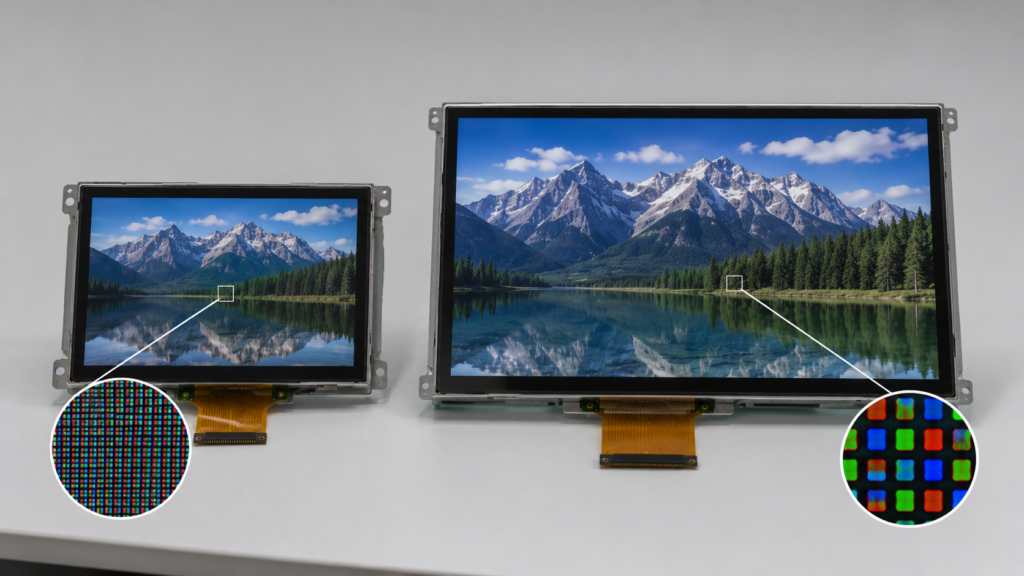
Deux écrans LCD peuvent avoir la même résolution mais des tailles physiques différentes. Par exemple, un écran 5 pouces 1280 × 720 et un écran 10,1 pouces 1280 × 720 contiennent le même nombre de pixels, mais le plus petit écran concentre ces pixels dans une zone physique plus petite. En conséquence, le plus petit écran a une densité de pixels plus élevée et peut sembler plus net à courte distance de visualisation.
L'inverse est également vrai. Un grand écran avec une résolution modérée peut montrer des pixels visibles plus grands lorsqu'il est regardé de près. Cela peut être acceptable pour la signalétique ou la visualisation à distance, mais pas pour une interaction tactile de proximité.
C'est pourquoi les acheteurs ne doivent pas comparer la résolution LCD sans vérifier la taille physique et la distance de visualisation.
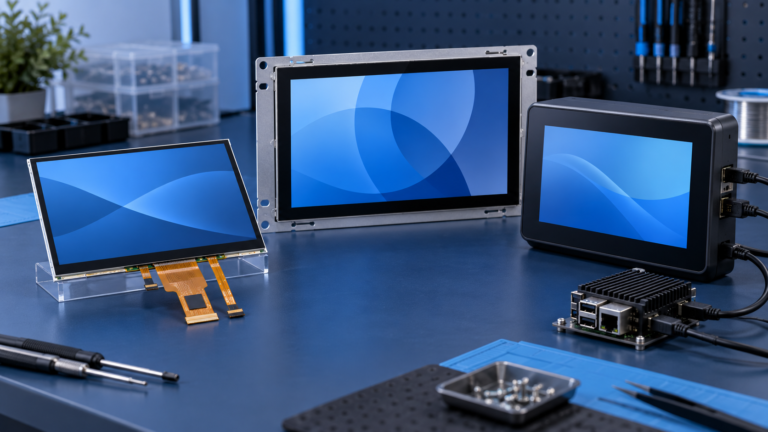
Même résolution LCD affichée sur différentes tailles d'écran pour expliquer la densité de pixels
Résolution vs Densité de pixels
La densité de pixels décrit le degré de compacité des pixels dans la zone d'affichage. Elle est généralement mesurée en PPI, ou pixels par pouce.
Un PPI plus élevé signifie généralement des détails plus fins et un texte plus net à courte distance de visualisation. Mais un PPI plus élevé n'est pas toujours nécessaire. Un écran regardé de plus loin peut sembler clair avec une densité de pixels inférieure à celle d'un appareil portable.
La densité de pixels dépend à la fois de la résolution et de la taille physique. Une résolution 1920 × 1080 peut produire des résultats visuels très différents sur un écran de 5 pouces, un écran de 10,1 pouces et un écran de 15,6 pouces.
Si vous devez estimer la taille diagonale, le rapport d'aspect ou comparer des paramètres d'affichage, vous pouvez utiliser le calculateur de paramètres d'affichage de RJY Display comme référence rapide.
Résolution native : la résolution pour laquelle l'écran LCD est conçu
Chaque panneau LCD a une résolution native. Il s'agit de la disposition physique des pixels intégrée dans le panneau. Un panneau LCD 1024 × 600 possède 1024 colonnes et 600 rangées de pixels. Il ne peut pas physiquement devenir un panneau 1920 × 1080 simplement en modifiant les paramètres logiciels.
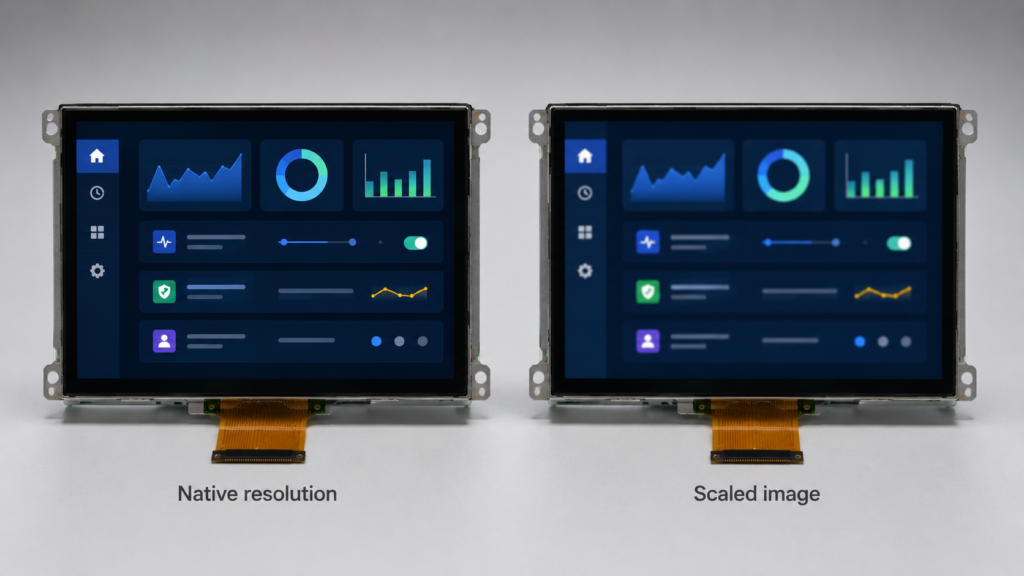
Lorsqu'un écran LCD est piloté à sa résolution native, un pixel source peut correspondre proprement à un pixel d'affichage. Cela donne généralement l'image la plus nette.
Lorsque le signal d'entrée ne correspond pas à la résolution native, l'image doit être mise à l'échelle. La mise à l'échelle peut rendre le texte, les icônes et les lignes plus flous ou moins précis, surtout si le rapport d'aspect change également.
Résolution LCD native comparée à une image mise à l'échelle montrant un rendu d'interface utilisateur plus net et plus flou
Qu'est-ce que la mise à l'échelle de la résolution ?
La mise à l'échelle de la résolution consiste à ajuster le contenu d'une résolution à une autre afin qu'il puisse s'adapter à l'affichage. Cela peut se produire au niveau du système d'exploitation, du processeur graphique, du logiciel applicatif, de la carte de contrôle ou du matériel d'affichage.
La mise à l'échelle peut fonctionner dans deux directions :
Réduction d'échelle : Le contenu de résolution supérieure est réduit pour s'adapter à un affichage de résolution inférieure.
Augmentation d'échelle : Le contenu de résolution inférieure est agrandi pour remplir un affichage de résolution supérieure.
La mise à l'échelle est utile, mais elle n'est pas équivalente au fait de disposer de la résolution native correcte. Si la mise à l'échelle est importante, le texte peut sembler flou, les lignes fines peuvent devenir irrégulières et les éléments de l'interface utilisateur peuvent ne pas s'aligner correctement sur la grille de pixels.
Pour les dispositifs embarqués, la mise à l'échelle doit être gérée avec soin car elle peut affecter la précision tactile, la clarté de l'interface utilisateur, les performances graphiques et l'expérience utilisateur.
La mise à l'échelle de la résolution peut-elle être ajustée sur les écrans LCD TFT ?
Oui, la mise à l'échelle de la résolution peut souvent être ajustée au niveau du système, mais la résolution native du panneau LCD est fixe. L'ajustement se fait généralement via le logiciel, les paramètres graphiques, la conception de l'interface utilisateur de l'application, la mise à l'échelle du système d'exploitation ou une carte de contrôle.
Par exemple, un système Linux embarqué, un système Android, un système Windows ou une carte de contrôle personnalisée peuvent mettre à l'échelle l'interface utilisateur avant de l'envoyer à l'écran LCD. Certains systèmes peuvent réduire la résolution de rendu pour améliorer les performances. D'autres peuvent agrandir le contenu pour l'adapter à un écran de résolution supérieure.
Cependant, la capacité de mise à l'échelle dépend du système, et non uniquement de l'écran LCD. Le panneau, la carte de contrôle, le processeur, le GPU, la mémoire, l'interface d'affichage et la pile logicielle affectent tous la possibilité de mise à l'échelle et l'acceptabilité du résultat.
Avantages de l'utilisation de la mise à l'échelle de la résolution
La mise à l'échelle de la résolution peut être utile dans certains systèmes d'affichage, en particulier lorsque les performances, l'autonomie de la batterie ou la compatibilité logicielle sont importantes.
Amélioration des performances du système
Le rendu d'un nombre réduit de pixels peut diminuer la charge de travail du processeur et du processeur graphique. Cela peut être bénéfique dans les systèmes embarqués à faible consommation, les panneaux domestiques intelligents, les terminaux portables ou les dispositifs dont le processeur a des capacités graphiques limitées.
Demande d'énergie réduite dans certains systèmes
La réduction de la charge de travail de rendu peut contribuer à diminuer la consommation d'énergie du système. Cependant, dans les systèmes LCD, le rétroéclairage est souvent un consommateur d'énergie majeur, donc réduire la résolution de rendu ne réduit pas automatiquement toute l'énergie d'affichage. L'effet réel sur l'énergie dépend de la conception du système.
Compatibilité logicielle
La mise à l'échelle peut aider les logiciels plus anciens ou les applications à mise en page fixe à s'adapter à un affichage plus récent. Cela peut être utile lors du remplacement d'un affichage discontinué ou de la mise à niveau d'un produit tout en conservant le logiciel existant.
Développement flexible de l'interface utilisateur
Dans certains systèmes, les concepteurs d'interface utilisateur utilisent la mise à l'échelle pour adapter une mise en page logicielle à plusieurs tailles ou résolutions d'affichage. Cela peut réduire l'effort de développement, mais doit être testé avec soin sur l'affichage final.
Inconvénients de la mise à l'échelle de la résolution
La mise à l'échelle de la résolution présente également des compromis. Elle ne doit pas être utilisée comme substitut au choix du panneau approprié lorsque la clarté et la précision sont importantes.
Netteté réduite
Une mise à l'échelle non native peut rendre le texte, les icônes, les lignes fines et les petits éléments de l'interface utilisateur plus flous. Cela est particulièrement notable sur les écrans tactiles à courte distance.
Une distorsion de l'image
Si le rapport hauteur/largeur source et le rapport hauteur/largeur de l'affichage ne correspondent pas, la mise à l'échelle peut étirer, recadrer ou ajouter des barres noires à l'image. Cela peut donner à l'interface utilisateur un aspect mal conçu.
Problèmes d'alignement tactile
Dans les systèmes à écran tactile, la mise à l'échelle de l'affichage doit correspondre au mappage des coordonnées tactiles. Si le logiciel, la carte de contrôle et le pilote tactile ne sont pas alignés, la saisie tactile peut sembler décalée ou inexacte.
Limitations de la carte de contrôle
Toutes les cartes de contrôle ne prennent pas en charge tous les modes de mise à l'échelle, résolutions ou timings. Un affichage peut physiquement supporter une résolution, mais la carte de contrôle et le micrologiciel doivent également correspondre.
Devriez-vous acheter un écran LCD haute résolution et réduire son échelle ?
Acheter un écran LCD haute résolution et réduire l'échelle du contenu peut être utile dans certains cas, mais ce n'est pas toujours le meilleur choix technique.
Un affichage de résolution supérieure peut offrir plus de flexibilité pour les futures mises à niveau de l'interface utilisateur, les images détaillées et une apparence haut de gamme. Cependant, il peut également augmenter le coût, la bande passante de l'interface, la charge de travail du processeur, l'utilisation de la mémoire, la demande d'énergie et la complexité logicielle.
Pour les produits avec une interface utilisateur simple, des boutons fixes, un affichage de données basique ou des objectifs de coût stricts, une résolution native modérée peut être plus pratique. Pour les systèmes basés sur l'image, les tableaux de bord, les affichages de caméra, les interfaces de cartographie ou les menus denses, une résolution plus élevée peut être justifiée.
La meilleure question n'est pas “ Dois-je acheter la résolution la plus élevée ? ” La meilleure question est : “ Quelle résolution native correspond à mon interface utilisateur, ma distance de visualisation, mon processeur, mon interface, mon budget énergétique et mon coût produit ? ”
Comment la résolution LCD affecte la sélection de l'interface
Une résolution plus élevée nécessite le transfert de plus de données d'image. Cela affecte l'interface d'affichage et la carte de contrôle.
Les affichages à basse résolution peuvent utiliser des interfaces SPI, MCU ou RGB selon la conception. Les modules LCD TFT de résolution plus élevée nécessitent souvent RGB, LVDS, MIPI DSI, HDMI ou eDP selon le panneau et l'architecture du système.
Pour les projets basés sur une carte de contrôle, la résolution doit correspondre à la capacité de sortie de la carte, au timing d'affichage, à la configuration du micrologiciel et aux exigences du rétroéclairage. Une inadéquation peut entraîner l'absence d'image, un comportement d'affichage instable, une mauvaise mise à l'échelle, un scintillement ou une qualité visuelle médiocre.
Niveau de résolution
Direction d'interface possible
Note technique
Basse résolution
SPI, MCU, RGB selon le module
Souvent utilisé pour les interfaces embarquées compactes
Résolution moyenne
RGB, LVDS, MIPI selon le système
Courant dans les panneaux industriels et de dispositifs intelligents
Haute résolution
LVDS, MIPI DSI, HDMI, eDP selon l'architecture
Nécessite un contrôleur plus puissant et un examen attentif de la compatibilité
Format spécial
Dépendant du projet
Les affichages carrés, ronds ou en barre peuvent nécessiter une interface utilisateur et un support de contrôleur spécifiques
L'interface exacte ne peut pas être déterminée par la résolution seule. Le modèle de panneau, le circuit intégré du pilote, la définition des broches, le rétroéclairage, l'exigence tactile et le système hôte doivent être examinés ensemble.
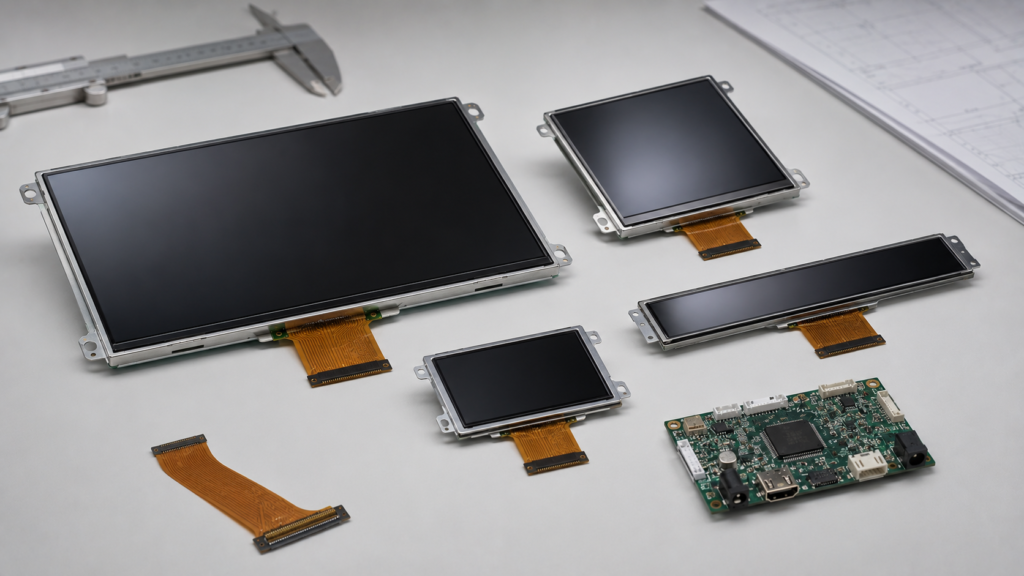
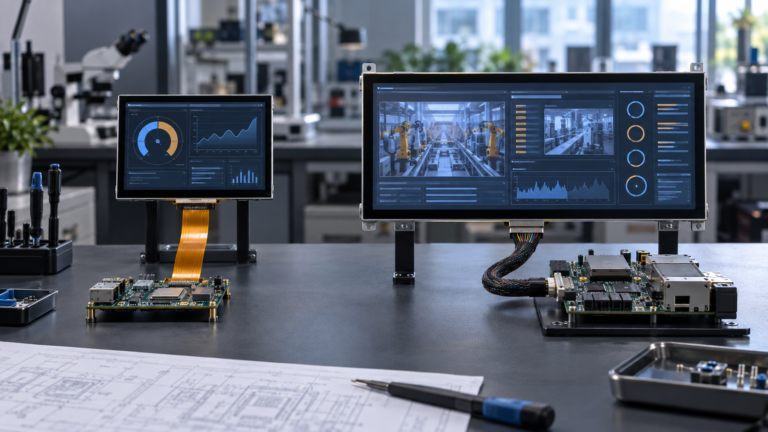
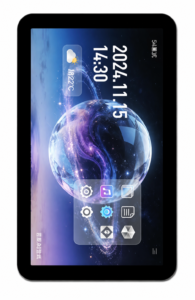
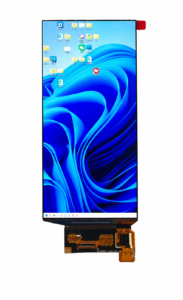
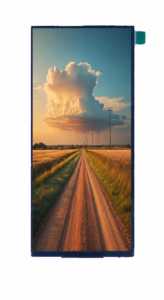
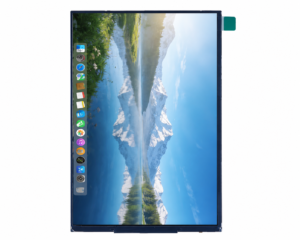
Modules LCD TFT de différentes tailles et formats pour la sélection de la résolution LCD
Comment la résolution LCD affecte la puissance et la chaleur
La résolution affecte la charge de travail du système car plus de pixels nécessitent généralement plus de données d'image, de bande passante mémoire et de traitement graphique. Cela peut augmenter la consommation d'énergie au niveau du système.
Dans un module LCD, le rétroéclairage est souvent l'un des plus grands consommateurs d'énergie. Par conséquent, une résolution de rendu inférieure ne signifie pas automatiquement une réduction majeure de la puissance totale d'affichage si la luminosité du rétroéclairage reste la même.
Pour les dispositifs alimentés par batterie, la résolution et la luminosité du rétroéclairage doivent être évaluées. Pour les équipements industriels, la puissance peut être moins contraignante, mais la chaleur, la stabilité et la fiabilité à long terme restent importantes.
Résolution LCD dans différentes applications
Différentes industries et types de produits nécessitent différentes stratégies de résolution. Un affichage doit être sélectionné en fonction de l'application, et non uniquement en comparant les chiffres de résolution.
IHM industrielle
Les écrans HMI industriels nécessitent un texte lisible, des boutons clairs, une réponse tactile stable et un fonctionnement fiable. Une résolution modérée peut suffire pour les panneaux de contrôle simples, tandis qu'une résolution plus élevée peut être utile pour les tableaux de bord denses, les graphiques de tendance, les alarmes et les interfaces multi-fenêtres.
Panneaux domestiques intelligents
Les écrans domestiques intelligents doivent souvent trouver un équilibre entre apparence visuelle, ergonomie tactile, coût et consommation électrique. La résolution doit prendre en charge l'interface utilisateur sans surcharger la carte de contrôle ni augmenter inutilement le coût.
Interfaces liées au domaine médical
Les dispositifs médicaux peuvent nécessiter un texte clair, un affichage stable et une restitution d'image cohérente. Si le produit affiche des images détaillées, la résolution native doit être choisie avec soin. Évitez de recourir à un changement d'échelle important lorsque le détail et la lisibilité sont essentiels.
Écrans liés aux véhicules
Les écrans destinés aux véhicules peuvent utiliser des formats standard, carrés, ronds ou en barre selon la conception du produit. La résolution doit correspondre à la disposition de l'interface utilisateur, à la distance de visualisation, aux exigences de luminosité et aux capacités de la carte de contrôle. Ne partez pas du principe qu'une résolution plus élevée améliore à elle seule l'utilisation du véhicule ou de l'équipement.
Équipements de sécurité
Les dispositifs de sécurité peuvent afficher des menus, des flux de caméras, des tableaux de bord d'état ou des interfaces de contrôle. Une résolution plus élevée peut améliorer les détails visuels, mais le traitement système, l'entrée vidéo et l'interface d'affichage doivent pouvoir la prendre en charge.
Comment choisir la bonne résolution d'écran LCD
Pour choisir la bonne résolution d'écran LCD, partez de la conception du produit plutôt que d'un tableau de résolutions. Demandez-vous ce que l'utilisateur doit voir, à quelle distance il se trouve de l'écran, quelle quantité d'informations doit tenir, et quel système pilotera l'affichage.
Les questions importantes pour la sélection incluent :
Quelle est la taille physique de l'écran ?
Quelle est la distance de visualisation normale ?
Quelle quantité de texte, de données ou de détails d'image doit être affichée ?
L'interface utilisateur est-elle principalement statique, graphique, basée sur la vidéo ou tactile ?
Quel format d'image correspond au boîtier du produit ?
Quelle interface le système hôte prend-il en charge ?
Le projet nécessite-t-il une carte de contrôle ?
Quel processeur ou système d'exploitation pilotera l'affichage ?
Quel est le budget énergétique ?
Un changement d'échelle sera-t-il utilisé, ou l'interface utilisateur sera-t-elle conçue pour la résolution native ?
Un mappage des coordonnées tactiles est-il requis ?
Quels sont le coût cible et le volume de production ?
Ces questions aident à réduire le choix de résolution et à diminuer les problèmes de compatibilité durant le développement.
Erreurs courantes lors de la comparaison des résolutions d'écran LCD
Une erreur courante consiste à supposer qu'une résolution plus élevée est toujours meilleure. Une résolution plus élevée peut améliorer les détails, mais elle peut aussi augmenter le coût, la consommation, la bande passante et la complexité logicielle.
Une autre erreur est d'ignorer la taille de l'écran. Une résolution qui semble nette sur un petit écran peut ne pas l'être sur un écran beaucoup plus grand.
Une troisième erreur est d'utiliser une résolution non native et d'attendre une netteté parfaite. Les écrans LCD offrent le meilleur rendu lorsque le signal d'entrée correspond à leur résolution native.
Une quatrième erreur est d'ignorer le format d'image. Un écran peut avoir suffisamment de pixels mais être inadapté si sa forme ne correspond pas à l'interface utilisateur ou au boîtier.
Une cinquième erreur est de sélectionner l'écran avant de confirmer la compatibilité de la carte de contrôle. La résolution, la synchronisation, l'interface, la définition des broches, le rétroéclairage, le tactile et le micrologiciel doivent tous correspondre.
Support de RJY Display pour la sélection de résolution d'écran LCD
RJY Display prend en charge les modules TFT LCD, les cartes contrôleurs et solution d'affichage personnalisée Discussions de solutions pour projets B2B axés sur l'ingénierie. La sélection de résolution peut être examinée conjointement avec la taille de l'écran, le format d'image, la luminosité, l'interface, le panneau tactile, le verre de protection, le FPC, la carte de contrôle, le micrologiciel et la structure mécanique.
Pour de nombreux projets, la meilleure résolution n'est pas la plus élevée disponible. C'est celle qui correspond à l'interface utilisateur, à la distance de visualisation, au processeur, à l'interface, au budget énergétique, à la conception mécanique et au plan de production.
Si votre projet nécessite un module TFT LCD standard, un écran carré, écran rond, écran LCD barre, un écran haute luminosité, un écran tactile, une carte de contrôle ou un solution d'affichage personnalisée support, préparez la taille d'écran requise, la résolution, l'interface, la luminosité, le tactile et les détails d'application avant de demander un devis.
La différence de résolution d'écran LCD ne réside pas seulement dans le nombre de pixels. La résolution doit être comprise conjointement avec la taille de l'écran, la densité de pixels, le format d'image, la résolution native, le comportement de changement d'échelle, la bande passante de l'interface, le support de la carte de contrôle, la consommation électrique et la distance de visualisation.
Une résolution plus élevée peut améliorer les détails, mais elle peut aussi augmenter les exigences système. Une résolution plus faible peut réduire le coût et la charge de travail, mais peut ne pas offrir une clarté suffisante pour une interface utilisateur dense ou des applications basées sur l'image.
Pour les projets d'affichage B2B, le meilleur choix est une configuration d'affichage équilibrée. Choisissez la résolution qui correspond au produit réel : taille de l'écran, conception de l'interface utilisateur, distance de visualisation, interface, exigence tactile, carte de contrôle, budget énergétique, structure mécanique et attentes de production.
FAQ
Qu'est-ce que la résolution d'écran LCD ?
La résolution d'écran LCD est le nombre de pixels disposés horizontalement et verticalement sur l'écran. Elle est généralement écrite sous forme de largeur × hauteur, par exemple 800 × 480 ou 1920 × 1080.
Quelle est la différence entre résolution et taille d'écran ?
La résolution décrit le nombre de pixels, tandis que la taille d'écran décrit la dimension physique de l'écran. Deux écrans peuvent avoir la même résolution mais une densité de pixels différente si leurs tailles physiques sont différentes.
Qu'est-ce que la résolution native ?
La résolution native est la disposition physique des pixels intégrée dans un panneau LCD. L'écran offre généralement le rendu le plus net lorsque le signal d'entrée correspond à cette résolution native.
Qu'est-ce que le changement d'échelle de résolution ?
Le changement d'échelle de résolution ajuste le contenu d'une résolution à une autre afin qu'il puisse s'adapter à l'écran. Cela peut impliquer une réduction d'échelle de contenu haute résolution ou une augmentation d'échelle de contenu basse résolution.
Le changement d'échelle de résolution réduit-il la qualité d'image ?
Cela peut être le cas. Un changement d'échelle non natif peut rendre le texte, les icônes, les lignes fines et les éléments d'interface utilisateur plus flous ou déformés, surtout lorsque le format d'image ne correspond pas.
Une résolution d'écran LCD plus élevée est-elle toujours meilleure ?
Non. Une résolution plus élevée peut améliorer les détails, mais elle peut aussi augmenter le coût, la demande énergétique, la bande passante de l'interface, la charge graphique et la complexité logicielle. La résolution appropriée dépend de l'application.
Comment choisir la bonne résolution d'écran LCD ?
Choisissez en fonction de la taille de l'écran, de la distance de visualisation, de la complexité de l'interface utilisateur, des détails d'image, du format d'image, de l'interface, du support de la carte de contrôle, des capacités du processeur, du budget énergétique et de la conception mécanique.
RJY Display peut-elle aider à choisir la résolution d'écran LCD ?
RJY Display peut aider à examiner la taille de l'écran, la résolution, le format d'image, l'interface, la luminosité, l'exigence tactile, le support de la carte de contrôle et les besoins de personnalisation pour les projets TFT LCD.
Partagez la taille de votre écran, sa résolution, son interface, sa luminosité, ses exigences tactiles, les besoins en carte contrôleur et l'environnement d'application.