Buyers searching for “screen touch screen” are often comparing several different products, even if the search words look similar. One buyer may need a bare touch panel. Another may need a TFT LCD with an integrated touch sensor. A third may expect a complete touch screen monitor with HDMI input, USB touch data, a housing, and mounting hardware. Some projects need a computer behind the screen as well.
These products are not interchangeable. They differ in what they include, how they connect to the host, how they mount, and how much engineering work remains. Selecting the wrong structure can lead to duplicated controller hardware, driver problems, incorrect touch coordinates, cable conflicts, or an enclosure that cannot hold the final assembly.
This guide explains the differences among a screen, touch screen, touch panel, touch display module, touch monitor, and touch computer. It also shows equipment manufacturers and product developers how to define the complete display-and-touch architecture before requesting samples or quotations.
What Is the Difference Between a Screen and a Touch Screen?
A screen displays visual information. In an LCD product, the TFT LCD module receives image data, controls the pixels, and uses a backlight to make the image visible. It does not detect a finger by itself.
A touch screen adds an input layer. The touch sensor detects a finger, stylus, or another supported input tool. A touch controller measures the sensor and reports coordinates or touch events to the host. The host operating system or application then decides what those events mean.
The image path and the touch path are usually separate:
- The display may receive image data through HDMI, LVDS, MIPI DSI, eDP, RGB, or another interface.
- The touch controller may return input through USB, I2C, SPI, or another supported interface.
- The LCD backlight may require its own power and control circuit.
- The host may need a driver, device configuration, coordinate transform, or firmware support for the touch controller.
This is why a display can show the correct image while touch does not work. It is also why a host can detect the touch controller while the coordinates remain rotated, reversed, scaled incorrectly, or assigned to the wrong display.
Touch Screen Terminology Buyers Often Confuse
There is no single product structure behind every listing for touch screen displays. Confirm what is included before comparing price or specifications.
| Product Type | What It Usually Includes | Typical Connection | Best-Fit Use |
|---|---|---|---|
| LCD or TFT display | LCD cell, backlight, frame, driver IC, and display FPC | MIPI, LVDS, eDP, RGB, SPI, or another panel interface | Embedded products that do not need touch, or products that add touch separately |
| Touch panel | Touch sensor and, depending on the configuration, a touch controller and FPC | USB, I2C, SPI, or a controller-specific connection | Adding input to a compatible display and front-panel structure |
| Touch display module | TFT LCD plus a matched touch sensor, with separate display and touch electrical paths | Panel interface for video and a second interface for touch | Embedded equipment and custom products |
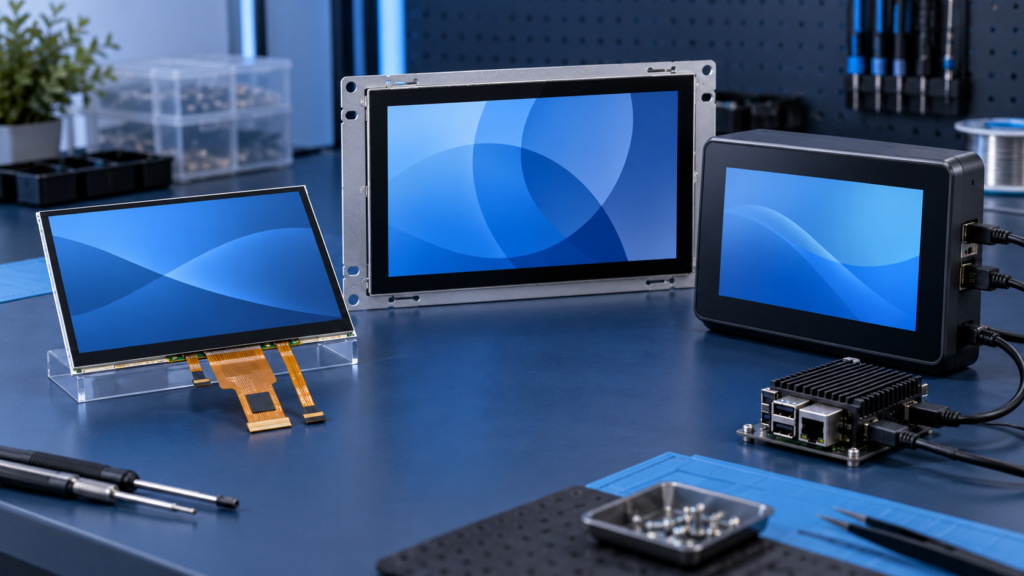
| Touch screen monitor | LCD, touch system, display-control electronics, power input, and usually a frame or housing | HDMI, DisplayPort, VGA, or USB-C for video; often USB for touch | External displays, kiosks, test stations, retrofits, and equipment consoles |
| Open-frame or panel-mount touch monitor | Touch monitor electronics and a mounting structure intended for another enclosure | Standard video input plus touch-data connection | Cabinets, kiosks, machines, and commercial equipment |
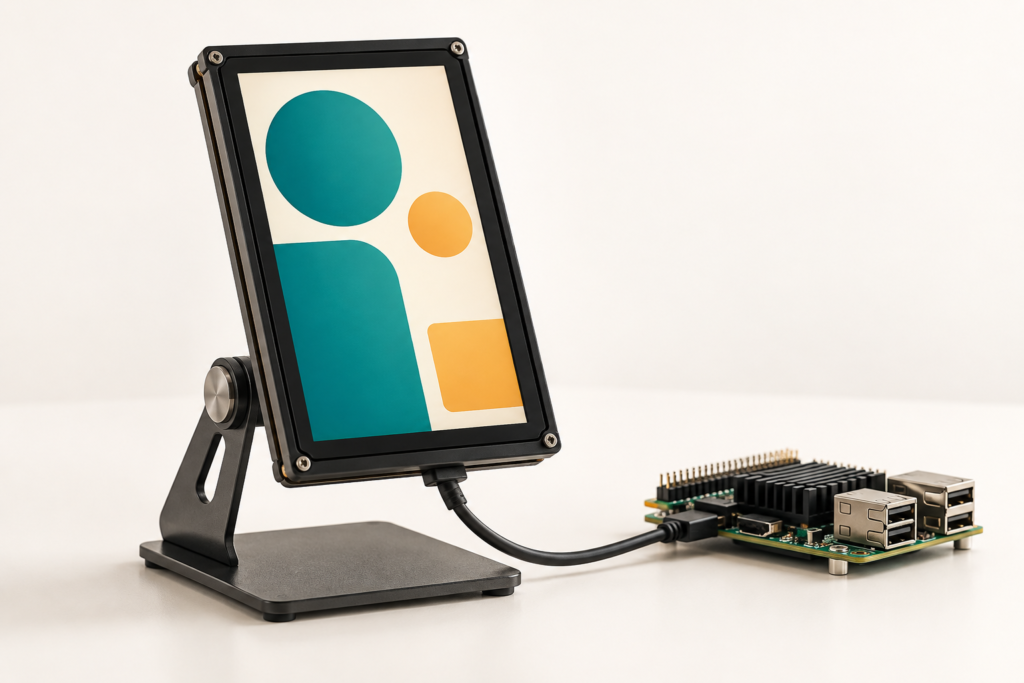
| Touch screen computer or panel PC | Touch display plus processor, memory, storage, I/O, and operating-system support | External system I/O rather than a raw LCD interface | A self-contained computing terminal |
A touch screen display computer is therefore not simply a monitor with touch. A monitor receives image data from another computer. A panel PC contains the computing platform. This distinction affects cost, software responsibility, thermal designWhat Interfaces Does a Touch Screen Disp, service access, and product lifecycle planning.
How a Touch Screen Display System Works
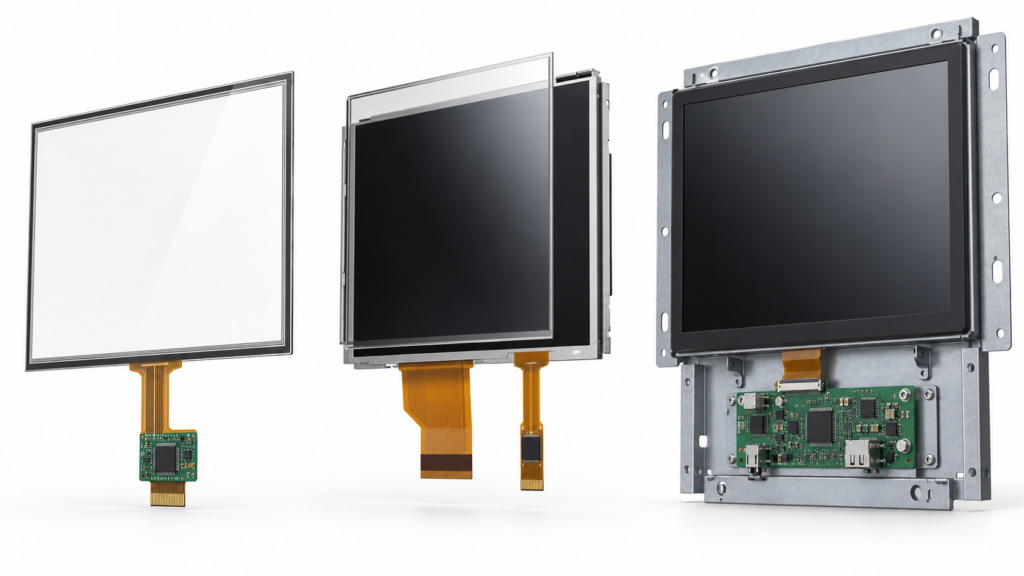
A complete capacitive touch display can contain the following parts:
- TFT LCD module: Creates the visible image.
- Touch sensor: Detects a change caused by the intended input.
- Touch controller: Scans the sensor and converts measurements into coordinates or events.
- Cover glass: Forms the front surface and may carry a printed border, opening, or product-specific outline.
- Bonding structure: Joins the LCD, touch sensor, and cover lens through a defined adhesive or air-gap arrangement.
- Display controller or host processor: Sends the image to the LCD and receives the touch data.
- Firmware and software: Configure the panel, identify the touch device, map coordinates, and process user input.
Each part affects the others. A thicker cover lens can reduce the capacitive coupling between a finger and the sensor. Microchip’s capacitive-touch design guide explains that cover thickness, material, electrode geometry, and noise conditions must be considered together.1 The touch controller configuration that works with an exposed sensor may therefore need review after the final cover glass, adhesive, enclosure, grounding, and display electronics are installed.
The LCD interface also does not define the complete system. NXP’s MIPI DSI application note treats the display path, backlight control, and optional touch connection as separate integration requirements.2 The same principle applies when the image arrives through LVDS, eDP, RGB, or an external HDMI controller board.
Capacitive Touch Display vs Resistive Touch Display
Projected capacitive touch, often called PCAP or PCT, is common in products that need a smooth glass front, gestures, or multiple simultaneous contacts. Resistive touch detects pressure between conductive layers and can suit applications that use a passive stylus or another defined input tool.
| Decision Area | Projected Capacitive Touch | Resistive Touch |
|---|---|---|
| Input principle | Measures changes in a capacitive sensor field | Measures contact between pressure-sensitive resistive layers |
| Typical input | Bare finger and other inputs supported by the selected sensor-controller configuration | Finger, passive stylus, or another tool that applies sufficient pressure |
| Multi-touch | Possible when supported by the sensor, controller, firmware, driver, and operating system | Depends on the specific technology; conventional four-wire systems are commonly used for single-contact input |
| Front surface | Can operate behind a defined cover-lens stack | The construction must allow pressure to reach the sensing layers |
| Main validation risks | Cover thickness, electrical noise, grounding, moisture, gloves, edge behavior, and tuning | Pressure threshold, layer wear, calibration, settling, and mechanical integration |
Texas Instruments describes a four-wire resistive touch screen as two transparent resistive layers separated by insulating spacers. When pressure connects the layers, the controller measures the contact position from the resulting voltages.3
Do not select PCAP only because it appears more modern. Do not reject resistive touch only because it is older. Start with the required input tool, gesture set, user interface, cover structure, environment, and acceptance test. A product described as a capacitive touch display does not automatically support a specific glove, stylus, water condition, or number of simultaneous contacts.
For a deeper technology comparison, see capacitive vs resistive touch and the guide to PCAP touch screen technology.
Touch Screen Monitor vs Embedded Touch Display Module
A touch screen display monitor is useful when the host already provides a standard video output and the project needs a separate, serviceable display. It can reduce the amount of panel-level integration because the monitor includes display-control electronics. The product team still needs to confirm the video input, touch-data connection, operating-system support, power supply, mounting, and environmental fit.
An embedded touch display module gives the product developer more control over size, depth, cover glass, cable routing, bezel appearance, and internal electronics. It also leaves more work for the host board, firmware, power design, enclosure, and assembly process.
Choose a touch monitor when:
- The host has HDMI, DisplayPort, VGA, or another supported external output.
- The display needs its own frame, controls, mounting points, and power input.
- Fast system assembly matters more than minimizing depth or component count.
- The display must be replaced or serviced as a complete unit.
- The product architecture can accommodate separate video, touch, and power cables.
Choose an embedded module when:
- The display must fit a product-specific opening or enclosure.
- The project needs a custom cover glass, printed border, FPC direction, or connector location.
- The product team controls the host PCB and display interface.
- Mechanical depth, bezel width, weight, or internal cable routing is tightly constrained.
- The project has a defined path from prototype to repeated production.
The lower component price is not always the lower system cost. A raw module may require a controller board, backlight driver, touch driver, cables, mechanical frame, firmware work, validation, and production fixtures. A finished monitor includes more hardware but may reduce development work. Compare the full integration scope rather than the display price alone.
What Interfaces Does a Touch Screen Display Need?
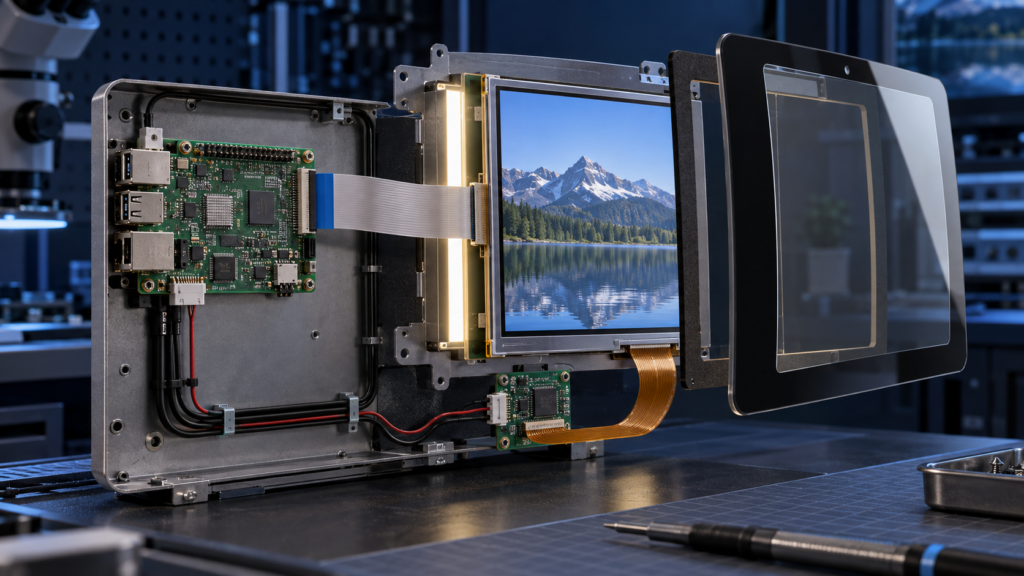
Display interface
The display interface carries the image. Embedded LCD modules can use MIPI DSI, LVDS, eDP, RGB, SPI, or another panel-level interface. Touchscreen monitors often accept HDMI, DisplayPort, VGA, or USB-C through a controller board. The exact connection depends on the panel and host.
A matching connector is not proof of compatibility. Confirm the panel model, resolution, timing, interface mode, pin definition, voltage, initialization sequence, backlight requirements, and driver IC when available. An HDMI-to-MIPI controller board is an active, panel-specific system. It is not a universal passive adapter.
Touch interface
The touch controller sends input data to the host. USB is common in external touchscreen monitors. Embedded systems may use I2C, SPI, USB, or another controller-supported interface. Confirm logic levels, power, interrupt, reset, wake behavior, controller firmware, and driver availability.
HDMI normally carries the image and audio supported by the selected system. It does not by itself return touch coordinates. Many HDMI touch displays use a separate USB connection for touch. The article on Android touch and HDMI touch integration explains this two-path architecture in more detail.
Coordinate mapping and software
The host must associate touch events with the correct display. This becomes important when the product uses more than one screen or changes orientation. Android’s touch-device documentation distinguishes direct touch devices from pointer devices and describes how the system maps touch coordinates to a display viewport.4
Test the final software image after cold boot, sleep and wake, cable reconnect, screen rotation, and recovery mode. A driver that recognizes the controller does not prove that every point on the display maps correctly.
Four Common Touch Display System Architectures
The same touch screen can sit inside very different systems. Define the architecture before selecting parts, because it determines which organization owns the controller board, firmware, enclosure, cables, and final validation.
Architecture 1: Embedded LCD and touch panel connected directly to a host board
In this structure, the product processor drives the LCD through a native panel interface such as MIPI DSI, LVDS, eDP, RGB, or SPI. A separate I2C, SPI, or USB path carries touch data. The equipment manufacturer controls the host PCB, power rails, panel initialization, backlight control, touch driver, and mechanical design.
This route can produce a compact and integrated product, but it needs the most engineering coordination. The host must generate the correct display timing and support the panel initialization sequence. It must also manage the touch controller’s power, reset, interrupt, firmware, and coordinate mapping. Mechanical drawings must control both FPC paths and keep the touch electronics away from noise sources where possible.
Architecture 2: LCD and touch assembly with a video controller board
A controller board converts a standard host output, such as HDMI, into the panel’s native interface. Touch still returns through a separate path, often USB. This structure can simplify the host connection because the computer does not need a native MIPI, LVDS, or eDP output that directly matches the LCD.
The controller board must still be configured for the exact panel. Resolution alone is not enough. The engineering review must cover timing, interface mode, lane or channel arrangement, pin definition, power sequence, backlight circuit, panel initialization, and the physical cable. If the product uses an on-screen display or firmware-controlled functions, those requirements must also be defined before board selection.
Architecture 3: Open-frame touch monitor inside customer equipment
An open-frame monitor combines the LCD, touch system, controller electronics, and mounting frame but leaves the outer product enclosure to the equipment manufacturer. It can suit kiosks, test equipment, machine consoles, and other products that use a standard video source but need a built-in appearance.
The main questions shift from panel timing to integration. Confirm the monitor outline, front opening, mounting points, connector access, ventilation, cable exit, control-button access, grounding, power input, and service route. A monitor that works on a bench may still be difficult to install if the enclosure blocks its connectors or traps heat around the controller board.
Architecture 4: Housed touch monitor or touch computer
A housed touchscreen monitor is the most independent display structure. It can be mounted beside or on the equipment and connected to an external computer. A touch computer adds the processor and operating system. These products can shorten equipment development when a standard format fits, but they provide less control over depth, bezel design, connector position, and the internal component lifecycle.
Choose between these architectures by deciding where the product boundary sits. If the screen must become part of a compact branded device, an embedded assembly may be appropriate. If the display must connect to several existing computers or be replaced as one service unit, a monitor structure may reduce lifecycle complexity.
How to Choose a Touch Screen Monitor or Display
1. Define the product structure
Decide whether the project needs a touch panel, an LCD-and-touch assembly, an open-frame touch monitor, a complete housed monitor, or a panel PC. This first decision prevents the quotation from including too much or too little hardware.
2. Set the active area, resolution, and UI requirements
Diagonal size alone does not define usability. Consider viewing distance, the smallest touch target, required text size, screen orientation, user position, and the amount of information shown at one time. Match the LCD active area, touch active area, cover-glass opening, printed border, and software coordinate range.
3. Define the touch behavior
State how many simultaneous contacts the application uses and which gestures need them. Define the intended input tool. If users wear gloves, specify the glove material and thickness. If the product may become wet, define the liquid condition and the required behavior. “Waterproof touch” or “glove touch” is too broad for engineering approval.
4. Confirm the host platform
Provide the processor or computer platform, operating system, available display output, touch input, driver constraints, and boot requirements. A touch screen display monitor that works on one host configuration may need different drivers or settings on another.
5. Review the optical environment
Define indoor or outdoor use, ambient lighting, viewing direction, reflections, target brightness, and whether the product will sit behind another window. A brighter LCD does not solve every visibility problem. Cover glass, air gaps, bonding, surface treatment, UI contrast, and enclosure angle also affect the result.
6. Coordinate cover glass and bonding
The cover lens is both a visible product surface and part of the touch system. Its outline, thickness, printed border, material, edge details, adhesive area, and surface treatment can affect fit, appearance, and touch sensitivity. Approve the cover glass together with the touch sensor, controller, firmware, enclosure, and grounding plan.
7. Check the mechanical design
Review the LCD outline, active area, touch-sensor outline, FPC paths, connector locations, component height, mounting points, adhesive areas, and keep-out zones. Use the actual enclosure CAD and PCB layout. A module can match the front opening while its FPC collides with a bracket or connector.
8. Define the environment as test conditions
Replace broad labels with measurable conditions. Specify expected temperature range, condensation or moisture, cleaning method, vibration, nearby motors or power converters, grounding, and electromagnetic-noise sources. Do not assume that a consumer touchscreen monitor meets industrial or application-specific requirements without evidence for the selected configuration.
How to Validate a Touch Screen Before Production
A datasheet review can remove unsuitable options, but it cannot approve the final touch display. Validation must use the actual LCD, touch sensor, controller, cover glass, controller board, cables, host software, power supply, and enclosure. A change to any one of these elements can alter touch behavior or display stability.
Start with a documented sample configuration
Record the LCD model and revision, touch-controller model, controller firmware, display board version, cable version, driver package, operating-system build, and mechanical drawing. Without this baseline, a successful sample test cannot be reproduced during pilot production.
Verify the image path
Test native resolution, color format, orientation, startup sequence, backlight control, brightness adjustment, sleep, wake, and signal recovery. Run the content patterns that matter to the application rather than relying only on a logo or static desktop. Look for unstable startup, intermittent blank screens, abnormal colors, cropped content, flicker, and backlight behavior that changes after repeated power cycles.
Verify touch across the complete active area
Check the center, corners, edges, and areas close to the printed border. Test taps, drags, long presses, and every required gesture. Confirm that the software maps the touch device to the correct screen and follows the approved orientation. If the product can rotate, test each supported rotation instead of assuming that the operating system will transform coordinates correctly.
Test the real input conditions
Use the intended finger, glove, or stylus. Test the smallest controls in the real UI. If moisture is relevant, define the liquid, amount, location, and expected response. The requirement may be to continue accepting deliberate touches, reject false input, or temporarily lock input until the surface is dry. These are different behaviors and require different acceptance criteria.
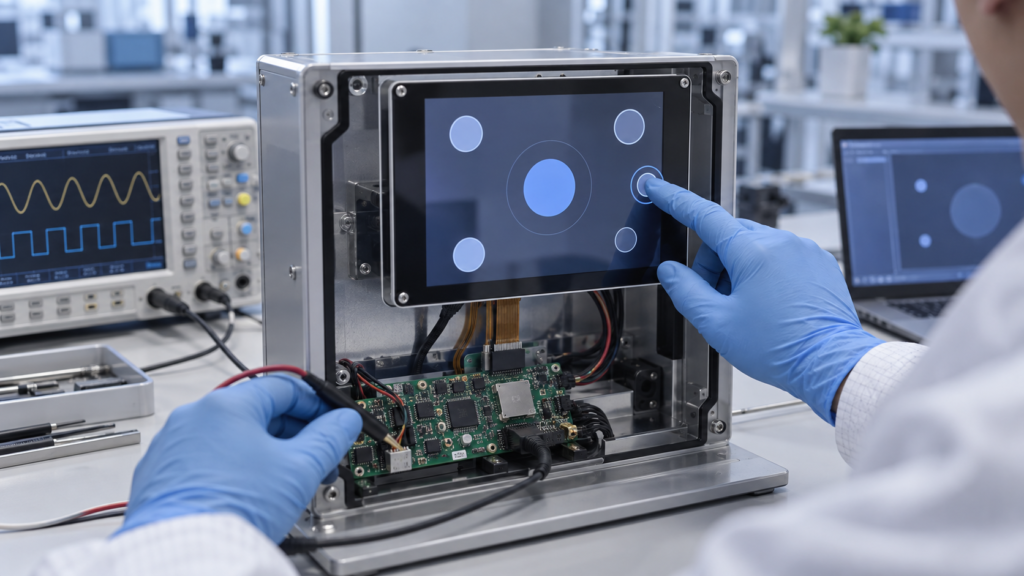
Test electrical and mechanical integration
Operate the display while motors, chargers, radio modules, switching power supplies, and other expected equipment are active. Route the final cables as they will appear in production. Check whether enclosure pressure, fasteners, adhesive, bezel contact, or cable bending changes touch behavior. Also verify that users cannot pull or pinch exposed cables during normal operation or service.
Repeat critical power and recovery events
Run repeated cold starts, warm restarts, sleep-and-wake cycles, signal disconnects, USB reconnects, and power interruptions. Confirm that the image and touch input recover without a hidden service step. If the equipment has a diagnostic or recovery mode, confirm whether touch must work there and test that condition separately.
Finish with written acceptance criteria. Record what counts as a pass for image stability, coordinate accuracy, edge response, required contacts, false-touch rejection, recovery, and physical appearance. This turns a subjective demonstration into a configuration that procurement, engineering, and production can control.
Choosing a Large Screen Touch Screen
A large screen touch screen is not simply a small capacitive touch display enlarged to a new diagonal. As the active area grows, the project must manage sensor routing, controller capability, cover-lens support, flatness, bonding, enclosure stiffness, cable length, electrical noise, transport, installation, and field service.
The user interface also changes. A person may operate a small display from one fixed position but approach a large touch screen from several angles. Touch targets, reach zones, viewing distance, hand support, accidental contact, and multi-user behavior must be evaluated on a full-scale prototype.
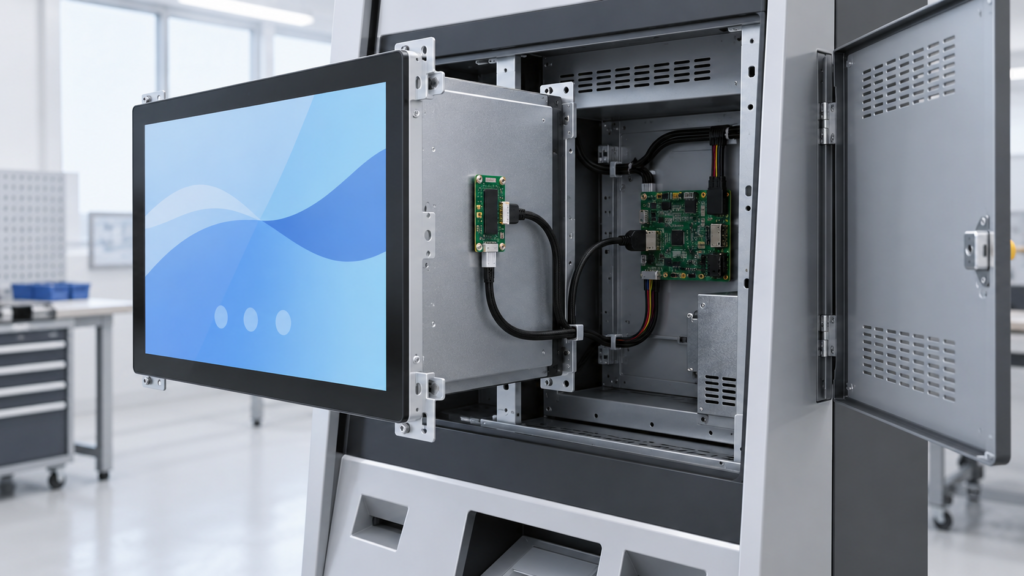
For some projects, a standard commercial or industrial monitor platform is the practical route. For others, an open-frame monitor or custom front assembly offers a better mechanical fit. RJY Display’s standard TFT portfolio is not a promise that every large touch-screen size or monitor structure is available. The feasible route must be confirmed from the target dimensions, interface, touch requirements, enclosure, quantity, and application environment.
Match the Touch Display Structure to the Application
Application labels do not replace engineering requirements, but they can reveal which risks deserve early attention.
- Industrial machine HMI: Prioritize glove or stylus needs, electrical noise, mounting, service access, operating temperature, repeated operation, and the relationship between the UI and physical machine controls.
- Self-service kiosk: Review public-use durability, clear touch targets, front-panel cleaning, cable security, enclosure access, idle-state behavior, and recovery after a host restart.
- Smart-home control panel: Focus on front-surface appearance, cover-glass design, viewing angle, standby behavior, wake response, wall depth, and coordination with the embedded host.
- Medical or laboratory equipment: Define cleaning materials, input tools, readability, alarm interaction, documentation, and the exact product-level compliance process. A display component should not be called medical-grade without supporting evidence.
- Vehicle-related equipment: Review brightness, reflections, temperature, vibration, power behavior, viewing position, nighttime UI, and mechanical support. Do not infer automotive qualification from a general LCD specification.
- Portable equipment: Balance brightness, touch behavior, battery power, thickness, weight, cover protection, connector retention, and the effect of hand grip on the touch system.
The purpose of this comparison is not to assign one touch technology to every application. It is to identify the tests, drawings, and configuration details that the project must define before production.
Common Touch Screen Selection Mistakes
- Treating touch as part of the video cable: The image and touch data often use different interfaces.
- Selecting only by diagonal size: Active area, resolution, outline, aspect ratio, and mounting determine fit.
- Assuming every PCAP screen has the same multi-touch support: Contact count and gesture behavior depend on the complete sensor, controller, firmware, driver, and operating-system path.
- Ignoring rotation and coordinate mapping: A detected touch device can still report the wrong position.
- Approving the cover glass separately: Lens thickness, printing, adhesive, grounding, and enclosure geometry can change touch behavior.
- Confusing a monitor with a computer: A monitor still needs an external host unless it includes a computing platform.
- Assuming a controller board is universal: The board must be matched and configured for the actual LCD and system.
- Using marketing labels as acceptance criteria: Terms such as industrial, rugged, outdoor, glove touch, and wet touch need project-specific definitions and tests.
When Does an OEM Project Need a Custom Touch Display?
A standard touchscreen monitor is often suitable when its size, inputs, housing, stand, and operating-system support already fit the equipment. Customization becomes useful when the display must become part of the product rather than an accessory attached to it.
Based on the selected module and project scope, customization can include:
- Cover-glass outline, opening, printed border, and surface requirements
- Touch-sensor and touch-controller matching
- Display and touch FPC direction or connector arrangement
- Backlight and visibility requirements
- Display interface and controller-board coordination
- Touch firmware, coordinate mapping, and host integration support
- Housing or mechanical-structure coordination around the display assembly
RJY Display focuses mainly on customization based on existing display modules. A custom project should not be assumed to include development of any completely new LCD panel size from scratch. For more detail, see the TFT LCD module with touch screen selection guide and RJY custom display solutions.
What to Provide When Requesting a Touch Display Solution
A precise brief allows the supplier to identify whether the project needs a panel, module, monitor, controller board, or complete embedded assembly. Prepare the following information:
- Product type and application
- Required structure: touch panel, display module, open-frame monitor, housed monitor, or panel PC
- Target display size, active area, resolution, and orientation
- Reference module, panel datasheet, or existing equipment drawing
- Host processor or computer platform
- Required display input or panel interface
- Required touch interface and operating system
- Number of contacts, gestures, and intended input tools
- Cover-glass, bonding, printing, and front-panel requirements
- Enclosure CAD, mounting method, FPC direction, and connector limits
- Brightness, viewing, lighting, cleaning, moisture, and environmental requirements
- Controller-board and firmware requirements
- Sample quantity, estimated annual demand, and project schedule
Choose the Complete Touch Architecture, Not Just the Screen
The right touch product is the one that fits the complete system. A touch panel, embedded capacitive touch display, touchscreen monitor, and touch computer can all provide on-screen input, but they solve different engineering problems.
Start by defining the product structure. Then verify the display path, touch path, software, cover glass, mounting, environment, and production plan. This process helps prevent a low-cost component choice from becoming an expensive system redesign.
If you are developing equipment that needs a custom touch display, request a touch display architecture review. Share the display size, resolution, host platform, video interface, touch interface, operating system, cover-glass requirements, mounting structure, and expected volume so RJY Display can review the feasible module and controller-board path before sampling.
Frequently Asked Questions
Is a touch screen the same as a touch screen monitor?
No. A touch screen may refer only to a touch sensor or to an LCD-and-touch assembly. A touch screen monitor normally adds display-control electronics, external video input, touch-data output, power input, and a mounting frame or housing.
Does HDMI carry touch data?
HDMI normally carries image and supported audio data. A touch monitor commonly uses a separate USB connection to return touch input to the host. Confirm the actual monitor and controller-board design before connecting the system.
Is every capacitive touch display multi-touch?
No. The supported number of contacts and gestures depends on the touch sensor, controller, firmware, driver, host operating system, and application. Verify the required behavior with the final assembly.
What is the difference between a touch monitor and a touch computer?
A touch monitor displays video from an external host and sends touch input back to that host. A touch computer or panel PC also includes the processor, memory, storage, system I/O, and operating-system platform.
Can an LCD module be converted into a touch display?
Often, a compatible touch sensor, touch controller, cover glass, bonding structure, and mechanical design can be reviewed for an existing LCD module. Feasibility depends on the module dimensions, active area, enclosure, optical requirements, host interface, and intended environment.
Can RJY customize a large touch screen?
RJY can review a large touch-screen requirement, but feasibility depends on the available display platform, target size, sensor and controller solution, cover structure, interface, enclosure, project quantity, and validation requirements. Availability should not be assumed before an engineering review.
What information is needed to confirm touch-display compatibility?
Provide the panel or monitor model, size, resolution, display interface, pin definition or datasheet, backlight requirements, touch controller and interface, host platform, operating system, cover-glass structure, enclosure constraints, environment, and required touch behavior.