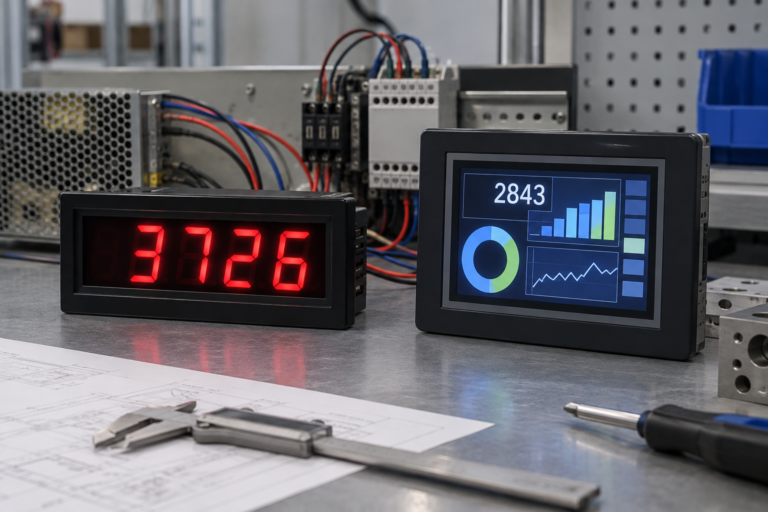
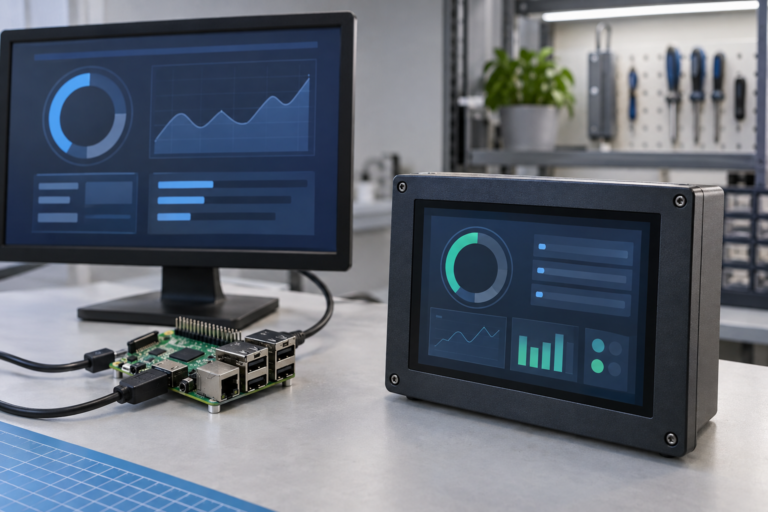
임베디드 디스플레이 프로젝트에 병목 현상을 겪고 계신가요?
복잡한 통합 작업이나 공급망 문제로 출시 시기가 지연되지 않도록 하십시오. 맞춤형 설계 및 제조 지원을 위해 RJY 전문가 팀과의 무료 상담을 예약하세요.

When a user walks up to an industrial control panel, a smart thermostat, or a medical ventilator, their expectation has already been set by the smartphone in their pocket. They expect fluid animations, instantaneous feedback, and an intuitive layout. However, as any embedded engineer or UI/UX designer working in the European and North American markets knows, designing a user interface for an embedded TFT touch display is a fundamentally different discipline than designing for iOS or Android.
You are not working with a multi-core gigahertz processor and gigabytes of RAM. You are often working with an STM32 or NXP microcontroller (MCU), limited flash memory, and an RGB565 color space. If you attempt to port a web-based UI directly onto a TFT touch display, the result will be sluggish, unresponsive, and visually broken.
This comprehensive, highly actionable guide breaks down the engineering realities and design psychology required to build a flawless, intuitive user interface specifically tailored for embedded TFT touch display hardware.
Before you open Figma, Adobe XD, or Sketch, you must understand the physical and computational constraints of your hardware. A brilliant UI design is useless if the MCU cannot render it at 30 Frames Per Second (FPS).
The type of touch panel integrated into your TFT touch display entirely dictates your interaction design:
In an industrial or medical setting, users are often stressed, distracted, or wearing personal protective equipment (PPE). Your UI must accommodate the “Fat Finger Problem” and adhere to ergonomic standards (such as ISO 9241-11 and ADA guidelines).
Fitts’s Law states that the time required to rapidly move to a target area is a function of the ratio between the distance to the target and the width of the target. Make your buttons big.
Do not pack buttons tightly together. Leave a minimum of 2mm to 3mm of dead space between interactive elements. Furthermore, avoid placing critical action buttons (like “Emergency Stop” or “Format Drive”) in the extreme corners of the TFT touch display. The extreme edges of standard PCAP and resistive touch panels are often the least sensitive areas due to the bezel overlay and sensor routing. Place critical buttons slightly inset from the bezel.
An embedded TFT touch display does not have the OLED-level contrast ratios of a modern iPhone. You must design your color palette defensively to compensate for the hardware’s optical characteristics.
Many embedded TFT displays use a 16-bit color format (RGB565) rather than 24-bit True Color (RGB888) to save RAM. RGB565 allows for 65,536 colors.
If your device is used outdoors or in a brightly lit factory floor, glare will wash out subtle color differences.
Embedded fonts are usually pre-rendered bitmaps to save processing power.
UI가 잘 최적화되어 있더라도, MCU 기반 TFT 터치 디스플레이가 새 화면을 로드하거나 복잡한 명령을 처리하는 데 100~300밀리초가 소요될 수 있습니다. 인간의 뇌는 100ms 이상의 지연을 “렉(lag)”으로 인식합니다. 이러한 지연을 가릴 수 있도록 UI를 설계해야 합니다.
사용자가 스마트폰에서 버튼을 누르면 햅틱 모터가 즉시 진동합니다. 하지만 TFT 터치 디스플레이에는 일반적으로 햅틱 모터가 없습니다. 따라서 즉각적인 피드백을 제공해야 합니다. 시각적 피드백.
즉시 간단하고 리소스 사용량이 적은 회전 스프라이트 또는 모래시계 아이콘을 표시하십시오.
"세 번 터치" 규칙.
스와이프로 뒤로 가기 제스처를 사용하는 스마트폰 앱과 달리, 임베디드 TFT UI는 항상 지속적인 탐색 표시줄(보통 화면 상단 또는 하단)을 갖추어야 합니다.
항상 눈에 잘 띄는 "홈" 버튼을 포함하십시오.
유럽 또는 미국 시장을 대상으로 개발하는 경우, 다음 업계 표준 프레임워크 중 하나를 활용해야 합니다:.
TouchGFX (STMicroelectronics):
TFT 터치 디스플레이를 위한 직관적인 UI를 설계하는 것은 공학적 공감(engineering empathy)의 연습입니다. 하드웨어의 한계에 공감하여 불필요한 그래픽 부하로 MCU에 과부하를 주지 않도록 해야 합니다. 더 중요한 것은, 고스트레스, 조명이 어둡거나 빠른 속도의 환경에서 장치를 작동할 수 있는 최종 사용자에게 공감해야 한다는 점입니다.
인체공학적 터치 대상(target)을 엄격히 준수하고, 하드웨어 제약을 가리기 위해 플랫 디자인 원칙을 활용하며, 즉각적인 시각적 피드백을 제공함으로써, 제품을 단순한 기능적 기계에서 프리미엄 전문가용 도구로 끌어올릴 수 있습니다.
Q: 아름다운 UI를 설계했지만 페이지 전환 시 화면이 심하게 깜빡입니다. 어떻게 해결합니까? A: 이를 “테어링(tearing)”이라고 합니다. MCU가 TFT 컨트롤러가 화면을 그리는 중에 디스플레이 버퍼를 업데이트할 때 발생합니다. 이중 버퍼링(double buffering)을 구현해야 합니다. 버퍼 B:. 이를 위해 두 개의 전체 프레임버퍼를 저장할 충분한 RAM을 확보해야 합니다. MCU는 다음 화면을 백그라운드 버퍼에 완전히 그린 후, VSYNC(수직 동기화) 기간 동안에만 활성 디스플레이로 교체합니다.
Q: 임베디드 UI에서 PNG 또는 JPEG 이미지를 사용할 수 있습니까? A: 일반적으로 불가능합니다. PNG나 JPEG와 같은 압축 이미지 형식을 디코딩하려면 막대한 CPU 오버헤드가 필요하며 MCU에서 너무 오래 걸립니다. UI 프레임워크(TouchGFX 또는 LVGL 등)는 컴파일 과정에서 PNG를 원시 C-배열(비트맵)로 변환합니다. 단점은 원시 비트맵이 플래시 메모리 공간을 훨씬 더 많이 차지한다는 점입니다.
Q: PCAP 터치 스크린에 물방울이 떨어지면 유령 터치(phantom touch)가 발생합니다. UI로 이를 해결할 수 있습니까? A: 소프트웨어는 정전식 노이즈를 필터링하는 데 한계가 있습니다. 터치 컨트롤러 코드에 “디바운스(debounce)” 알고리즘을 구현하여 초고속, 불규칙한 입력을 무시할 수는 있지만, 진정한 해결책은 하드웨어 기반입니다. 터치 컨트롤러 IC(예: Goodix, FocalTech)의 펌웨어를 조정하여 물과 사람 손가락의 정전 용량 신호를 구별하거나, 장치가 지속적으로 젖는 환경이라면 저항막 방식 터치 스크린으로 전환해야 합니다.
Q: 사용자 정의 폰트가 TFT 디스플레이에서 톱니 모양으로 거칠게 보입니다. 이유는 무엇입니까? A: 임베디드 TFT는 데스크톱 운영 체제에서 볼 수 있는 고급 서브픽셀 안티앨리어싱이 부족합니다. 이를 해결하려면 UI 프레임워크가 4비트 픽셀당(4bpp) 안티앨리어싱으로 폰트를 생성하도록 설정해야 합니다. 4bpp 안티앨리어싱.. 이렇게 하면 문자 주위에 반투명 픽셀을 추가하여 가장자리를 부드럽게 만듭니다. 또한 저해상도 화면에서 자연스럽게 더 잘 렌더링되는 굵은 산세리프 폰트를 사용하십시오.
Q: 산업 환경에서 색맹 사용자를 위해 어떻게 설계합니까? A: 중요한 정보를 전달하는 데 색상에만 의존하지 마십시오. 기계 상태가 “오류”로 변경될 때 단순히 상태 표시기를 녹색에서 빨간색으로 바꾸지 마십시오. 대신 모양도 변경(예: 녹색 원에서 빨간색 삼각형으로)하고 명시적인 텍스트(예: “FAULT”)를 추가하십시오. 이는 ADA(미국 장애인법)를 준수하고 사용자의 시력에 관계없이 안전을 보장합니다.
디스플레이 크기, 해상도, 인터페이스, 밝기, 터치 요구 사항, 컨트롤러 보드 요구 사항 및 적용 환경을 공유해 주십시오.
관련 디스플레이 기술 가이드 및 응용 참고 자료를 계속 읽어보십시오.
이 기사 주제와 관련된 제품 페이지를 탐색해 보십시오.