






When a user walks up to an industrial control panel, a smart thermostat, or a medical ventilator, their expectation has already been set by the smartphone in their pocket. They expect fluid animations, instantaneous feedback, and an intuitive layout. However, as any embedded engineer or UI/UX designer working in the European and North American markets knows, designing a user interface for an embedded TFT touch display is a fundamentally different discipline than designing for iOS or Android.
You are not working with a multi-core gigahertz processor and gigabytes of RAM. You are often working with an STM32 or NXP microcontroller (MCU), limited flash memory, and an RGB565 color space. If you attempt to port a web-based UI directly onto a TFT touch display, the result will be sluggish, unresponsive, and visually broken.
This comprehensive, highly actionable guide breaks down the engineering realities and design psychology required to build a flawless, intuitive user interface specifically tailored for embedded TFT touch display hardware.
1. Hardware Dictates Software: The Embedded Reality Check
Before you open Figma, Adobe XD, or Sketch, you must understand the physical and computational constraints of your hardware. A brilliant UI design is useless if the MCU cannot render it at 30 Frames Per Second (FPS).
MCU vs. MPU Constraints
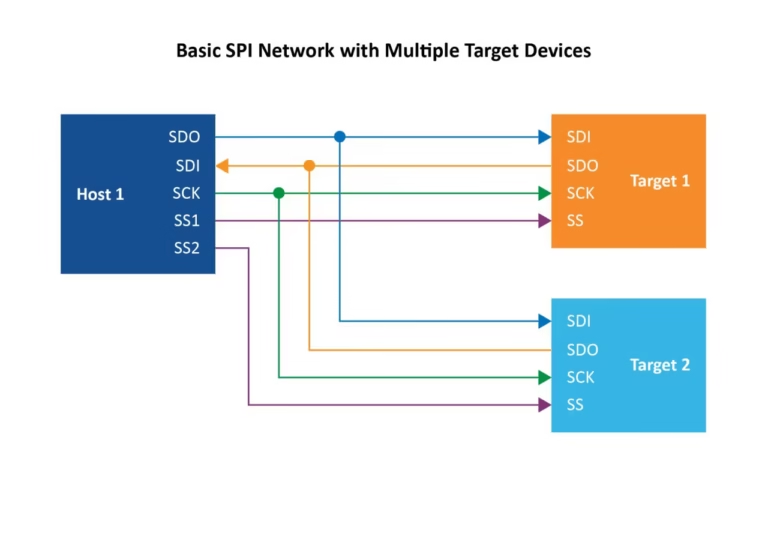
- MCU (Microcontroller Unit): If your TFT touch display is driven by an MCU (e.g., via SPI or an 8080 parallel interface), you do not have a dedicated GPU. Every pixel transition, alpha blending (transparency), and anti-aliased font requires the CPU to calculate the math.
- The UI Rule: Avoid full-screen animations, complex gradients, and overlapping transparent layers. Use flat design, solid colors, and sprite-based animations.
- MPU (Microprocessor Unit): If your display is driven by a Linux-based MPU (e.g., Raspberry Pi Compute Module, NXP i.MX) via MIPI DSI or HDMI, you have hardware acceleration.
- The UI Rule: You can implement fluid transitions, drop shadows, and vector graphics, but you must still optimize asset sizes to ensure fast boot times.
Resistive vs. PCAP Touch Limitations
The type of touch panel integrated into your TFT touch display entirely dictates your interaction design:
- プロジェクティブ容量式(PCAP): Supports multi-touch and light swipes (like a smartphone). You can use pinch-to-zoom and swipe-to-scroll gestures.
- 抵抗膜式: Requires physical pressure to register a touch. It is single-touch only. Do not use swipe gestures on a resistive screen. If a user tries to “swipe” a resistive screen, their finger will drag and skip, resulting in a terrible experience. Rely exclusively on clearly defined “Tap” buttons (Up/Down arrows) for navigation.
2. The Geometry of Interaction: Sizing, Spacing, and Ergonomics
In an industrial or medical setting, users are often stressed, distracted, or wearing personal protective equipment (PPE). Your UI must accommodate the “Fat Finger Problem” and adhere to ergonomic standards (such as ISO 9241-11 and ADA guidelines).
Touch Target Sizing (Fitts’s Law)
Fitts’s Law states that the time required to rapidly move to a target area is a function of the ratio between the distance to the target and the width of the target. Make your buttons big.
- Bare Hands (Consumer/Smart Home): The absolute minimum touch target size should be 9mm x 9mm (roughly 48×48 pixels on a standard 100-150 PPI display).
- Gloved Hands (Industrial/Medical): If the operator is wearing nitrile or heavy leather work gloves, buttons must be increased to a minimum of 15mm x 15mm to prevent accidental misclicks.
Spacing and “Dead Zones”
Do not pack buttons tightly together. Leave a minimum of 2mm to 3mm of dead space between interactive elements. Furthermore, avoid placing critical action buttons (like “Emergency Stop” or “Format Drive”) in the extreme corners of the TFT touch display. The extreme edges of standard PCAP and resistive touch panels are often the least sensitive areas due to the bezel overlay and sensor routing. Place critical buttons slightly inset from the bezel.
3. Visual Hierarchies and Color Psychology
An embedded TFT touch display does not have the OLED-level contrast ratios of a modern iPhone. You must design your color palette defensively to compensate for the hardware’s optical characteristics.
The RGB565 Limitation
Many embedded TFT displays use a 16-bit color format (RGB565) rather than 24-bit True Color (RGB888) to save RAM. RGB565 allows for 65,536 colors.
- The Problem: Subtle gradients will exhibit severe “color banding” (harsh, visible lines between color transitions).
- 解決策: Use flat UI design. If you must use gradients, apply a “dithering” effect to the image asset before loading it into your UI framework.
Contrast Ratios and Glare
If your device is used outdoors or in a brightly lit factory floor, glare will wash out subtle color differences.
- Avoid Low-Contrast Text: Gray text on a dark gray background looks sleek on your MacBook, but it will be entirely illegible on a 350-nit TFT panel under fluorescent lighting. Adhere to the WCAG 2.1 AA standard, which requires a contrast ratio of at least 4.5:1 for normal text and 3:1 for large text.
- True Black vs. Dark Gray: LCDs rely on a backlight. “Pure black” (#000000) on a TFT panel often looks like a glowing, washed-out dark gray in a dim room. Instead of pure black, use a rich dark blue or charcoal gray (#121212) for your backgrounds. It hides the backlight bleed and makes the UI look more premium.
Typographic Clarity
Embedded fonts are usually pre-rendered bitmaps to save processing power.
- Avoid thin, elegant serif fonts. They will look pixelated and broken on a 1024×600 resolution TFT touch display.
- Use robust, sans-serif fonts (like Roboto, Open Sans, or Inter). Keep font weights at “Regular” or “Bold.”
4. Compensating for Hardware Lag: The Illusion of Speed
Even with a well-optimized UI, an MCU-driven TFT touch display might take 100 to 300 milliseconds to load a new screen or process a complex command. To the human brain, anything over 100ms feels like “lag.” You must design the UI to mask this delay.
The Critical Role of State Changes
When a user presses a button on a smartphone, the haptic motor buzzes instantly. Your TFT touch display likely does not have a haptic motor. Therefore, you must provide instantaneous 合図 feedback.
- Pressed States: Every button must have a distinct “Pressed” state (e.g., the button turns a darker shade, or the shadow disappears to make it look “pushed in”). This state change must happen the millisecond the touch interrupt is triggered, before MCUが実際のコマンド処理を開始します。.
- 聴覚的フィードバック: ハードウェアに圧電ブザーが含まれている場合、有効なタッチ入力ごとに短く明確な20ミリ秒の「クリック音」をプログラムします。この聴覚的確認は、ユーザーのフラストレーションを大幅に軽減します。.
ローディングインジケーター
遷移に300ミリ秒以上かかる場合(例:SDカードへのデータ保存やWi-Fiネットワークの取得)、画面をフリーズさせたままにしないでください。ユーザーはデバイスがクラッシュしたと思い、画面を連打し始めます。.
- シンプルでリソース消費の少ない回転スプライトまたは砂時計アイコンを即座に表示します。.
5. ナビゲーションアーキテクチャ:認知負荷の平坦化
産業および専門環境では、ユーザーは閲覧ではなくタスクを実行しています。デバイス操作に必要な認知的負荷はほぼゼロでなければなりません。.
「3タップ」ルール
ユーザーはホーム画面から3タップ以内で重要な機能に到達できるべきです。必須の機械制御を深くネストされたメニューに埋め込まないでください。.
永続的ナビゲーション
スワイプで戻るジェスチャーを使用するスマートフォンアプリとは異なり、組み込みTFT UIには常に永続的なナビゲーションバー(通常は画面の上部または下部)を設けるべきです。.
- 常に視認性の高い「ホーム」ボタンを含めてください。.
- 常に「戻る」ボタンを含めてください。.
- 標準的で普遍的に認識されるアイコン(設定は歯車、メインダッシュボードは家)を使用してください。標準機能に独自のアイコンを考案しないでください。ユーザーは独自の視覚言語を学ぶ時間を持ちません。.
6. プロトタイピングと実装:技術スタック
UIデザイナーのFigmaファイルと組み込みエンジニアのC++コードの間のギャップを埋めることは、従来TFTタッチディスプレイ開発で最も困難な部分でした。幸い、現代のGUIフレームワークがこのワークフローを革新しています。.
欧州または米国市場向けに開発している場合、以下の業界標準フレームワークのいずれかを利用すべきです:
- TouchGFX(STMicroelectronics製): STM32 MCUを使用している場合、これはゴールドスタンダードです。高度に最適化されたC++コードを自動生成するWYSIWYG(What You See Is What You Get)デザイナーを含みます。低リソースハードウェアから60 FPSを引き出すために特別に構築されています。.
- LVGL(Light and Versatile Graphics Library): 非常に強力なオープンソースCライブラリです。ハードウェアに依存しないため、NXP、ESP32、STM32チップ上で実行できます。軽量ですが、TouchGFXよりも手動コーディングが若干多く必要です。.
- Qt for MCUs / Qt Design Studio: ハイエンド組み込みデバイス(MPUでLinuxを実行していることが多い)向けに、Qtはスマートフォンのような開発体験を提供します。高価ですが、最高レベルのグラフィック忠実度と迅速なプロトタイピングを実現します。.
結論:エンジニアリングにおける共感
TFTタッチディスプレイ向けの直感的なUIを設計することは、エンジニアリングにおける共感の実践です。ハードウェアの制限を理解し、不必要なグラフィック処理でMCUに過負荷をかけないようにしなければなりません。さらに重要なのは、高ストレス、低照度、または高速環境でデバイスを操作する可能性があるエンドユーザーに共感することです。.
人間工学的なタッチターゲットを厳守し、ハードウェア制約を隠すためのフラットデザイン原則を活用し、即時の視覚的フィードバックを提供することで、製品は単なる機能的な機械から高級でプロフェッショナルグレードのツールへと昇華します。.
よくある質問(FAQ)
Q: 美しいUIを設計しましたが、ページ遷移時に画面が激しくちらつきます。どう修正すればよいですか? A: これは「ティアリング」と呼ばれる現象です。TFTコントローラーが画面描画の最中にMCUがディスプレイバッファを更新すると発生します。これを解決するには を実装できます。. ダブルバッファリングを実装する必要があります。これには、2つの完全なフレームバッファを保持する十分なRAMを確保する必要があります。MCUは次の画面をバックグラウンドバッファに完全に描画し、VSYNC(垂直同期)期間中のみアクティブディスプレイと交換します。.
Q: 組み込みUIでPNGやJPEG画像を使用できますか? A: 一般的には使用できません。PNGやJPEGのような圧縮画像フォーマットのデコードには膨大なCPUオーバーヘッドが必要で、MCUでは時間がかかりすぎます。UIフレームワーク(TouchGFXやLVGLなど)はコンパイルプロセス中にPNGを生のC配列(ビットマップ)に変換します。トレードオフとして、生ビットマップはフラッシュメモリ空間を大幅に多く消費します。.
Q: PCAPタッチスクリーンで水滴が当たると誤タッチが発生します。UIで修正できますか? A: 容量性ノイズを除去するためにソフトウェアでできることは限られています。タッチコントローラーコードに「デバウンス」アルゴリズムを実装して超高速で不規則な入力を無視することは可能ですが、真の解決策はハードウェアベースです。タッチコントローラーIC(Goodix、FocalTechなど)のファームウェアを調整して、水と人間の指の静電容量特性を識別するか、デバイスが常に濡れる環境であれば抵抗膜式タッチスクリーンに切り替える必要があります。.
Q: カスタムフォントがTFTディスプレイ上でギザギザでピクセル化されて見えます。なぜですか? A: 組み込みTFTには、デスクトップOSに見られる高度なサブピクセルアンチエイリアシングがありません。これを修正するには、UIフレームワークが 1ピクセルあたり4ビット(4bpp)のアンチエイリアシング. でフォントを生成するように設定されていることを確認してください。これにより、文字の周囲に半透明ピクセルを追加してエッジを滑らかにします。また、太字のサンセリフフォントに固執することで、低解像度画面でも自然に描画されます。.
Q: 産業環境で色覚異常ユーザー向けにどのように設計すればよいですか? A: 重要な情報を伝えるために色だけに依存しないでください。機械の状態が「エラー」に変化した場合、単に状態インジケーターを緑から赤に変えるだけでは不十分です。さらに、形状(例:緑の円から赤の三角形へ)を変更し、明示的なテキスト(例:「故障」)を追加してください。これによりADA準拠が確保され、ユーザーの視力に関わらず安全性が保証されます。.