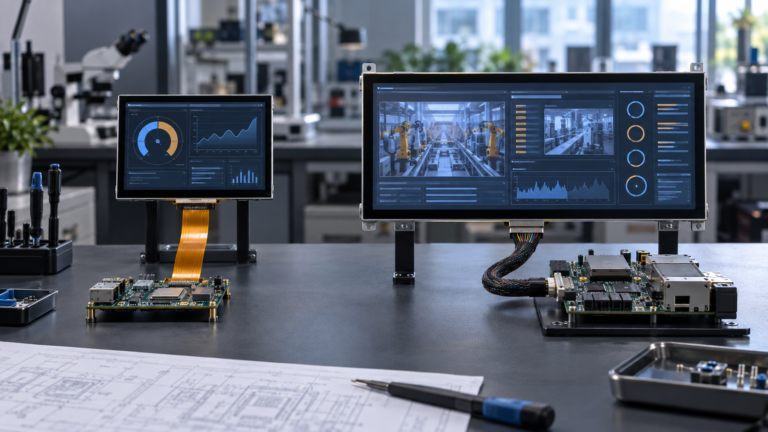
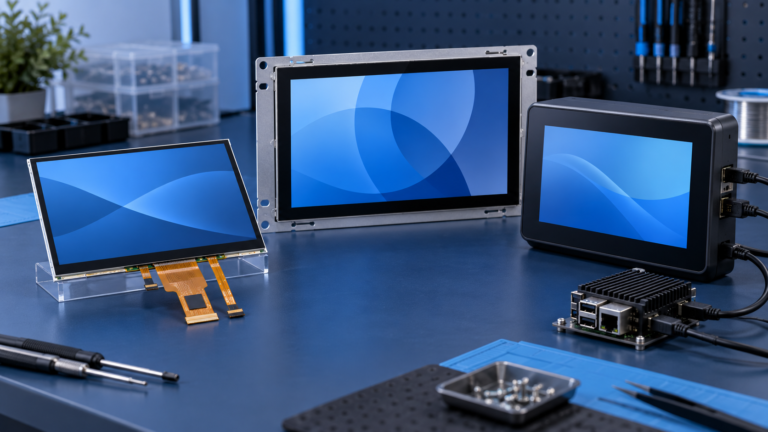
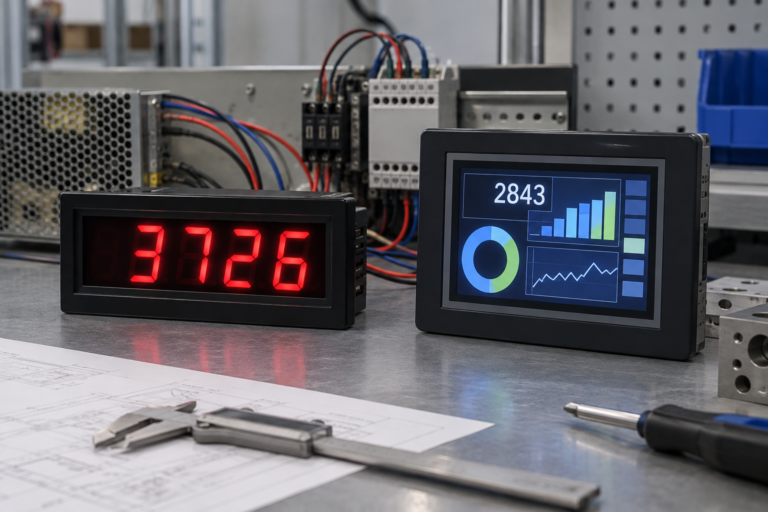
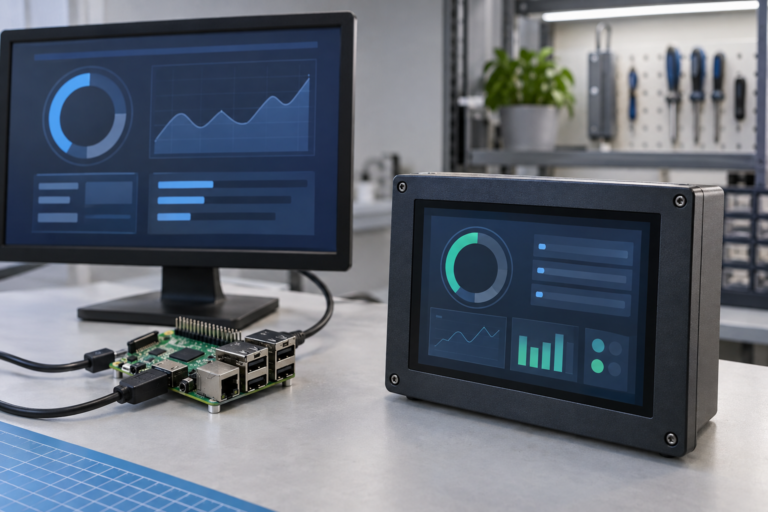
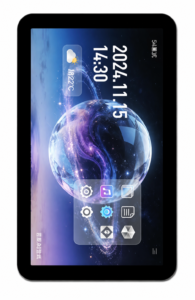
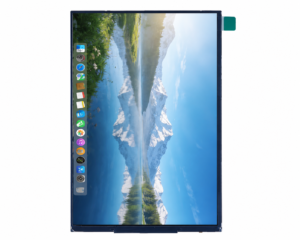
Wenn ein Benutzer an ein industrielles Bedienfeld, einen intelligenten Thermostat oder ein medizinisches Beatmungsgerät tritt, wurde seine Erwartung bereits durch das Smartphone in seiner Tasche geprägt. Er erwartet flüssige Animationen, sofortiges Feedback und ein intuitives Layout. Wie jedoch jeder Embedded-Ingenieur oder UI/UX-Designer, der auf dem europäischen und nordamerikanischen Markt tätig ist, weiß, unterscheidet sich das Design einer Benutzeroberfläche für ein eingebettetes TFT-Touchdisplay grundlegend von dem Design für iOS oder Android.
Sie arbeiten nicht mit einem Multi-Core-Gigahertz-Prozessor und Gigabyte RAM. Sie arbeiten oft mit einem STM32- oder NXP-Mikrocontroller (MCU), begrenztem Flash-Speicher und einem RGB565-Farbraum. Wenn Sie versuchen, eine webbasierte Benutzeroberfläche direkt auf ein TFT-Touchdisplay zu portieren, wird das Ergebnis träge, reaktionslos und visuell fehlerhaft sein.
Dieser umfassende, hochgradig umsetzbare Leitfaden erläutert die technischen Realitäten und die Designpsychologie, die erforderlich sind, um eine fehlerfreie, intuitive Benutzeroberfläche zu erstellen, die speziell für eingebettete TFT-Touchdisplay-Hardware zugeschnitten ist.
1. Hardware Dictates Software: The Embedded Reality Check
Bevor Sie Figma, Adobe XD oder Sketch öffnen, müssen Sie die physischen und rechnerischen Einschränkungen Ihrer Hardware verstehen. Ein brillantes UI-Design ist nutzlos, wenn der MCU es nicht mit 30 Bildern pro Sekunde (FPS) rendern kann.
MCU vs. MPU Constraints
- MCU (Mikrocontroller-Einheit): Wenn Ihr TFT-Touchdisplay von einem MCU angesteuert wird (z. B. über SPI oder eine 8080-Parallelschnittstelle), haben Sie keine dedizierte GPU. Jeder Pixelübergang, Alpha-Blending (Transparenz) und jede Anti-Aliasing-Schriftart erfordert, dass die CPU die Berechnungen durchführt.
- Die UI-Regel: Vermeiden Sie Vollbild-Animationen, komplexe Farbverläufe und überlappende transparente Ebenen. Verwenden Sie flaches Design, Volltonfarben und sprite-basierte Animationen.
- MPU (Mikroprozessor-Einheit): Wenn Ihr Display von einem Linux-basierten MPU (z. B. Raspberry Pi Compute Module, NXP i.MX) über MIPI DSI oder HDMI angesteuert wird, verfügen Sie über Hardwarebeschleunigung.
- Die UI-Regel: Sie können flüssige Übergänge, Schlagschatten und Vektorgrafiken implementieren, müssen aber dennoch die Asset-Größen optimieren, um schnelle Startzeiten zu gewährleisten.
Resistive vs. PCAP Touch Limitations
Die Art des in Ihr TFT-Touchdisplay integrierten Touchpanels bestimmt vollständig Ihr Interaktionsdesign:
- Projiziert-Kapazitiv (PCAP): Unterstützt Multi-Touch und leichte Wischbewegungen (wie ein Smartphone). Sie können Pinch-to-Zoom- und Swipe-to-Scroll-Gesten verwenden.
- Resistiv: Erfordert physischen Druck, um eine Berührung zu registrieren. Es ist nur Single-Touch. Verwenden Sie keine Wischgesten auf einem resistiven Bildschirm. Wenn ein Benutzer versucht, auf einem resistiven Bildschirm zu “wischen”, wird sein Finger ziehen und springen, was zu einer schlechten Erfahrung führt. Verlassen Sie sich ausschließlich auf klar definierte “Tipp”-Schaltflächen (Aufwärts-/Abwärtspfeile) für die Navigation.
2. The Geometry of Interaction: Sizing, Spacing, and Ergonomics
In einem industriellen oder medizinischen Umfeld sind Benutzer oft gestresst, abgelenkt oder tragen persönliche Schutzausrüstung (PSA). Ihre Benutzeroberfläche muss das “Fat-Finger-Problem” berücksichtigen und ergonomischen Standards (wie ISO 9241-11 und ADA-Richtlinien) entsprechen.
Touch Target Sizing (Fitts’s Law)
Das Fitts’sche Gesetz besagt, dass die Zeit, die benötigt wird, um sich schnell zu einem Zielbereich zu bewegen, eine Funktion des Verhältnisses zwischen der Entfernung zum Ziel und der Breite des Ziels ist. Machen Sie Ihre Schaltflächen groß.
- Bloße Hände (Consumer/Smart Home): Die absolute Mindestgröße für Berührungsziele sollte 9mm x 9mm (ungefähr 48×48 Pixel auf einem Standard-100-150-PPI-Display) betragen.
- Behandschuhte Hände (Industrie/Medizin): Wenn der Bediener Nitril- oder schwere Leder-Arbeitshandschuhe trägt, müssen die Schaltflächen auf mindestens 15mm x 15mm vergrößert werden, um versehentliche Fehlklicks zu vermeiden.
Abstände und “Totzonen”
Packen Sie Schaltflächen nicht zu eng zusammen. Lassen Sie mindestens 2mm bis 3mm toten Raum zwischen interaktiven Elementen. Vermeiden Sie es außerdem, kritische Aktionsschaltflächen (wie “Not-Aus” oder “Laufwerk formatieren”) in den äußersten Ecken des TFT-Touchdisplays zu platzieren. Die äußersten Ränder von Standard-PCAP- und resistiven Touchpanels sind aufgrund der Blendenabdeckung und des Sensor-Routings oft die unempfindlichsten Bereiche. Platzieren Sie kritische Schaltflächen leicht versetzt von der Blende.
3. Visual Hierarchies and Color Psychology
Ein eingebettetes TFT-Touchdisplay hat nicht die OLED-Kontrastverhältnisse eines modernen iPhones. Sie müssen Ihre Farbpalette defensiv gestalten, um die optischen Eigenschaften der Hardware zu kompensieren.
The RGB565 Limitation
Viele eingebettete TFT-Displays verwenden ein 16-Bit-Farbformat (RGB565) anstelle von 24-Bit-Echtfarben (RGB888), um RAM zu sparen. RGB565 ermöglicht 65.536 Farben.
- Das Problem: Subtile Farbverläufe werden starke “Farbstreifen” (harte, sichtbare Linien zwischen Farbübergängen) aufweisen.
- Die Lösung: Verwenden Sie flaches UI-Design. Wenn Sie Farbverläufe verwenden müssen, wenden Sie vor dem Laden in Ihr UI-Framework einen “Dithering”-Effekt auf das Bild-Asset an.
Contrast Ratios and Glare
Wenn Ihr Gerät im Freien oder in einer hell beleuchteten Fabrikhalle verwendet wird, werden Blendungen subtile Farbunterschiede auswaschen.
- Vermeiden Sie kontrastarmen Text: Grauer Text auf dunkelgrauem Hintergrund sieht auf Ihrem MacBook elegant aus, ist aber auf einem 350-Nit-TFT-Panel unter Leuchtstofflampen völlig unlesbar. Halten Sie sich an den WCAG 2.1 AA-Standard, der ein Kontrastverhältnis von mindestens 4,5:1 für normalen Text und 3:1 für großen Text erfordert.
- Echtes Schwarz vs. Dunkelgrau: LCDs sind auf eine Hintergrundbeleuchtung angewiesen. “Reines Schwarz” (#000000) auf einem TFT-Panel sieht in einem dunklen Raum oft wie ein leuchtendes, ausgewaschenes Dunkelgrau aus. Verwenden Sie anstelle von reinem Schwarz ein sattes Dunkelblau oder Anthrazitgrau (#121212) für Ihre Hintergründe. Es verdeckt das Hintergrundbeleuchtungs-Bleeding und lässt die Benutzeroberfläche hochwertiger wirken.
Typographic Clarity
Eingebettete Schriftarten sind in der Regel vorgerenderte Bitmaps, um Rechenleistung zu sparen.
- Vermeiden Sie dünne, elegante Serifenschriften. Sie werden auf einem 1024×600 TFT-Touchdisplay verpixelt und gebrochen aussehen.
- Verwenden Sie robuste, serifenlose Schriftarten (wie Roboto, Open Sans oder Inter). Halten Sie die Schriftstärken auf “Regular” oder “Bold”.”
4. Compensating for Hardware Lag: The Illusion of Speed
Selbst bei einer gut optimierten Benutzeroberfläche kann ein MCU-gesteuertes TFT-Touchdisplay 100 bis 300 Millisekunden benötigen, um einen neuen Bildschirm zu laden oder einen komplexen Befehl zu verarbeiten. Für das menschliche Gehirn fühlt sich alles über 100 ms wie “Verzögerung” an. Sie müssen die Benutzeroberfläche so gestalten, dass diese Verzögerung maskiert wird.
The Critical Role of State Changes
Wenn ein Benutzer auf einem Smartphone eine Taste drückt, vibriert der haptische Motor sofort. Ihr TFT-Touchdisplay hat wahrscheinlich keinen haptischen Motor. Daher müssen Sie sofortiges Feedback bereitstellen. Hinweise Feedback.
- Gedrückte Zustände: Jede Taste muss einen eindeutigen “Gedrückt”-Zustand haben (z. B. wird die Taste dunkler oder der Schatten verschwindet, um sie “eingedrückt” aussehen zu lassen). Diese Zustandsänderung muss in der Millisekunde erfolgen, in der der Touch-Interrupt ausgelöst wird, bevor der MCU mit der Verarbeitung des eigentlichen Befehls beginnt.
- Akustisches Feedback: Wenn Ihre Hardware einen piezoelektrischen Summer enthält, programmieren Sie für jede gültige Touch-Eingabe einen kurzen, knackigen 20-ms-“Klick”. Diese akustische Bestätigung reduziert die Frustration des Benutzers erheblich.
Loading Indicators
Wenn ein Übergang länger als 300 ms dauert (z. B. Speichern von Daten auf einer SD-Karte oder Abrufen von Wi-Fi-Netzwerken), lassen Sie den Bildschirm nicht eingefroren. Der Benutzer denkt, das Gerät sei abgestürzt, und beginnt, auf den Bildschirm zu hämmern.
- Zeigen Sie sofort ein einfaches, ressourcenschonendes rotierendes Sprite oder ein Sanduhr-Symbol an.
5. Navigational Architecture: Flatten the Curve
In industriellen und professionellen Umgebungen führen Benutzer Aufgaben aus, sie browsen nicht beiläufig. Die kognitive Belastung, die für die Bedienung Ihres Geräts erforderlich ist, muss nahezu null sein.
Die “Drei-Tipp”-Regel
Ein Benutzer sollte jede kritische Funktion innerhalb von drei Tipps vom Startbildschirm aus erreichen können. Vergraben Sie keine wesentlichen Maschinensteuerungen in tiefen, verschachtelten Menüs.
Persistent Navigation
Im Gegensatz zu einer Smartphone-App, die Wischgesten zum Zurückgehen verwendet, sollte eine eingebettete TFT-Benutzeroberfläche immer eine dauerhafte Navigationsleiste (normalerweise oben oder unten auf dem Bildschirm) aufweisen.
- Fügen Sie immer eine gut sichtbare “Home”-Taste hinzu.
- Fügen Sie immer eine “Zurück”-Taste hinzu.
- Verwenden Sie standardmäßige, allgemein anerkannte Symbolik (ein Zahnrad für Einstellungen, ein Haus für das Haupt-Dashboard). Erfinden Sie keine benutzerdefinierten Symbole für Standardfunktionen; Benutzer haben keine Zeit, Ihre proprietäre visuelle Sprache zu lernen.
6. Prototyping and Implementation: The Tech Stack
Die Überbrückung der Lücke zwischen der Figma-Datei des UI-Designers und dem C++-Code des Embedded-Ingenieurs ist historisch gesehen der schmerzhafteste Teil der TFT-Touchdisplay-Entwicklung. Glücklicherweise haben moderne GUI-Frameworks diesen Arbeitsablauf revolutioniert.
Wenn Sie für den europäischen oder US-amerikanischen Markt entwickeln, sollten Sie eines der folgenden branchenüblichen Frameworks verwenden:
- TouchGFX (von STMicroelectronics): Wenn Sie einen STM32-MCU verwenden, ist dies der Goldstandard. Es enthält einen WYSIWYG-Designer (What You See Is What You Get), der hochoptimierten C++-Code automatisch generiert. Es wurde speziell entwickelt, um aus ressourcenarmer Hardware 60 FPS herauszuholen.
- LVGL (Light and Versatile Graphics Library): Eine unglaublich leistungsstarke, quelloffene C-Bibliothek. Sie ist hardwareunabhängig, d. h. Sie können sie auf NXP-, ESP32- oder STM32-Chips ausführen. Sie ist leichtgewichtig, erfordert aber etwas mehr manuelle Codierung als TouchGFX.
- Qt für MCUs / Qt Design Studio: Für High-End-Embedded-Geräte (die oft Linux auf MPUs ausführen) bietet Qt eine smartphone-ähnliche Entwicklungserfahrung. Es ist teuer, bietet aber die höchste Stufe grafischer Wiedergabetreue und schnelles Prototyping.
Conclusion: Empathy in Engineering
Das Entwerfen einer intuitiven Benutzeroberfläche für ein TFT-Touchdisplay ist eine Übung in technischem Einfühlungsvermögen. Sie müssen sich in die Einschränkungen der Hardware hineinversetzen und sicherstellen, dass Sie den MCU nicht mit unnötigem grafischem Ballast überlasten. Noch wichtiger ist, dass Sie sich in den Endbenutzer hineinversetzen müssen, der Ihr Gerät möglicherweise in einer stressigen, schlecht beleuchteten oder schnelllebigen Umgebung bedient.
Durch die strikte Einhaltung ergonomischer Touch-Ziele, die Verwendung von Flat-Design-Prinzipien zur Maskierung von Hardware-Einschränkungen und die Bereitstellung sofortiger visueller Rückmeldungen heben Sie Ihr Produkt von einer bloßen funktionalen Maschine zu einem hochwertigen, professionellen Werkzeug.
Häufig gestellte Fragen (FAQ)
F: Wir haben eine schöne Benutzeroberfläche entworfen, aber der Bildschirm flackert heftig, wenn wir zwischen Seiten wechseln. Wie beheben wir das? A: Dies wird als “Tearing” bezeichnet. Es tritt auf, wenn der MCU den Anzeigepuffer aktualisiert, während der TFT-Controller gerade dabei ist, den Bildschirm zu zeichnen. Sie müssen ESP32 mit PSRAM verwenden), können Sie. implementieren. Dies erfordert, dass genügend RAM reserviert wird, um zwei vollständige Framebuffer zu halten. Der MCU zeichnet den nächsten Bildschirm vollständig im Hintergrundpuffer und tauscht ihn dann nur während der VSYNC-Periode (Vertical Synchronization) gegen die aktive Anzeige aus.
F: Können wir PNG- oder JPEG-Bilder in unserer eingebetteten Benutzeroberfläche verwenden? A: Im Allgemeinen nein. Das Dekodieren komprimierter Bildformate wie PNG oder JPEG erfordert massive CPU-Overhead und dauert auf einem MCU zu lange. UI-Frameworks (wie TouchGFX oder LVGL) konvertieren Ihre PNGs während des Kompilierungsprozesses in rohe C-Arrays (Bitmaps). Der Nachteil ist, dass rohe Bitmaps deutlich mehr Flash-Speicherplatz belegen.
F: Unser PCAP-Touchscreen registriert Geisterberührungen, wenn Wassertropfen darauf fallen. Kann die Benutzeroberfläche das beheben? A: Software kann nur begrenzt kapazitives Rauschen herausfiltern. Während Sie “Entprell”-Algorithmen in Ihrem Touch-Controller-Code implementieren können, um ultraschnelle, unregelmäßige Eingaben zu ignorieren, liegt die wahre Lösung hardwarebasiert. Sie müssen die Firmware des Touch-Controller-ICs (z. B. Goodix, FocalTech) abstimmen, um die Kapazitätssignatur von Wasser im Vergleich zu einem menschlichen Finger zu erkennen, oder auf einen resistiven Touchscreen umsteigen, wenn das Gerät ständig nass ist.
F: Warum sehen meine benutzerdefinierten Schriftarten auf dem TFT-Display gezackt und pixelig aus? A: Eingebetteten TFTs fehlt die fortschrittliche Subpixel-Antialiasing, die in Desktop-Betriebssystemen zu finden ist. Um dies zu beheben, stellen Sie sicher, dass Ihr UI-Framework so eingestellt ist, dass es Schriftarten mit 4-Bit-pro-Pixel (4bpp) Antialiasing generiert.. Dies glättet die Kanten, indem halbtransparente Pixel um die Buchstaben herum hinzugefügt werden. Bleiben Sie außerdem bei fetten, serifenlosen Schriftarten, die auf Bildschirmen mit niedrigerer Auflösung von Natur aus besser dargestellt werden.
F: Wie entwerfen wir für farbenblinde Benutzer in einer industriellen Umgebung? A: Verlassen Sie sich niemals ausschließlich auf Farbe, um kritische Informationen zu übermitteln. Wenn ein Maschinenzustand auf “Fehler” wechselt, ändern Sie nicht einfach eine Statusanzeige von Grün auf Rot. Ändern Sie zusätzlich die Form (z. B. von einem grünen Kreis zu einem roten Dreieck) und fügen Sie expliziten Text hinzu (z. B. “STÖRUNG”). Dies gewährleistet die Einhaltung der ADA-Richtlinien und garantiert Sicherheit unabhängig von der Sehschärfe des Benutzers.