Stehen Sie bei Ihrem Embedded-Display-Projekt vor einer Herausforderung?
Lassen Sie nicht komplexe Integration oder Lieferkettenprobleme Ihre Markteinführung verzögern. Vereinbaren Sie eine kostenlose Beratung mit dem RJY-Expertenteam für maßgeschneiderte Design- und Fertigungsunterstützung.
Wie man Defekte in Industriedisplays erkennt und repariert
Industrielle Umgebungen erfordern zuverlässige, leistungsstarke Displays, um einen reibungslosen Betrieb, Sicherheit und Produktivität zu gewährleisten. Selbst die robustesten LCD-Module können jedoch im Laufe der Zeit Probleme wie LCD-Punktdefekte, Flackern oder Touch-Fehlfunktionen aufweisen.
Veröffentlicht:
16 Minuten Lesezeit
Aktualisiert:
Industrielle Displays müssen in Umgebungen arbeiten, die anspruchsvoller sind als gewöhnliche Büro- oder Verbraucherdisplay-Anwendungen. Sie können Vibrationen, Temperaturschwankungen, Staub, Feuchtigkeit, elektrisches Rauschen, lange Betriebszeiten, feste Benutzeroberflächen, instabile Stromversorgung und wiederholte Touch-Eingaben ausgesetzt sein.
Wenn ein Display ausfällt, ist das sichtbare Symptom oft leicht zu beschreiben: Punkte auf dem Bildschirm, Flackern, unscharfer Text, dunkle Hintergrundbeleuchtung, keine Touch-Reaktion oder Farbverfälschungen. Die schwierigere Aufgabe besteht darin, zu identifizieren, ob der Defekt vom LCD-Panel, der Hintergrundbeleuchtung, der Stromversorgung, der Controller-Platine, dem Kabel, der Firmware, dem Touch-Sensor, dem Betriebssystem oder der Installationsumgebung stammt.
Dieser Leitfaden erklärt, wie Sie häufige industrielle Display-Defekte identifizieren, was realistisch repariert werden kann, wann ein Austausch sicherer ist und wie Sie wiederholte Ausfälle bei B2B-Geräten und Embedded-Display-Projekten vermeiden.
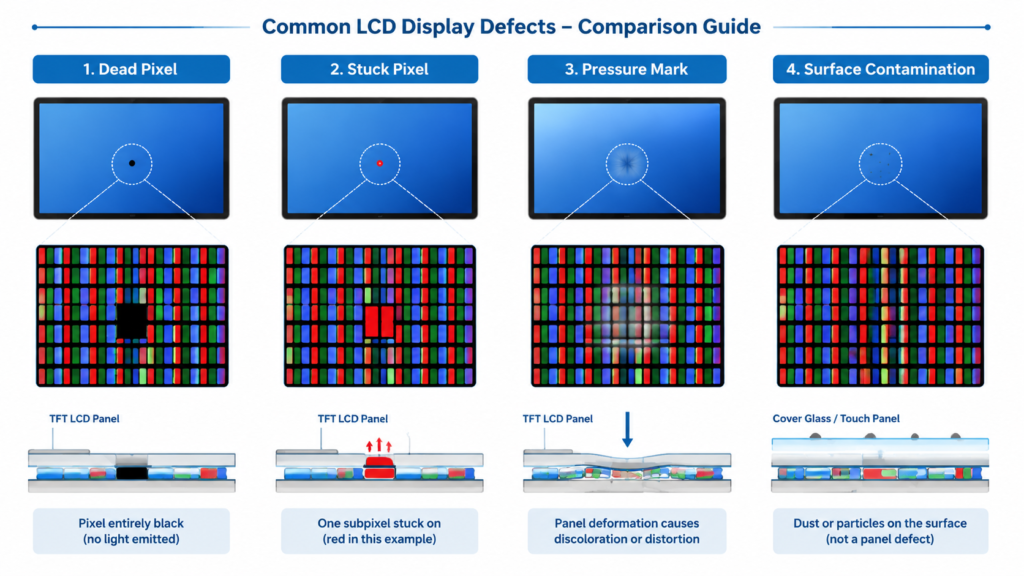
LCD-Defektvergleich mit toten Pixeln, hängenden Pixeln, Druckstellen und Oberflächenkontamination
Beginnen Sie mit einem sicheren Diagnoseprozess
Bevor Sie Komponenten austauschen, beginnen Sie mit einer strukturierten Diagnose. Viele Display-Probleme werden falsch diagnostiziert, weil das sichtbare Symptom auf dem Bildschirm erscheint, obwohl die Ursache außerhalb des LCD-Panels liegt.
Beispielsweise kann Flackern von instabiler Stromversorgung, einem lockeren Kabel, Display-Treiberkonflikten, elektromagnetischen Störungen oder einem defekten Hintergrundbeleuchtungskreis stammen. Ein unscharfer Bildschirm kann durch eine nicht native Auflösungseinstellung verursacht werden und nicht durch einen Panel-Schaden. Ein nicht reagierender Touchscreen kann durch Kalibrierung, Treiberfehler, Oberflächenkontamination, schlechte Erdung oder physische Beschädigung verursacht werden.
Verwenden Sie die folgende Reihenfolge, bevor Sie entscheiden, dass das Display-Panel selbst ausgefallen ist:
Überprüfen Sie die Stromversorgung und Erdung.
Inspizieren Sie externe Kabel und Steckverbinder.
Bestätigen Sie das Display-Eingangssignal und die Auflösungseinstellungen.
Starten Sie das Host-System und den Display-Controller neu.
Überprüfen Sie den Status von Software, Firmware und Treibern.
Inspizieren Sie die Bildschirmoberfläche, die Touch-Schicht und das Gehäuse.
Prüfen Sie Umgebungsfaktoren wie Hitze, Vibration, Staub, Feuchtigkeit und EMV.
Testen Sie mit einem bekanntermaßen funktionierenden Kabel, einer Stromquelle, einer Controller-Platine oder einem Host-Gerät, falls verfügbar.
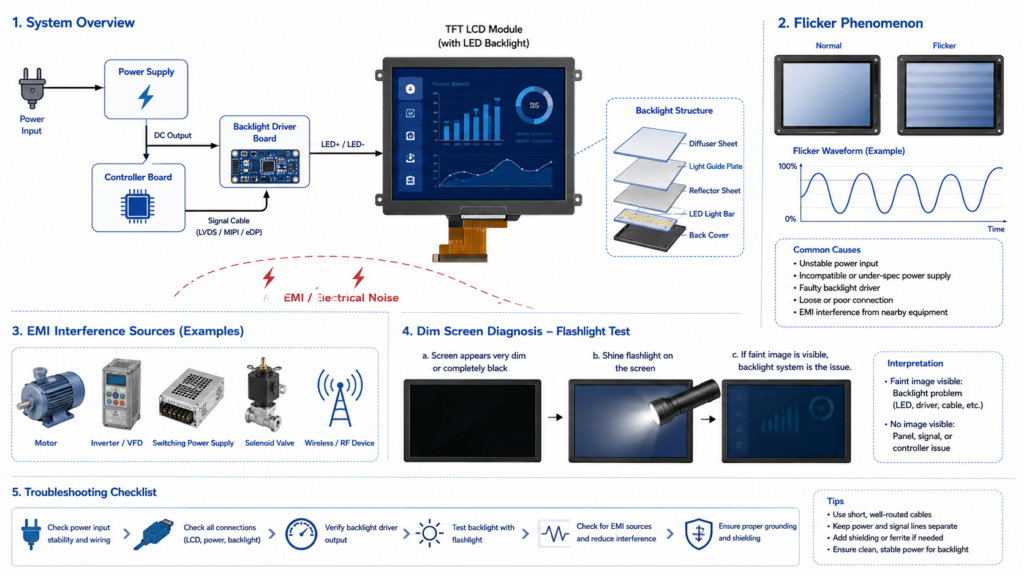
Arbeitsablauf zur Fehlerbehebung bei industriellen Displays mit Prüfungen von Stromversorgung, Kabel, Controller-Platine, Panel, Touch und Umgebung
Ein guter Wartungsprozess reduziert unnötige Panel-Austausche und hilft dem Engineering-Team zu identifizieren, ob das Problem elektrischer, mechanischer, optischer, softwarebezogener oder umgebungsbedingter Natur ist.
Häufige industrielle Display-Defekte im Überblick
Sichtbares Symptom
Wahrscheinlicher Bereich
Typische erste Überprüfung
Reparaturrichtung
Schwarze oder farbige Punkte
Pixel-Schaltkreis oder Panel
Vollbild-Farbtest
Wiederherstellungsversuch bei hängenden Pixeln oder Panel-Austausch
Bildschirmflackern
Stromversorgung, Signal, Treiber, Hintergrundbeleuchtung oder EMV
Clean, recalibrate, update driver, replace touch panel or controller
Color distortion
Backlight, panel, cable, settings, environment
Color settings, signal cable, temperature, uniformity
Calibrate, replace cable, inspect backlight or panel aging
Lines, bands, or partial image loss
FPC, driver IC, timing, panel bond, controller
Connector seating and signal source
Re-seat cable, replace controller board, or replace panel
Tote Pixel und Haftpixel
Dead and stuck pixels are among the easiest defects to notice. They appear as small dots that do not change normally when the image changes.
A dead pixel usually appears black because the pixel no longer lights or responds correctly. A stuck pixel usually stays red, green, blue, white, or another fixed color because one or more subpixels are stuck in an active state.
How to identify dead or stuck pixels
Display solid full-screen colors such as black, white, red, green, blue, and gray. A pixel that remains black on bright test screens may be dead. A pixel that remains bright or colored when it should change may be stuck.
Make sure the dot is not dirt, dust, surface damage, pressure damage, or a problem in the image source. Clean the screen carefully and test again with a known-good input signal.
Likely causes
Manufacturing-related pixel defect
Physical pressure on the display surface
Impact or vibration damage
Panel aging or electrical failure in the pixel circuit
Image retention or temporary pixel behavior in some cases
What can be repaired?
A true dead pixel is usually a hardware defect and cannot normally be repaired at the field level. A stuck pixel may sometimes recover through full-screen color cycling or pixel-refresh software, but this is not guaranteed.
Do not press hard on the display surface to “fix” a pixel. Pressure can damage the LCD cell, polarizer, touch panel, or cover glass. For industrial equipment, the safer decision is to document the defect, compare it with the applicable acceptance criteria, and replace the panel if the defect affects usability or quality requirements.
How to prevent repeat issues
Avoid pressure on the display surface during installation.
Use proper bezel, cover glass, or mechanical protection where needed.
Prevent enclosure stress from pressing unevenly on the LCD module.
Avoid exposing the panel to shock or vibration beyond the product design limit.
Use screen savers or UI movement for applications with long static images when appropriate.
Bildschirmflackern
Flickering is a repeated change in brightness, image stability, or screen visibility. In industrial environments, it can make HMI data difficult to read and may indicate power, signal, backlight, driver, or interference problems.
Flickering should not be treated as one single defect. The first question is whether the entire screen flickers, only part of the screen flickers, the backlight flickers, or the image signal flickers.
Likely causes
Unstable power input or voltage fluctuation
Loose, damaged, or poorly shielded signal cable
Grounding problem
Refresh rate or resolution mismatch
Display driver or operating system issue
Backlight driver failure
PWM dimming behavior at certain brightness levels
Electromagnetic interference from motors, inverters, relays, or nearby power equipment
How to troubleshoot flickering
Check whether the flicker occurs during startup, only after warm-up, or continuously.
Replace the signal cable with a known-good shielded cable.
Check the power supply voltage under load.
Confirm the display is running at its supported resolution and refresh rate.
Update or roll back the graphics driver if the issue began after a system change.
Test the display with another controller board or host system.
Move the signal cable away from motors, power lines, inverters, and high-current wiring.
Überprüfen, ob sich das Flimmern ändert, wenn die Bildschirmhelligkeit angepasst wird.
Reparaturrichtung
Wenn das Flimmern nach dem Wechsel von Kabel, Netzteil, Bildwiederholfrequenz oder Treiber verschwindet, ist das LCD-Panel wahrscheinlich nicht die Ursache. Wenn das Flimmern nach Tests mit einer stabilen Stromquelle und einem bekanntermaßen einwandfreien Signal bestehen bleibt, sind die Hintergrundbeleuchtungsschaltung, die Controller-Platine und die Panel-Schnittstelle zu prüfen.
An stark verrauschten Industriestandorten können Kabelschirmung, Erdung, Kabelführung und Netzfilterung wichtiger sein als der Austausch des Anzeigemoduls.
Unscharfe oder niedrig aufgelöste Anzeige
Ein unscharfes Bild ist nicht immer ein Panel-Defekt. In vielen Fällen wird das Display mit der falschen Auflösung oder Skalierungseinstellung angesteuert.
LCD-Panels besitzen eine native Auflösung. Wenn das Hostsystem eine andere Auflösung ausgibt, kann das Bild skaliert werden. Skalierung kann Text weich erscheinen lassen, Symbole unklar machen und feine Linien ungleichmäßig wirken lassen.
Likely causes
Die Host-Ausgabe ist nicht auf die native Auflösung des Panels eingestellt.
Die Skalierung des Betriebssystems ist für die Benutzeroberfläche ungeeignet.
Die Controller-Platine skaliert das Bild fehlerhaft.
Signalkabel oder Steckverbinder sind instabil.
Das Panel-Timing ist nicht korrekt konfiguriert.
Mechanische Stöße oder Vibrationen haben interne Steckverbinder beeinträchtigt.
Eine minderwertige Quellbild- oder UI-Ressource wird gestreckt.
Fehlerbehebung bei unscharfen Bildern
Die native Auflösung des LCD-Panels aus dem Datenblatt bestätigen.
Die Host-Ausgabe auf dieselbe Auflösung einstellen.
Unnötige Skalierung deaktivieren oder mit 100%-Skalierung testen.
Prüfen, ob das Problem im BIOS, im Boot-Bildschirm, im Betriebssystem und in der Anwendungs-Benutzeroberfläche auftritt.
Mit einer anderen Videoquelle oder Controller-Platine testen.
Kabel, FPC-Steckverbinder und Adapterplatinen prüfen.
Reparaturrichtung
Wenn die Unschärfe durch eine Auflösungsabweichung verursacht wird, ist die Lösung eine Konfigurationsänderung und keine Hardware-Reparatur. Wenn das Bild bei nativer Auflösung mit einem bekanntermaßen einwandfreien Signal weiterhin unscharf bleibt, sind die Controller-Platine, der Signalpfad und der Zustand des Panels zu prüfen.
Bei neuen Produktdesigns sollte die Display-Auflösung an die Benutzeroberfläche angepasst werden. Eine Auflösung sollte nicht nur deshalb gewählt werden, weil sie auf dem Papier hochwertig wirkt. Prozessor, Schnittstelle, Leistungsbudget und Anwendungslayout müssen diese ebenfalls unterstützen.
Hintergrundbeleuchtungsausfall und dunkle Bildschirme
Ein dunkles Display, ein schwarzer Bildschirm oder ein Bildschirm, der mit der Zeit dunkler wird, kann auf Probleme mit der Hintergrundbeleuchtung oder dem Hintergrundbeleuchtungstreiber hinweisen. Da LCD-Panels selbst kein Licht emittieren, ist die Hintergrundbeleuchtung für die Sichtbarkeit unerlässlich.
So identifizieren und reparieren Sie Defekte in Industrieanzeigen 4
So erkennen Sie einen Ausfall der Hintergrundbeleuchtung
Eine einfache erste Prüfung ist der Taschenlampentest. Wenn der Bildschirm schwarz erscheint, aber ein schwaches Bild sichtbar ist, wenn eine Taschenlampe dicht am Panel gehalten wird, ist das LCD-Bildsignal möglicherweise weiterhin vorhanden, während die Hintergrundbeleuchtung nicht korrekt funktioniert.
Dieser Test ist keine vollständige elektrische Diagnose, hilft jedoch dabei, zwischen “kein Bild” und “Bild vorhanden, aber keine Hintergrundbeleuchtung” zu unterscheiden.”
Likely causes
Degradation der LED-Hintergrundbeleuchtung
Alterung älterer CCFL-Hintergrundbeleuchtungen in Legacy-Displays
Ausfall der Treiberplatine der Hintergrundbeleuchtung
Wechselrichterausfall bei CCFL-basierten Systemen
Instabile Stromversorgungseingabe
Ausfall von Steckverbinder oder Kabel der Hintergrundbeleuchtung
Thermische Belastung durch Betrieb mit hoher Helligkeit
Reparaturrichtung
Bei Legacy-CCFL-Systemen kann ein Austausch oder eine Aufrüstung auf eine LED-hinterleuchtete Lösung praktikabel sein, sofern das Produktdesign dies zulässt. Bei LED-hinterleuchteten LCDs kann die Reparatur je nach Konstruktion den Austausch der Hintergrundbeleuchtungseinheit, der LED-Treiberplatine, der Netzteilplatine oder des gesamten Anzeigemoduls umfassen.
Bei vielen kompakten Industriedisplays ist der Austausch des gesamten LCD-Moduls zuverlässiger als der Versuch, die Hintergrundbeleuchtungsstruktur vor Ort zu reparieren. Die richtige Entscheidung hängt von Displaygröße, Verfügbarkeit, Reparaturarbeitskosten, Abdichtungsanforderungen und Ausfallrisiko ab.
Vorbeugungstipps
Die Hintergrundbeleuchtung sollte nicht länger als nötig mit maximaler Helligkeit betrieben werden.
Die Helligkeit an die tatsächliche Umgebungslichtsituation anpassen.
Sicherstellen, dass das Gehäuse eine geeignete Wärmeableitung ermöglicht.
Stabile Stromversorgung und geeignete Ansteuerungsbedingungen für die Hintergrundbeleuchtung verwenden.
Anforderungen an hohe Helligkeit bereits in der Entwurfsphase prüfen, nicht erst nach der Auslieferung.
Touchscreen reagiert nicht oder registriert Eingaben falsch
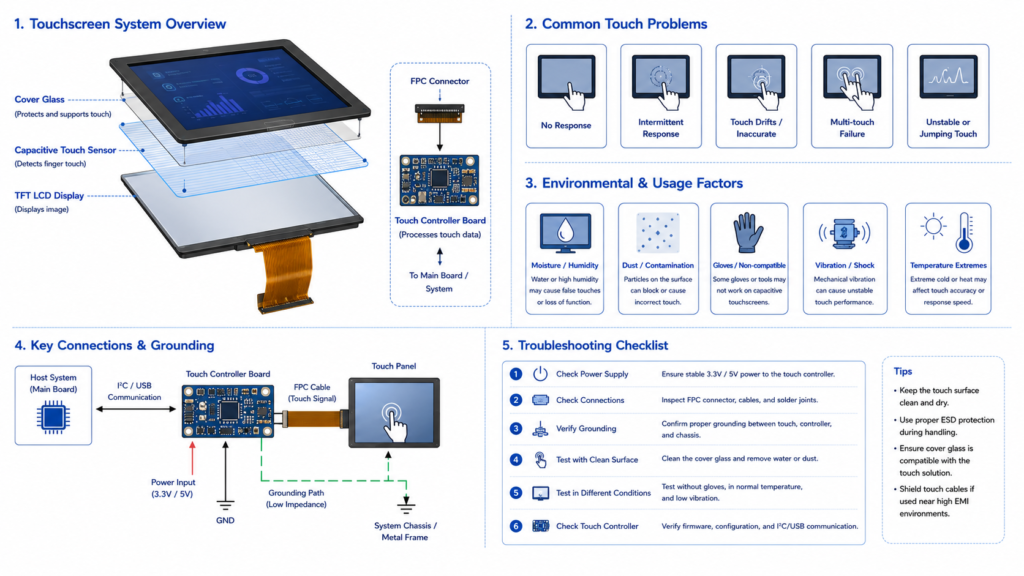
In industriellen HMI-Systemen kann ein Touch-Ausfall Bediener daran hindern, die Anlage zu steuern. Die Ursache kann im Touch-Panel, Touch-Controller, Kabel, Treiber, Erdung, Betriebssystem, Oberflächenzustand oder in Umgebungsstörungen liegen.
Häufige Symptome
Keine Touch-Reaktion
Touch funktioniert nur in einem Teil des Bildschirms
Touch-Punkt ist gegenüber der Fingerposition versetzt
Zufällige oder Geister-Touch-Eingaben treten auf
Touch funktioniert mit bloßen Fingern, aber nicht mit Handschuhen
Touch wird in feuchten oder stark verrauschten Umgebungen instabil
Likely causes
Verschmutzte oder beschädigte Touch-Oberfläche
Gerissenes Deckglas oder beschädigter Touch-Sensor
Lose USB-, I2C- oder FPC-Touchverbindung
Falscher oder fehlender Touch-Treiber
Kalibrierungsabweichung bei resistiven Touchpanels
Erdungs- oder EMV-Problem bei kapazitiven Touchsystemen
Feuchtigkeit, Staub, Öl oder Handschuhe wurden im Touch-Design nicht berücksichtigt
Fehlerbehebung bei Touch-Ausfällen
Reinigen Sie die Touch-Oberfläche mit einem geeigneten weichen Tuch und zugelassenem Reinigungsmittel.
Prüfen Sie auf Risse, Absplitterungen, Delamination, Kratzer oder Flüssigkeitseintritt.
Starten Sie das System neu und prüfen Sie, ob der Touch-Controller erkannt wird.
Prüfen Sie den Status von Touch-Treiber und Firmware.
Kalibrieren Sie das Touchpanel neu, wenn das System resistives Touch verwendet oder eine Kalibrierung erfordert.
Prüfen Sie Touch-Kabel und Steckverbinder.
Testen Sie Erdung und nahegelegene EMV-Quellen, wenn das kapazitive Touch instabil ist.
Testen Sie gegebenenfalls mit einem anderen Touchpanel oder einer anderen Controllerplatine.
Reparaturrichtung
Wenn das Problem software- oder kalibrierungsbedingt ist, kann die Reparatur einfach sein. Wenn der Touch-Sensor, das Abdeckglas oder die Verbindungsstruktur beschädigt ist, ist in der Regel ein Austausch erforderlich. Bei kapazitiven Touchsystemen können Erdung und Firmware-Abstimmung erforderlich sein, bevor entschieden wird, dass das Touchpanel selbst ausgefallen ist.
Bei Industrieanwendungen sollte die Touch-Auswahl auf den tatsächlichen Einsatzbedingungen basieren. Handschuhe, Wassertropfen, Staub, Öl, Stoßrisiko und Reinigungschemikalien sollten vor der endgültigen Festlegung des Displays überprüft werden.
Farbverfälschungen und ausgewaschene Bilder
Farbverfälschungen können als starke Blau-, Gelb-, Rot- oder Grünfärbung auftreten. Sie können auch als ausgewaschene Farben, ungleichmäßige Helligkeit, schlechter Kontrast oder Farbunterschiede über den Bildschirm erscheinen.
Bei Industriedisplays kann die Farbgenauigkeit für die Bildprüfung, Prozessüberwachung, Warnzustände, Dashboard-Interpretation und Konsistenz der Benutzeroberfläche wichtig sein. Allerdings benötigt nicht jedes Industriedisplay denselben Grad an Farbpräzision.
Likely causes
Falsche Farbeinstellungen oder Änderungen am Grafiktreiber
Falsches Anzeigeprofil oder falscher Farbmodus
Problem mit dem Signalkabel
Alterung der Hintergrundbeleuchtung oder ungleichmäßige LED-Leistung
Panel-Alterung
UV-Einwirkung oder übermäßige Hitze
Änderung der Flüssigkristallreaktion bei extremen Temperaturen
Problem mit Controllerplatine oder Timing
Fehlerbehebung bei Farbverfälschungen
Setzen Sie die Anzeigefarbeinstellungen auf einen bekannten Standard zurück.
Prüfen Sie die Grafikausgabe und das Farbprofil des Hostsystems.
Testen Sie mit einem anderen Signalkabel und einer anderen Eingangsquelle.
Vergleichen Sie das Display mit einem anderen bekanntermaßen einwandfreien Gerät unter derselben Beleuchtung.
Prüfen Sie auf lokale Farbflecken, Druckstellen oder hitzebedingte Schäden.
Prüfen Sie, ob sich das Problem nach dem Aufwärmen oder bei Temperaturänderung verändert.
Reparaturrichtung
Wenn das Problem durch Einstellungen, Farbprofil oder Kabelprobleme verursacht wird, kann die Reparatur unkompliziert sein. Wenn die Farbverschiebung durch Alterung der Hintergrundbeleuchtung, Panel-Schäden, Polarisator-Degradation oder Hitzestress verursacht wird, kann ein Modulaustausch erforderlich sein.
Für Anwendungen, bei denen Farbkonsistenz wichtig ist, definieren Sie die erforderliche Farbleistung bei der Produktauswahl. Gehen Sie nicht davon aus, dass jedes Industriedisplay für farbkritische Anwendungen ausgelegt ist.
Linien, Streifen und partieller Bildverlust
Vertikale Linien, horizontale Linien, fehlende Bildbereiche oder Streifenbildung können auf ein Problem im Signalpfad, in der Panel-Treiberschaltung, in der FPC-Verbindung, in der Timing-Konfiguration oder in der LCD-Zelle hinweisen.
Likely causes
Lose FPC- oder Board-to-Board-Verbindung
Beschädigtes Kabel oder Kontaktstift
Timing-Abweichung der Controllerplatine
Problem mit dem Panel-Treiber-IC
COF- oder Bonding-Fehler
Mechanische Belastung des LCD-Moduls
Feuchtigkeit oder Kontamination in der Nähe von Steckverbindern
Fehlerbehebung bei Linien und Streifen
Schalten Sie die Ausrüstung vor der Prüfung interner Steckverbinder sicher ab.
Prüfen Sie externe und interne Kabel auf Lockerheit oder Beschädigung.
Setzen Sie FPC-Steckverbinder nur neu ein, wenn geschultes Personal dies sicher durchführen kann.
Testen Sie mit einer anderen Signalquelle oder Controllerplatine.
Prüfen Sie, ob sich die Linien beim Aufwärmen des Geräts oder bei Vibration verändern.
Prüfen Sie auf gerissenes Glas, Druckstellen, Flüssigkeitseintritt oder Gehäusespannung.
Reparaturrichtung
Wenn das Problem durch ein loses Kabel verursacht wird, kann das erneute Einsetzen oder der Austausch des Kabels das Problem möglicherweise beheben. Wenn das Problem mit der Panelverklebung, einem Ausfall des Treiber-ICs oder einer Beschädigung des LCD-Glases zusammenhängt, ist eine Reparatur vor Ort in der Regel nicht praktikabel und ein Panel-Austausch ist normalerweise erforderlich.
Wann sollten Sie reparieren, ersetzen oder neu konstruieren?
Nicht jeder Defekt an Industriedisplays sollte auf Komponentenebene repariert werden. Die richtige Wahl hängt von Ausfallkosten, Sicherheitsrisiko, Teileverfügbarkeit, Abdichtungsanforderungen, Arbeitskosten und der Wahrscheinlichkeit eines erneuten Auftretens desselben Problems ab.
Situation
Beste Vorgehensweise
Grund
Loses externes Kabel oder falsche Auflösung
Reparieren oder neu konfigurieren
Kostengünstiges Problem außerhalb des Panels
Touch-Kalibrierungsdrift ohne physische Beschädigung
Neu kalibrieren oder Treiber aktualisieren
Software- oder Konfigurationsproblem kann möglicherweise behoben werden
Ausfall des Hintergrundbeleuchtungstreibers auf zugänglicher Platine
Treiberplatine ersetzen, falls verfügbar
Reparatur kann praktikabel sein, wenn die Modulkonstruktion dies unterstützt
Panelglasriss oder Druckschaden
Panel oder Modul ersetzen
Eine Beschädigung der LCD-Zelle ist in der Regel nicht vor Ort reparierbar
Echte tote Pixelcluster, die den Betrieb beeinträchtigen
Panel ersetzen, wenn außerhalb der Akzeptanzkriterien
Hardware-Pixelfehler sind in der Regel nicht reparierbar
Wiederholtes Flackern in derselben Geräteumgebung
Stromversorgung, Erdung, Abschirmung oder Montage neu gestalten
Wiederholte Ausfälle deuten auf eine systemische Ursache hin
Touch fällt bei Nässe oder mit Handschuhen wiederholt aus
Touch-Technologie und Abstimmung überprüfen
Das ursprüngliche Touch-Design entspricht möglicherweise nicht der Umgebung
Vorbeugende Wartung für industrielle Displays
Vorbeugende Wartung ist oft wertvoller als Notfallreparatur. Industriedisplays sollten im Rahmen der Gerätewartung inspiziert werden, insbesondere in Einrichtungen mit Vibration, Staub, Feuchtigkeit, Hitze, Spannungsschwankungen oder elektrischem Rauschen.
Eine praktische Wartungscheckliste umfasst:
Stabilität der Stromversorgung prüfen.
Signalkabel auf Lockerheit, Abnutzung oder Korrosion prüfen.
Sicherstellen, dass die Zugentlastung der Kabel weiterhin sicher ist.
Displayoberfläche mit zugelassenen Methoden reinigen.
Auf Kratzer, Risse oder Beschädigungen der Abdichtung prüfen.
Helligkeitseinstellungen und Laufzeit der Hintergrundbeleuchtung prüfen, sofern verfügbar.
Sicherstellen, dass das Display mit nativer Auflösung betrieben wird.
Touch-Kalibrierung und Touch-Reaktion prüfen.
Firmware, Grafiktreiber und Konfiguration der Controllerplatine überprüfen.
Gehäuse auf Wärmestau oder mechanischen Druck auf das LCD prüfen.
Bei intermittierenden Symptomen nahegelegene EMV-Quellen prüfen.
So reduzieren Sie Display-Defekte während des Produktdesigns
Viele Ausfälle von Industriedisplays werden durch Konstruktionsentscheidungen vor der Inbetriebnahme beeinflusst. Ein Display, das auf dem Prüfstand funktioniert, kann im Feld ausfallen, wenn Gehäuse, Stromversorgungssystem, Kabelführung, Touch-Struktur, Hintergrundbeleuchtungshelligkeit oder Montagemethode nicht der realen Umgebung entsprechen.
Für ein zuverlässigeres Design sollten die folgenden Punkte frühzeitig überprüft werden:
Display-Größe und Auflösung
Kompatibilität von Schnittstelle und Controllerplatine
Stromversorgungseingang und Anforderungen an die Hintergrundbeleuchtungsansteuerung
Touch-Typ und Touch-Umgebung
Abdeckglas und Frontstruktur
Mechanische Montage und Vibrationsbelastung
Thermische Auslegung im Gehäuse
Anforderungen an Staub, Feuchtigkeit und Reinigung
EMV-Umgebung und Kabelführung
Statische UI-Inhalte und Betriebszeit der Hintergrundbeleuchtung
Mustertests vor der Serienproduktion
Für langfristige industrielle Anwendungen sollte ein Display als Teil des Gesamtsystems ausgewählt werden, nicht als eigenständiger Bildschirm. Das LCD-Panel, Touchpanel, Controller-Board, die Firmware, das Gehäuse, die Stromversorgung und die Benutzerumgebung müssen zusammenwirken.
RJY Display-Support für industrielle Display-Fehlerbehebung und kundenspezifische Projekte
RJY Display unterstützt TFT-LCD-Module, Controller-Boards, Touch-Display-Lösungen sowie Anpassungsgespräche für technisch getriebene Projekte. Bei industriellen Display-Problemen besteht der praktische Weg darin, zu ermitteln, ob das Problem durch das Panel, die Hintergrundbeleuchtung, das Controller-Board, das Stromversorgungssystem, die Schnittstelle, die Touch-Struktur, die Firmware oder die Umgebung verursacht wird.
Für neue Projekte kann RJY Display bei der Überprüfung von Displaygröße, Auflösung, Schnittstelle, Helligkeit, Touch-Anforderung, Abdeckglas-Anforderung, Controller-Board-Anforderung, Firmware-Anforderung, Betriebsumgebung und erwartetem Produktionsbedarf helfen.
Für Ersatz- oder Fehlerbehebungsprojekte senden Sie bitte Fotos oder Videos des Defekts, die LCD-Modellnummer, Informationen zum Controller-Board, die Stromversorgungseingabe, die Signalquelle, die Betriebsumgebung und die Fehlerbedingungen.
Industrielle Display-Defekte sollten systematisch diagnostiziert werden. Ein sichtbares Bildschirmproblem bedeutet nicht immer, dass das LCD-Panel selbst ausgefallen ist. Tote Pixel, Flackern, unscharfe Bilder, dunkle Bildschirme, Touch-Ausfälle, Farbverzerrungen und Linienfehler können aus verschiedenen Teilen des Display-Systems stammen.
Einige Probleme können durch Reinigung, Kalibrierung, Kabelaustausch, Treiberaktualisierungen, Stromstabilisierung oder den Austausch des Controller-Boards behoben werden. Andere Probleme, wie gerissenes LCD-Glas, fehlgeschlagene Panel-Bonding, starke Alterung der Hintergrundbeleuchtung oder echte tote Pixel-Cluster, erfordern in der Regel einen Panel- oder Modulaustausch.
Die beste langfristige Lösung ist die Prävention. Wählen Sie das Display basierend auf der tatsächlichen Betriebsumgebung aus, bestätigen Sie die Kompatibilität von Schnittstelle und Controller-Board, schützen Sie den Bildschirm mechanisch, verwalten Sie Wärme und Stromqualität und planen Sie vorbeugende Wartung, bevor Ausfälle die Ausrüstung stoppen.
FAQ
Was sind die häufigsten industriellen Display-Defekte?
Echte tote Pixel sind in der Regel Hardware-Fehler und normalerweise nicht auf Feldebene reparierbar. Eingefrorene Pixel können sich manchmal durch Farbzyklen oder Pixel-Refresh-Tools erholen, aber die Wiederherstellung ist nicht garantiert.
Warum flackert mein industrielles Display?
Flackern bei industriellen Displays kann durch instabile Stromversorgung, lose Kabel, schlechte Abschirmung, Erdungsprobleme, Bildwiederholraten-Mismatch, Grafiktreiber-Probleme, Ausfall des Hintergrundbeleuchtungstreibers, PWM-Dimmverhalten oder elektromagnetische Störungen verursacht werden.
Ein unscharfes Display wird oft durch den Betrieb des Panels mit einer nicht nativen Auflösung, falsche Skalierung, instabile Signaleingabe, Controller-Board-Skalierung oder schlechte Quellbildqualität verursacht. Hardware-Probleme sind möglich, sollten aber erst überprüft werden, nachdem Konfigurationsprobleme ausgeschlossen wurden.
Wie kann ich feststellen, ob die Hintergrundbeleuchtung ausgefallen ist?
Wenn der Bildschirm sehr dunkel ist, aber ein schwaches Bild sichtbar ist, wenn eine Taschenlampe nahe an das Panel gehalten wird, ist das LCD-Signal möglicherweise noch vorhanden und die Hintergrundbeleuchtung oder der Hintergrundbeleuchtungstreiber könnte ausfallen.
Touch-Ausfälle können durch Oberflächenverschmutzung, physische Schäden, lose Touch-Kabel, fehlende Treiber, Kalibrierungsfehler, Erdungsprobleme, EMV, Feuchtigkeit oder einen beschädigten Touch-Sensor oder Controller verursacht werden.
Kann ein Touchscreen neu kalibriert werden?
Ja, viele resistive Touchscreens und einige industrielle Touch-Systeme können über Systemtools oder Treiber-Dienstprogramme neu kalibriert werden. Wenn der Touch-Sensor physisch beschädigt ist, wird eine Neukalibrierung das Problem nicht lösen.
Wann sollte ein industrielles Display ersetzt statt repariert werden?
Ein Ersatz ist in der Regel sicherer, wenn das LCD-Glas gerissen ist, das Panel-Bonding versagt hat, die Hintergrundbeleuchtung stark gealtert ist, das Touch-Glas beschädigt ist oder der Defekt aufgrund eines Panel-Ebene-Fehlers wiederholt auftritt.